
Paper GSM, or grams per square meter, measures the density and weight of paper, directly influencing how a sheet feels, how much light passes through it, and how smoothly it feeds through your printer. Choosing the right weight requires balancing your document’s purpose with your printer’s mechanical limits to avoid frustrating paper jams or poor ink adhesion. By matching your specific printing tasks to the correct GSM range, you can ensure crisp, professional results without risking damage to your office equipment.
What Does Paper GSM Actually Mean?
GSM stands for Grams per Square Meter. It is a standardized metric used globally to measure the weight of paper. Instead of measuring the thickness of a single sheet, which can vary based on the manufacturing process and fiber composition, GSM calculates the weight of a sheet of paper that is exactly one square meter in size. This provides a consistent baseline for comparing different paper types, regardless of their final cut size or brand.
Generally, a higher GSM indicates a heavier, denser sheet of paper. While higher GSM often correlates with a thicker feel, the primary physical characteristics it influences are opacity, stiffness, and overall durability. Heavy paper prevents light and ink from showing through to the other side, making it feel more premium and robust. Conversely, lower GSM paper is thinner, more translucent, and highly flexible, which is ideal for high-volume, single-sided utility printing.
Products mentioned in this guide
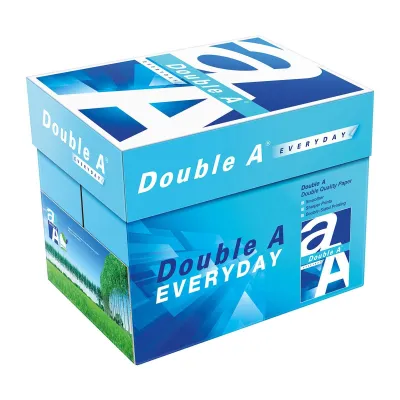
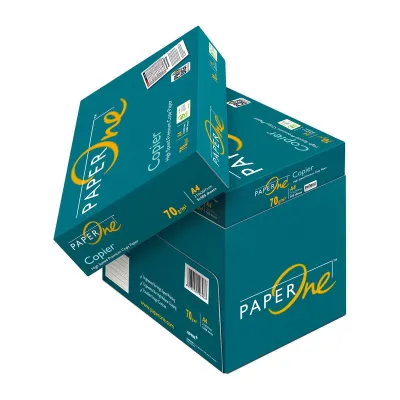
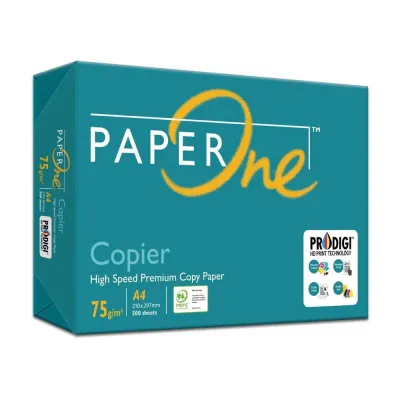
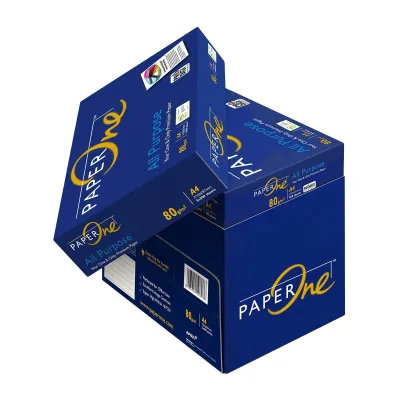
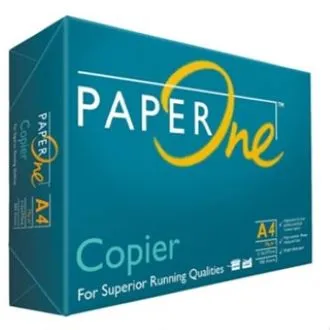
Prices are valid at publication and may change. Please refer to the product page for the latest price.
How to Find Your Printer's Supported Paper Weight
Every printer has mechanical limitations regarding the thickness and weight of the media it can reliably pull through its rollers. To find your printer’s supported GSM range, consult the user manual or the manufacturer’s official specifications page online. Most standard home and office printers are optimized for a specific range, typically between 60 GSM and 120 GSM, though some specialized models can handle much heavier cardstock.
It is important to distinguish between the capabilities of different paper trays on the same machine. The primary paper cassette or input tray usually has a lower maximum weight limit because the paper must navigate a tight, curved path around internal rollers. In contrast, a manual feed slot or bypass tray often features a flatter, more direct paper path, allowing the machine to process heavier media without bending it excessively.
Attempting to force paper that exceeds your printer’s maximum supported GSM can lead to immediate hardware issues. The rollers may slip, causing frequent paper jams, or the paper may get stuck entirely, potentially damaging delicate internal sensors and gears. Additionally, laser printers rely on heat to fuse toner to the page; if the paper is too thick, the fuser may not reach the temperature required to melt the toner completely, resulting in prints that smudge or flake off.
Matching Paper Weight to Your Printing Tasks
Selecting the right paper weight depends heavily on the nature of your document and how it will be handled. For everyday office tasks, such as printing emails, drafts, and internal memos, standard copy paper ranging from 70 GSM to 80 GSM is the most practical choice. This weight is lightweight, cost-effective, and flows smoothly through high-speed office copiers, though it may exhibit some show-through if printed on both sides.
For double-sided documents, formal correspondence, and external presentations, upgrading to 90 GSM or 100 GSM paper is highly recommended. This range offers excellent opacity, ensuring that text printed on the reverse side does not distract the reader. The added stiffness also gives reports and proposals a more professional, substantial feel in the hand, making it ideal for client-facing materials.
When producing marketing brochures, certificates, or heavy-duty covers, weights of 120 GSM to 160 GSM or higher are appropriate. However, you must verify how your specific printer technology interacts with these heavier stocks. Inkjet printers require paper with compatible surface coatings to absorb liquid ink without warping, while laser printers require heat-resistant media to handle high fusing temperatures. Always check whether the paper is labeled as uncoated, matte, or glossy, and ensure it matches your printer type.
Practical Steps for Testing and Buying Paper
Before committing to a bulk purchase of a new paper weight, it is wise to buy a single small pack or obtain sample sheets to conduct a trial run. Testing a few sheets allows you to observe how the paper feeds through your specific machine, whether it curls under the heat of a laser printer, and how quickly the ink dries. This simple step prevents the waste of purchasing large quantities of incompatible media.
When shopping, carefully examine the packaging labels for compatibility indicators. Look for terms like “laser optimized” or “inkjet compatible” alongside the GSM rating. These labels indicate that the paper has been treated to handle the specific dry toner or liquid ink chemistry of those printing systems, which directly affects line sharpness and color vibrancy.
Once you load the chosen paper, adjust your printer’s software settings before hitting print. In your computer’s print dialogue box or the printer’s control panel, locate the media type or paper weight settings. Changing this setting from “plain paper” to “heavy paper,” “bond,” or the specific GSM range instructs the printer to adjust its feed speed and fuser temperature, ensuring optimal toner adhesion and preventing feed errors.
Frequently Asked Questions (FAQ)
Can I use heavier paper if my printer doesn't officially support it?
Exceeding your printer’s official GSM limit is not recommended, as it can cause persistent paper jams, roller wear, and poor print quality. If you must print on heavy stock, check if your printer has a manual bypass tray, which handles thicker media better than the standard tray. For projects requiring very heavy cardstock beyond your device’s limits, outsourcing the job to a professional local print shop is the safest way to protect your equipment.
Does higher GSM always mean better print quality?
No, a higher GSM does not automatically guarantee sharper text or more vibrant colors. While heavier paper feels more premium and prevents ink from bleeding through to the back, actual print quality depends on the paper’s surface smoothness, brightness, and specialized coatings. A lightweight paper with a high-quality inkjet coating will often produce sharper images than a heavy, uncoated paper that allows liquid ink to feather and spread.

Community discussion
Share your experience or ask a question. Comments are reviewed before publication.