
Paper GSM stands for Grams per Square Meter, which measures the density and weight of the paper. This metric directly influences print quality by determining how well the sheet resists ink bleed-through, holds its shape, and feels in the hand. It also dictates printer compatibility, as every printer has a specific mechanical limit for the minimum and maximum paper weights it can reliably feed through its rollers without jamming. Selecting the right GSM involves balancing your document’s visual requirements with your printer’s physical capabilities.
Understanding Paper GSM and Weight Labels
When shopping for print paper, the most prominent number on the packaging—aside from the sheet size—is typically the GSM rating. GSM, or Grams per Square Meter, is the standard metric unit used globally to measure paper density. It is calculated by weighing a single sheet of paper that measures exactly one square meter. This measurement provides a consistent standard for comparing different paper types, regardless of the final sheet size you purchase, whether it is A4, A3, or letter size.
It is important to distinguish GSM from other paper characteristics like physical thickness (often called caliper) or brightness. While a higher GSM generally corresponds to a heavier and sturdier sheet, it does not automatically mean the paper is physically thicker. Manufacturing techniques, fiber types, and surface finishes can compress a high-weight paper into a relatively thin sheet. Similarly, brightness refers to how much light the paper reflects, which is entirely unrelated to its weight.
Products mentioned in this guide
![PaperOne A3 A4 A5 Printing Paper | Double A A4 Printing Paper | Fujifilm A4 Printing Paper [70gsm | 80gsm | 100gsm]](https://img.lazcdn.com/g/p/e6656a7d0c70606a115a8596caf6a15d.png_400x400q80.png_.webp)
![PaperOne A4 Printing Paper - All Purpose Paper 80gsm [Available in Single Ream / Box]](https://img.lazcdn.com/g/p/27dcdcd07b80cf8dfb582f4178a0997b.png_400x400q80.png_.webp)
![PaperOne™ Digital Premium Quality 100gsm Copy Paper A4 [2 Reams]](https://img.lazcdn.com/g/p/19b942556bf5e935f0ea0c7e4750b7df.jpg_400x400q80.jpg_.webp)
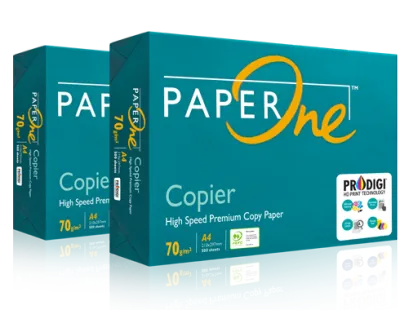
![PaperOne™ Copier Paper 70gsm / 75gsm Copy Paper A4 [1 Box]](https://img.lazcdn.com/g/p/62f961291078a3b12171dd45eea2a9a4.jpg_400x400q80.jpg_.webp)
![PaperOne™ Digital Premium Quality 85gsm / 80gsm Carbon Neutral Copy Paper A4 [2 Reams]](https://img.lazcdn.com/g/p/d24c5b7df995d3fae4379d50295afa2d.jpg_400x400q80.jpg_.webp)
![[2 Reams 1000 sheets] A4 80Gsm Paperone Copy Paper / Paperone Digital Inkjet & Laser Paper 85gsm A4](https://img.lazcdn.com/g/p/6b30a8abe0e8c9414c33ea8ecc1cc966.jpg_400x400q80.jpg_.webp)
Prices are valid at publication and may change. Please refer to the product page for the latest price.
To verify the actual weight class of your print paper, look for the GSM label on the front or side of the ream wrapper. It is usually displayed alongside the sheet count and dimensions, often written as “80 gsm” or “80 g/m²”. Understanding this label is crucial because a higher GSM does not automatically equate to better print quality or universal suitability. Instead, different weights are engineered for specific tasks, and using the wrong weight can lead to poor print results or mechanical issues.
How Paper Weight Impacts Print Quality and Feel
The weight of your print paper plays a critical role in how ink or toner interacts with the surface, directly affecting the final visual presentation. One of the most noticeable impacts is on opacity and show-through. When using lighter paper, such as 70 GSM, ink from an inkjet printer or toner from a laser printer can easily shadow through to the reverse side. If you plan to print double-sided documents, choosing a heavier paper—typically 90 GSM or higher—is essential to ensure the text on one side does not interfere with the legibility of the other.

Beyond opacity, paper weight significantly influences the stiffness and tactile feel of the finished document. A higher GSM provides a more rigid, substantial feel that immediately conveys professionalism. For documents like resumes, business proposals, contracts, or presentation handouts, a heavier paper weight (such as 100 GSM to 120 GSM) makes a strong impression. It resists creasing, handles frequent flipping, and sits flat without curling at the edges.
Furthermore, different printer technologies interact uniquely with various paper weights and surface finishes. Inkjet printers deposit liquid ink onto the paper, which can cause thin, lightweight sheets to warp or buckle under heavy ink coverage. Laser printers, on the other hand, use heat and pressure to fuse dry toner powder onto the page. Heavier papers require more heat to fuse the toner properly. Therefore, you must match the paper’s weight and coating with your specific printer technology to avoid issues like smudging, incomplete fusing, or paper warping.
Checking Printer Compatibility and Preventing Paper Jams
Before purchasing specialty or heavy print paper, you must verify that your printer can physically handle the weight. Every printer model has a designated media weight range specified by the manufacturer. You can find this information in your printer’s user manual or on the manufacturer’s official specifications page, usually listed under “Supported Media Weights” or “Paper Handling.” Attempting to feed paper that is heavier than the maximum supported GSM can strain the feed motor, wear down the rollers, or cause immediate paper jams.
The internal mechanics of your printer also dictate how well it handles different paper weights. Many standard home and office printers utilize a curved, U-turn paper path to save space. In these systems, the paper is pulled from a bottom tray, looped 180 degrees around internal rollers, and ejected at the top. Stiff, high-GSM papers cannot bend easily around these tight curves, making them highly prone to jamming. If you need to print on heavy cardstock or thick photo paper, look for a printer with a straight-through paper path, which typically utilizes a manual bypass tray at the front or rear and feeds the paper straight out the back without bending it.
To ensure successful printing on non-standard weights, you should adjust your printer’s software settings before sending the job. In the print dialogue box, navigate to the media type settings and select the option that matches your paper, such as “Heavy Paper,” “Thick,” or “Cardstock.” This setting instructs the printer to adjust its feed speed and, for laser printers, increase the fuser temperature. This ensures the toner melts and adheres correctly to the thicker surface without smearing.
Finally, always perform a single-sheet test print when introducing a new paper weight to your machine. Load just one sheet into the manual feed slot or bypass tray and print a test page. This allows you to observe how the printer feeds, processes, and ejects the paper. If the sheet feeds smoothly without slipping or making unusual noises, you can proceed with printing larger batches with confidence.
Choosing the Right Paper Weight for Your Printing Tasks
Selecting the ideal paper weight requires matching the GSM to the specific purpose of your document. While exact thresholds can vary slightly by brand, you can use general weight categories as a flexible starting point for your projects.
For everyday office tasks, high-volume copying, and draft printing, lightweight paper between 70 GSM and 80 GSM is the standard choice. It is economical, takes up less storage space, and feeds reliably through almost all standard office printers. However, because of its lower opacity, it is best reserved for single-sided documents and internal communications where premium presentation is not a priority.
For professional correspondence, letterheads, resumes, and double-sided reports, medium-weight paper ranging from 90 GSM to 120 GSM is highly recommended. This range offers excellent opacity, preventing distracting show-through during duplex printing. It also provides a noticeably smoother texture and a stiffer feel, elevating the perceived quality of your printed work without risking compatibility issues on standard office equipment.
For marketing materials, brochures, flyers, and high-quality photo prints, heavier weights between 130 GSM and 200 GSM are ideal. These papers often feature specialized matte or glossy coatings designed to enhance color vibrancy and detail. Because of their stiffness, they usually require the use of a printer’s manual feed tray. For craft projects, business cards, and heavy document covers, cardstock weighing 220 GSM and above is necessary, though you must verify your printer’s compatibility before attempting to print on these heavy media types.
Frequently Asked Questions (FAQ)
Can I use heavy photo paper in a standard office laser printer?
You should not use standard inkjet photo paper in a laser printer. Laser printers use high heat to fuse toner powder onto the page, and the synthetic or plastic coatings on inkjet-specific photo paper can melt inside the machine, causing permanent damage to the fuser rollers. If you want to print high-quality photos on a laser printer, you must purchase paper that is explicitly labeled as compatible with laser printers and verify that its GSM falls within your printer’s supported weight limits.
Does a higher GSM always mean the paper is physically thicker?
No, a higher GSM does not always mean the paper is physically thicker. GSM measures the weight of the paper per square meter, not its physical thickness or caliper. Manufacturing processes, such as heavy calendering (compressing the paper fibers between rollers), can produce a high-GSM paper that is dense, smooth, and relatively thin. If the physical thickness or bulk of the paper is critical for your project, such as for folding or fitting into specific envelopes, you should check both the GSM and the caliper specifications provided by the manufacturer.

Community discussion
Share your experience or ask a question. Comments are reviewed before publication.