
Setting up and using an EZ-Link card for motoring in Singapore is a fundamental step for every driver navigating the city-state’s roads and parking facilities. The system relies on seamless communication between your vehicle’s In-vehicle Unit (IU) or the newer On-Board Unit (OBU) and a compatible contactless card. By ensuring your card is correctly prepared, inserted, and funded, you can avoid unnecessary administrative fines at Electronic Road Pricing (ERP) gantries and enjoy hassle-free entry and exit at electronic car parks. This comprehensive guide provides step-by-step instructions on selecting the right card, physical installation, top-up methods, and troubleshooting common system errors.
Understanding the EZ-Link Motoring Card and IU Requirements
Before you begin using your card on the road, it is essential to understand the technical specifications that govern motoring payments. Singapore’s electronic road and parking payment systems operate on the Contactless e-Purse Application System (CEPAS) standard. This means any card you intend to use in your vehicle must be CEPAS-compliant. While standard EZ-Link cards used for public transit are generally compatible, specific motoring-branded cards are optimized for the temperature fluctuations and prolonged sun exposure experienced inside a vehicle cabin.
To verify your card is ready for use, perform a quick physical inspection. Check the gold contact chip on the card for any visible scratches, dirt, or corrosion, as these can prevent the IU from reading the card data. The card itself must be completely flat; any warping or bending from heat exposure can cause it to jam inside the IU slot or fail to make proper contact with the internal reader pins.
Products mentioned in this guide
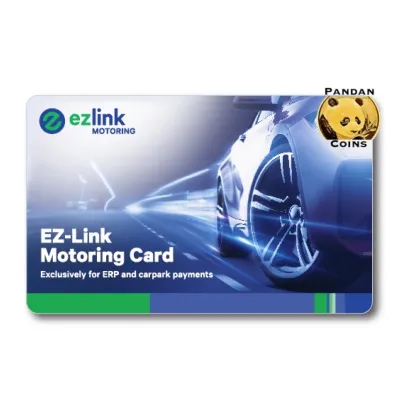
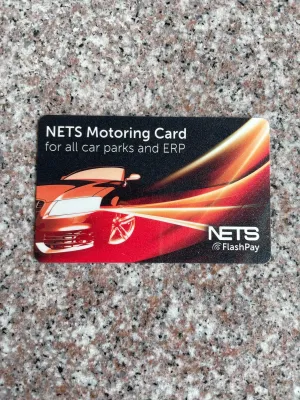
Prices are valid at publication and may change. Please refer to the product page for the latest price.
Equally important is the state of your vehicle’s In-vehicle Unit (IU). The standard dual-mode IU, typically mounted on the windscreen of cars or the handlebar of motorcycles, must be fully operational. When you switch on your vehicle’s ignition, the IU should power up immediately, indicated by a brief startup beep and a green indicator light. If you are driving a newer vehicle equipped with the ERP 2.0 On-Board Unit (OBU), ensure the touchscreen display or the processing unit is active and displaying the card status screen.
Step-by-Step Setup: Inserting and Activating Your Card
Inserting your card correctly is the first physical step to activating it for road use. For standard dual-mode IUs, hold the card with the gold contact chip facing downwards and pointing toward the insertion slot. Gently slide the card into the slot until you feel it click or seat firmly at the back of the reader. For motorcycle IUs, which are designed to be weather-resistant, the slot may have a protective cover or require a specific orientation; always refer to the embossed arrows or guides on the unit’s casing to avoid inserting the card upside down.

Once the card is fully inserted, the IU will perform an automatic read cycle. You should hear a single, clear beep, and the liquid crystal display (LCD) on the unit will light up to show your current card balance, such as S$20.00. A solid green LED light on the unit confirms that the card has been successfully read and is active for any upcoming ERP gantries or electronic car parks.
If the unit does not recognize the card immediately, do not force it further into the slot. A failure is usually indicated by a rapid double beep, a red indicator light, or an error message on the screen such as “ERR” or “Insert Card.” If this occurs, press the eject button to release the card. Inspect the card’s gold chip for dust or fingerprint oils, wipe it gently with a clean, dry microfiber cloth, and reinsert it. Ensure there are no foreign objects or debris inside the IU slot that could block the connection.
How to Top Up Your EZ-Link Card for Motoring
Maintaining an adequate balance on your motoring card is crucial to preventing transaction failures at gantries. As a general rule of thumb, drivers should aim to keep a minimum balance of S$10.00 to S$15.00 on their card at all times. This buffer ensures you can cover multiple ERP charges during peak hours or pay for short-term parking without running into an insufficient balance error. Many electronic car parks in Singapore require a minimum card balance of S$5.00 or S$10.00 simply to allow entry past the barrier.
There are several convenient channels available across Singapore to top up your card:
- Transit Station Machines: You can top up your card at any MRT station using the self-service ticketing machines. These terminals accept debit cards, credit cards, and local mobile payment options.
- Retail Outlets and Petrol Stations: Authorized convenience stores and petrol stations offer over-the-counter top-up services. Note that some of these retail locations may charge a nominal service fee per transaction, which is added to your total bill.
- Mobile Applications: If you prefer a digital approach, you can use a smartphone equipped with Near Field Communication (NFC) capabilities. By downloading the official EZ-Link mobile application, you can register your card by scanning its 16-digit CAN number. Once registered, simply hold the card against the back of your phone to check the balance and top up instantly using your saved payment methods.
For ultimate convenience, you can activate an automatic top-up service, often referred to as auto-reload. This service links your card to a designated bank account or credit card. When your card balance falls below a specific threshold while passing through an active reader, the system automatically reloads a pre-selected amount onto the card. You can apply for this service online or through the mobile app by entering your card’s unique identification number.
Using Your Card for ERP and Car Park Payments
Once your card is set up and funded, using it on the road is entirely automated. As you drive under an active Electronic Road Pricing (ERP) gantry, the overhead antennas communicate wirelessly with your vehicle’s IU. The system calculates the applicable toll based on the time of day and vehicle type, and deducts the amount directly from your card. You will hear a single beep from the IU, and the screen will briefly display the deducted amount followed by your updated remaining balance.
Electronic Parking System (EPS) car parks operate on a similar dual-gantry mechanism. When you enter the car park, the camera records your license plate, and the entry gantry reads your card details to log your entry time; no funds are deducted at this stage. When you exit, the system calculates your total parking duration, deducts the corresponding fee from your card, displays the charge on the exit terminal screen, and raises the barrier.
If you accidentally pass through an ERP gantry without your card inserted or with an insufficient balance, do not panic or attempt to stop your vehicle. Stopping on the expressway or near a gantry is extremely dangerous and a traffic violation. The gantry cameras will automatically capture your vehicle’s license plate. The Land Transport Authority (LTA) will subsequently issue a notification to the vehicle owner. You can settle the outstanding toll amount plus a standard administrative fee online through the official transport portal or at designated self-service kiosks within the specified grace period. For car parks, if your card fails at the exit barrier, press the intercom button to contact the car park operator for manual payment instructions.
Troubleshooting Common IU and Card Issues
Even with regular maintenance, you may occasionally encounter hardware or transaction errors while driving. The most common issue is a “Card Not Detected” or “Insert Card” error displayed on the IU screen, accompanied by a warning beep. This is usually caused by minor road vibrations shifting the card slightly out of alignment. To resolve this safely, pull over to a secure parking spot, eject the card, check the slot for any dust, and reinsert the card firmly.
If the error persists, you must determine whether the fault lies with the card or the IU itself. Try inserting a different CEPAS-compliant card into your IU. If the second card is read successfully, your original card’s chip may be damaged or expired. EZ-Link cards generally have a lifespan of five years from the date of manufacture. If multiple cards fail to read, or if the IU screen remains blank and does not beep when the ignition is turned on, your vehicle’s IU may have an electrical fault or a dead backup battery.
For unresolved card issues, you can visit any transit ticketing office or authorized customer service center to check the card’s status, transfer remaining balances, or obtain a replacement. If you suspect your vehicle’s IU is faulty, you should visit an authorized vehicle inspection center or a designated automotive workshop. Technicians there can run diagnostics on the unit, replace the backup battery, or install a new unit if the hardware is deemed defective.
Frequently Asked Questions (FAQ)
Can I use a standard EZ-Link card instead of a specific motoring card?
Yes, standard CEPAS-compliant EZ-Link cards, including those used for daily public transit on buses and trains, are fully compatible with vehicle IUs and the newer OBU system. However, older legacy cards that do not carry the CEPAS logo on the back are not supported. For optimal durability under high cabin temperatures, using a dedicated motoring card is recommended, but a standard card will function perfectly for toll and parking deductions.
What happens if my card has insufficient balance at an ERP gantry?
When you pass under an ERP gantry with an insufficient balance, the IU will emit a warning tone, and the transaction will fail. The gantry’s cameras will record your vehicle’s registration number. You will receive an official payment notice from the transport authority, requiring you to pay the unpaid toll amount along with a standard administrative fee. This payment can be settled online, via mobile apps, or at designated ticketing kiosks.
How do I check my EZ-Link card balance while driving?
For road safety, you should never handle your card or distract yourself by staring at the IU screen while the vehicle is in motion. The safest way to monitor your balance is to observe the screen immediately after passing an ERP gantry or exiting a car park, as the unit displays the remaining balance for a few seconds. Alternatively, you can check your balance before starting your journey by tapping your card on the official mobile app or using a transit station ticketing machine.

Community discussion
Share your experience or ask a question. Comments are reviewed before publication.