
For architects and architecture students, transitioning from physical tracing paper to a digital workspace requires tools that preserve the precision of traditional drafting. Selecting the right digital writing pad—whether a screenless pen tablet or a dedicated pen display—comes down to technical specifications that directly impact line quality, software compatibility, and physical ergonomics. While consumer tablets are popular for casual sketching, professional architectural workflows in CAD and BIM software demand specialized hardware features like high resolution (measured in Lines Per Inch), low initial activation force, customizable express keys, and stable driver integration.
Active Area and Screen Size: Matching Your Drafting Space
The physical size of your digital writing pad establishes the boundary of your digital drawing board. Pen tablets (screenless devices where you look at an external monitor) and pen displays (where you draw directly on a screen) interact differently with your workspace. If you use a multi-monitor setup for drafting in AutoCAD or Revit, a screenless pen tablet can sit comfortably in front of your keyboard, allowing you to map the tablet’s active area to your primary display. Pen displays, on the other hand, provide direct hand-eye coordination but require significant desk space, which can be a premium in compact Singapore home offices or studio desks.
A larger active area reduces the need for constant zooming and panning when navigating sprawling floor plans or complex structural elevations. When working on highly detailed CAD files, a small active area forces you to make tiny, cramped hand movements, which can lead to fatigue. However, the tablet’s physical size must match your natural drawing style; if you prefer sweeping arm movements from the shoulder, a medium-to-large tablet is essential. Conversely, if you draw primarily with wrist movements, a smaller active area may feel more comfortable.
Products mentioned in this guide
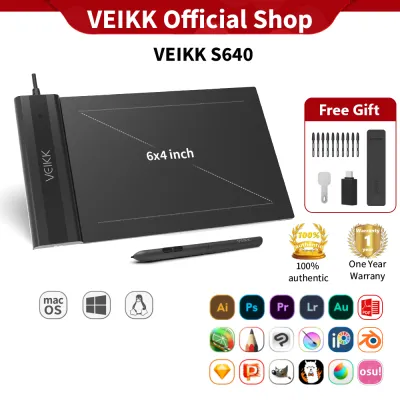
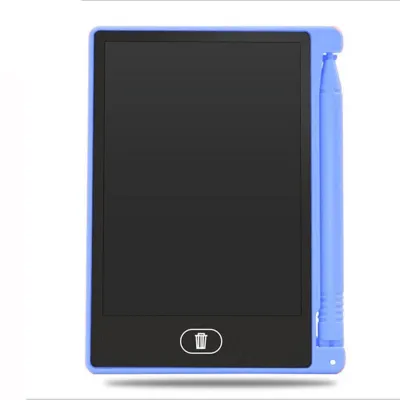
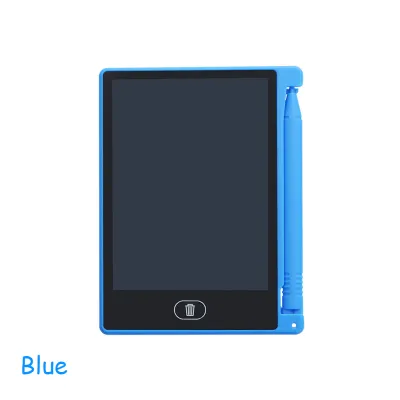
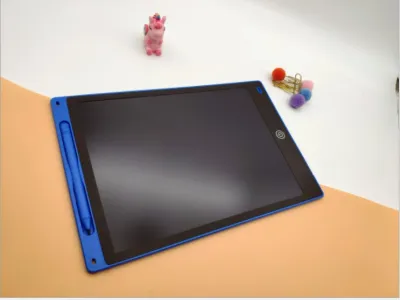
![[SG LOCAL SELLER] 12 inch LCD Pad Writing Tablet For kidsKids Drawing Pad Portable Electronic Tablet Board](https://img.lazcdn.com/g/p/750c5b36b2e9fed44d96d7335003e660.jpg_400x400q80.jpg_.webp)
Prices are valid at publication and may change. Please refer to the product page for the latest price.
To prevent cursor distortion, the aspect ratio of the digital writing pad’s active area should match your monitor’s aspect ratio. If you map a 4:3 tablet to a widescreen 16:9 or 21:9 monitor, a perfect circle drawn on the pad will stretch into an ellipse on your screen, skewing your scaling and line work. Most modern drivers allow you to lock the aspect ratio, but this will reduce the usable active area on your tablet if the hardware ratios do not align.
Pressure Sensitivity and Tilt: Translating Specs to Line Quality
Manufacturers often highlight pressure sensitivity levels, such as 4,096 versus 8,192, as the ultimate measure of a tablet’s performance. For architectural drafting, however, these raw numbers can be misleading. While digital painters rely heavily on thousands of pressure levels to blend colors seamlessly, vector-based line work in CAD and BIM software is largely binary. For drawing clean, uniform walls, columns, and dimension lines, a mid-range pressure sensitivity of 4,096 levels is indistinguishable from higher tiers.

Where pressure sensitivity and tilt recognition truly shine is during the conceptual design phase. When sketching initial massing models or rendering elevations in software like Photoshop or Sketchbook, tilt recognition allows you to mimic traditional drafting tools, such as wide lead holders or charcoal sticks. Angling the stylus can produce broad, soft shading strokes, while holding it upright yields crisp, fine lines.
A more critical specification for long-term comfort is the Initial Activation Force (IAF). IAF refers to how much physical pressure the pen tip must apply to the surface before the tablet registers a stroke. A stylus with a low IAF allows you to sketch with an incredibly light touch, reducing hand strain during marathon drafting sessions. Before committing to a device, check if the driver software supports customizable pressure curves, which let you adjust how the tablet responds to your unique hand pressure.
Express Keys and Workflow Integration for CAD and BIM
Efficiency in architectural drafting relies on keyboard shortcuts. A digital writing pad that integrates seamlessly into your workflow must offer robust shortcut customization. Physical express keys built into the side of the tablet or display allow you to map frequent commands—such as pan, zoom, undo, rotate, and escape—directly to your non-dominant hand. This keeps your drawing hand focused entirely on the stylus.
Many premium digital writing pads feature physical dials, scroll wheels, or touch rings. These components are incredibly useful for zooming in and out of massive blueprint sheets or adjusting line weights and brush sizes on the fly. Instead of taking your eyes off the screen to click a menu, a quick spin of a dial adjusts your view instantly.
Driver stability is the backbone of this hardware-software integration. Architectural workflows often require switching rapidly between 2D drafting in AutoCAD, 3D modeling in Rhino or SketchUp, and document preparation in Adobe Acrobat. High-quality tablet drivers allow you to save application-specific profiles, meaning the express keys automatically remap their functions depending on which software is currently active. For advanced workflows, multi-touch gesture support can also be beneficial, allowing you to pinch-to-zoom and rotate the canvas with your fingers while drawing with the pen.
Resolution, Accuracy, and Pen Technology for Precision
Precision is non-negotiable in architecture, where a fraction of a millimeter can alter a scale calculation. The resolution of a digital writing pad is measured in Lines Per Inch (LPI). A higher LPI (typically 5,080 LPI on professional models) ensures that diagonal lines and tight curves remain smooth and continuous, rather than jagged or pixelated.
When opting for a pen display, parallax error is a key factor to consider. Parallax is the visual gap between the physical tip of your stylus and the digital cursor on the screen, caused by the thickness of the display glass. Modern pen displays minimize this by using laminated screens, which fuse the glass and LCD panel together, bringing the pen tip closer to the digital ink. Additionally, a low reading height (the maximum distance the tablet can detect the pen above the surface) ensures the cursor tracks your hand movements accurately before the pen even touches down.
The technology powering the stylus itself also affects daily usability. Electromagnetic Resonance (EMR) pens are battery-free, drawing power wirelessly from the tablet’s magnetic field. These pens are lightweight, balanced, and require no charging, eliminating the risk of the pen dying mid-deadline. Finally, pay attention to the nib material. Standard plastic nibs on glass can feel slippery and hard to control. Using felt nibs or applying a textured, paper-like screen protector can introduce a comfortable level of friction, mimicking the tactile feedback of drawing on physical drafting paper.
Specs You Can Safely Deprioritize for Architectural Drawing
To optimize your budget, it is helpful to identify high-end specifications that offer little practical benefit for architectural tasks. For example, ultra-wide color gamuts, such as 99% Adobe RGB or DCI-P3, are essential for professional photo editors and colorists, but are largely unnecessary for architects. Most architectural deliverables consist of black-and-white construction documents, line drawings, or clean 3D renderings where standard sRGB coverage is more than adequate.
Similarly, high screen refresh rates like 120Hz or 144Hz provide diminishing returns for static drafting and modeling. While they make cursor movement look incredibly fluid, a standard 60Hz display is perfectly adequate for structural design work. Lastly, avoid paying a premium for built-in, standalone operating systems unless you absolutely require a portable, all-in-one sketching device. A tethered digital writing pad that utilizes the processing power of your existing CAD workstation is far more cost-effective and will remain relevant much longer as software demands increase.
Frequently Asked Questions (FAQ)
Pen Tablet vs. Pen Display: Which is Better for Architecture Students?
For architecture students in Singapore balancing lectures, studio sessions, and site visits, portability and cost are major factors. Screenless pen tablets are highly durable, lightweight, and fit easily into a backpack alongside a laptop, making them ideal for working on the go. They also encourage better ergonomics, as you look straight ahead at your laptop screen rather than hunching over a drawing surface. However, pen displays offer a more natural, intuitive drawing experience because you write directly on the screen. If your coursework involves heavy conceptual sketching and digital rendering, and you have a dedicated desk space at home or in the studio, a pen display is a worthwhile investment. For those primarily focused on 3D modeling and CAD, a screenless tablet is often the more practical and budget-friendly choice.
Can a Standard Consumer Tablet Replace a Dedicated Digital Writing Pad?
While standard consumer tablets are excellent for note-taking and casual sketching, they face significant limitations when integrated into a professional architectural workflow. The primary hurdle is software compatibility. Industry-standard applications like full-desktop Revit, AutoCAD, and Rhino do not run natively on mobile operating systems, forcing you to rely on simplified mobile apps. Furthermore, consumer tablets lack the specialized driver support required to map custom express keys for complex CAD shortcuts. Dedicated digital writing pads also offer superior pen precision, lower latency, and customizable physical inputs designed specifically to reduce hand strain during long drafting sessions. If you need a secondary device for quick site markups, a consumer tablet works well; however, for heavy drafting and modeling, a dedicated writing pad is irreplaceable.

Community discussion
Share your experience or ask a question. Comments are reviewed before publication.