
Architectural sketching and drafting require a precise balance of digital performance, stylus responsiveness, and screen real estate. In Singapore’s fast-paced design and construction landscape—where architects transition rapidly from air-conditioned design studios to humid, active construction sites—the right note-taking tablet acts as a portable drawing board, site diary, and blueprint viewer. For professionals evaluating their options, the optimal choice depends on whether your workflow prioritizes heavy software integration, expansive drawing space, or distraction-free, paper-like conceptualization.
Currently, the market presents three distinct pathways. The Apple iPad Pro stands as the dominant industry standard, offering unmatched processing power and a mature ecosystem of professional drafting applications. The Samsung Galaxy Tab S9 Ultra provides an expansive, high-contrast Android canvas that minimizes the need for constant panning and zooming. Meanwhile, specialized E-ink tablets, such as those from reMarkable or Onyx Boox, cater to architects who prioritize tactile, distraction-free sketching and long battery life over complex rendering.
What Architects Should Look for in a Note-Taking Tablet
Selecting a tablet for architectural work requires evaluating technical specifications through the lens of daily design tasks. Unlike general note-taking, architectural sketching demands precision, visual clarity, and environmental resilience.
Products mentioned in this guide
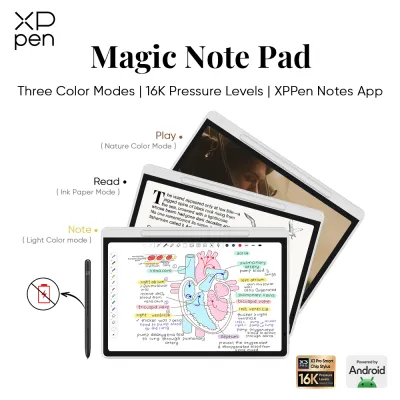
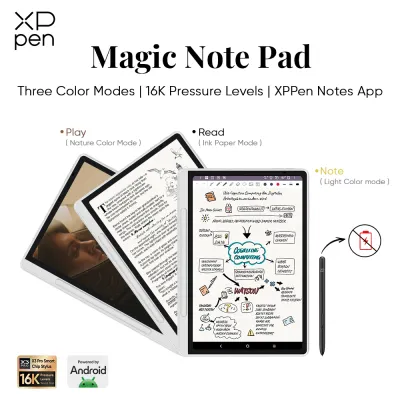
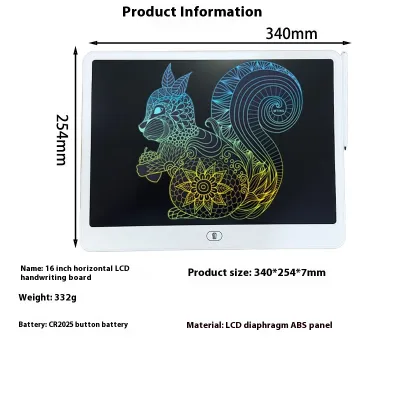
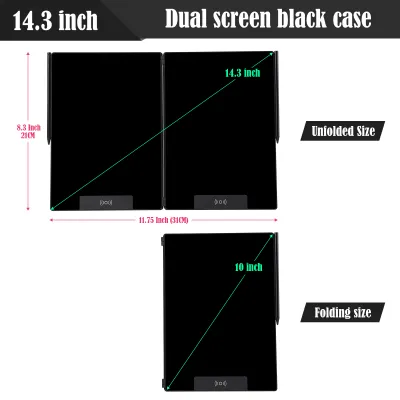
Prices are valid at publication and may change. Please refer to the product page for the latest price.
Screen Size and Aspect Ratio Viewing large-scale floor plans, structural details, and high-resolution site photos requires significant screen real estate. A screen size of 12 inches or larger is generally recommended to avoid constant panning and zooming when reviewing detailed blueprints. The aspect ratio also plays a critical role; a 4:3 or 3:2 ratio offers a more balanced workspace for vertical and horizontal layouts, closely mimicking traditional paper sizes. Conversely, wider 16:10 ratios excel at displaying side-by-side applications, such as a reference photo next to a sketching canvas.
Stylus Precision and Latency The interaction between the stylus and the display is the foundation of digital drafting. Architects rely on varying line weights to convey depth, materials, and structural hierarchy. Consequently, a stylus must support high levels of pressure sensitivity and precise tilt recognition to emulate traditional drafting pens and pencils. Low latency—the delay between the physical stroke and the digital line appearing—is crucial; any noticeable lag disrupts the natural flow of freehand sketching and precise alignment.
Display Technology: OLED/LCD vs. E-Ink The choice of display technology determines the tablet’s capabilities and primary use case. High-resolution OLED or LCD screens offer vibrant color accuracy, high refresh rates, and the ability to handle complex, multi-layered drawing files and 3D models. These displays are essential if your workflow involves color rendering or presenting material boards to clients. E-ink displays, on the other hand, use ambient light reflection to mimic real paper. They cause minimal eye strain and remain perfectly readable under direct sunlight, but they lack the color depth, layers, and fast refresh rates needed for active drafting or model manipulation.
Portability, Durability, and Environmental Resilience Architects in Singapore frequently split their time between office environments and on-site inspections. Tablets carried onto active construction sites must withstand high humidity, dust, and occasional exposure to the elements. Battery life is equally critical; a device must reliably last through a full day of site surveys, client meetings, and transit without requiring a recharge. Lightweight designs and robust chassis materials help ensure the tablet remains a practical companion rather than a physical burden during long site walks.
Top Tablet Picks for Architectural Sketching and Drafting
To help narrow down your choices, we have analyzed the leading options available in Singapore, categorizing them by their primary strengths and typical user workflows.

Apple iPad Pro: The Industry Standard for Digital Drafting
The Apple iPad Pro remains the benchmark for digital architectural workflows, largely due to its exceptional hardware-software integration. Powered by Apple’s desktop-class M-series processors, this tablet handles massive PDF blueprints, complex vector files, and 3D models with ease. The integration of ProMotion technology provides a 120Hz refresh rate, reducing stylus latency to an almost imperceptible level when paired with the Apple Pencil.
For architectural drafting, the Apple Pencil Pro and Apple Pencil (2nd generation) offer outstanding tilt and pressure sensitivity. This allows designers to naturally vary line weights, transition from fine detail lines to broad shading, and execute precise vector linework. The software ecosystem is a major advantage, with exclusive access to industry-grade applications such as Morpholio Trace, Concepts, and Procreate, which are specifically optimized for the iPad’s hardware.
On-Site Utility and Spatial Measuring A standout feature of the iPad Pro is its integrated LiDAR scanner. This sensor allows architects to capture rapid, accurate 3D spatial scans of existing rooms or structures directly on-site. This data can be imported into drafting applications to jumpstart the schematic design phase, saving hours of manual measuring.
Limitations and Ecosystem Constraints These advanced features come at a premium. The iPad Pro represents a significant financial investment, with local pricing often exceeding S$1,500 depending on the screen size and storage configuration, excluding the cost of the Apple Pencil. Additionally, the device is tied strictly to the iOS/iPadOS ecosystem, which may present file management challenges if your firm relies entirely on Windows-based CAD and BIM networks.
Samsung Galaxy Tab S9 Ultra: The Expansive Android Canvas
For architects who prioritize screen size above all else, the Samsung Galaxy Tab S9 Ultra offers an unrivaled digital workspace. Featuring an expansive 14.6-inch Dynamic AMOLED 2X display, this tablet provides a massive canvas that allows you to view entire floor plans and elevation drawings at a legible scale without constant navigation.
Unlike its competitors, Samsung includes the S Pen in the box, providing immediate value. The S Pen utilizes Wacom’s electromagnetic resonance (EMR) technology, which does not require a battery to operate for standard writing and drawing tasks. The stylus offers exceptionally low latency and a soft, rubberized tip that provides a natural, slightly resistive feel on the glass screen right out of the box.
Multitasking with Samsung DeX The Galaxy Tab S9 Ultra excels at multitasking through Samsung DeX, a software interface that transforms the Android tablet experience into a desktop-like environment. This allows you to run drafting applications alongside reference documents, web browsers, and communication tools in resizable windows, mimicking a dual-monitor office setup while on the move.
App Optimization and Ecosystem Considerations While the hardware is exceptional, the Android application ecosystem for professional architectural tools remains slightly behind iOS. While powerful cross-platform apps like Concepts and Clip Studio Paint run beautifully, some specialized drafting tools are either unavailable on Android or lack the full feature parity found on their iOS counterparts. Architects should verify that their must-have applications are fully optimized for Android before making the switch.
E-Ink Alternatives (reMarkable / Boox): For Distraction-Free Concepting
For designers who find glass screens fatiguing and prefer the tactile feedback of pen on paper, E-ink tablets present a compelling alternative. Devices like the reMarkable 2 and the Onyx Boox series focus entirely on the core experience of writing, sketching, and reading, stripping away distracting notifications and background applications.
The primary advantage of E-ink display technology is its paper-like texture and exceptional battery life, which is measured in weeks rather than hours. The high-friction screen surface provides excellent resistance against the stylus tip, giving architects precise control over freehand lines, schematic diagrams, and handwritten site notes. These devices are highly portable and perform exceptionally well under the bright, direct sunlight often encountered during outdoor site inspections in Singapore.
Strict Limitations for Architectural Workflows However, E-ink tablets carry significant limitations that make them unsuitable as primary drafting tools. Most standard models do not support color, which is critical for distinguishing structural layers, mechanical systems, or rendering materials. Furthermore, their slow screen refresh rates make zooming, panning, and navigating complex CAD files or high-resolution PDFs a frustratingly slow experience. They lack the processing power to run 3D modeling viewers or advanced layering software, positioning them strictly as digital sketchbooks and PDF markup tools rather than complete drafting solutions.
Display and Stylus Comparison for Drafting Workflows
To help you compare these options at a glance, the following table summarizes the key specifications and primary architectural use cases for each tablet category.
| Tablet Category | Screen Size Options | Stylus Technology | Display Technology | Best Architectural Use Case |
|---|---|---|---|---|
| Apple iPad Pro | 11-inch to 13-inch | Active (Apple Pencil) | Tandem OLED / Liquid Retina | High-precision drafting, 3D model viewing, client presentations, and LiDAR scanning. |
| Samsung Galaxy Tab S9 Ultra | 14.6-inch | Wacom EMR (S Pen) | Dynamic AMOLED 2X | Expansive blueprint viewing, multi-window multitasking, and desktop-style workflows via DeX. |
| E-Ink Tablets (reMarkable / Boox) | 10.3-inch to 13.3-inch | Electromagnetic (Passive/Active) | Monochrome or Color E-Paper | Distraction-free conceptual sketching, handwritten site notes, and basic PDF markup. |
Understanding Display Friction and Ergonomics The physical sensation of drawing on a tablet significantly impacts long-term comfort and line control. Bare glass screens, found on standard iPads and Samsung tablets, offer very little resistance. While this allows for fast, fluid movements, some architects find it difficult to maintain precise control over straight lines and fine details, leading to hand fatigue.
To combat this, many professionals apply matte, textured screen protectors. These accessories introduce microscopic texture to the glass, mimicking the tactile resistance of physical paper. While this greatly improves line control and reduces glare under bright office or outdoor lighting, it comes with a trade-off: the added friction accelerates the wear of plastic stylus nibs, requiring you to keep a supply of replacement tips on hand. E-ink devices naturally integrate this textured surface directly into their screen design, offering the most authentic paper-like feel without additional accessories.
Software Compatibility and Setup Verification
Before purchasing a note-taking tablet, it is essential to verify that the device integrates seamlessly with your existing architectural software ecosystem and professional workflow.
App Verification Checklist Do not assume that your desktop software works identically on a mobile platform. Before committing to a tablet, verify the availability and functionality of your essential tools:
- CAD and BIM Viewers: Confirm whether applications like AutoCAD Mobile, DWG FastView, or BIMx are supported on your chosen operating system and can handle your typical file sizes.
- Conceptual Sketching: Check for high-performance vector sketching tools like Concepts or Morpholio Trace, which allow for scale-based drawing and layer management.
- 3D Model Viewing: Ensure the tablet's processor and graphics capabilities can smoothly render models in SketchUp Viewer or Autodesk FormIt.
- Cloud Integration: Verify that the device connects easily to your firm's preferred cloud storage solutions (such as OneDrive, Google Drive, or Dropbox) for seamless file transfers.
Optimizing the Hardware for Site Work If you select a glass-screen tablet, consider adding a high-quality matte screen protector. In Singapore, where bright tropical sunlight can make outdoor screens unreadable due to glare, a matte finish helps diffuse reflections during site visits. Additionally, invest in a rugged, impact-resistant case that features a secure holder for your stylus, protecting your investment from accidental drops on concrete or gravel surfaces.
Local Warranty and Brand Support For professional users, minimizing downtime is critical. When purchasing your tablet in Singapore, verify the local warranty terms and register your device immediately. Purchasing through official brand channels—such as the Apple Store (Orchard Road, Marina Bay Sands, or Jewel Changi Airport) or Samsung Experience Stores (located in major malls like VivoCity and Nex)—ensures you have access to official local support, quick repairs, and genuine replacement parts, including stylus nibs and charger accessories.
Frequently Asked Questions (FAQ)
Can I use a standard iPad instead of the Pro for architectural drafting?
Yes, standard iPad models can handle basic sketching, note-taking, and PDF markup quite well. However, they lack several features critical for heavy professional drafting. Standard models typically do not feature the 120Hz ProMotion display, resulting in slightly higher stylus latency. They also possess less RAM and processing power, which can lead to performance slowdowns when working with large, multi-layered CAD files, high-resolution blueprints, or complex 3D models.
Do E-ink tablets support CAD file viewing and editing?
Generally, no. E-ink tablets are designed primarily for reading, handwritten note-taking, and basic vector sketching. They lack the processing power, color support, and rapid refresh rates required to view or manipulate active CAD files or 3D models. While some advanced E-ink devices running Android can open static PDF exports of CAD drawings for basic redlining, the panning and zooming experience is highly laggy and not suitable for active design edits.

Community discussion
Share your experience or ask a question. Comments are reviewed before publication.