
Selecting the right digital notepad tablet for architectural drawing and drafting requires balancing tactile drawing feel, raw processing power, and software ecosystem compatibility. Unlike general note-taking, architectural work demands high precision, reliable file handling, and the ability to view complex vector drawings without performance lag. The ideal choice depends on your specific workflow: high-performance mainstream tablets excel at fluid conceptual sketching and client presentations, Windows 2-in-1 convertibles handle full desktop-grade CAD and BIM software, and specialized E-Ink devices offer a highly focused, paper-like experience for site notes and early-stage ideation.
To make an informed decision, you must evaluate how a device’s hardware specs, operating system, and display technology align with your daily drafting environment. Whether you are sketching conceptual floor plans in a Singapore studio or reviewing complex structural details under direct sunlight on an active construction site, understanding these core criteria ensures your digital canvas works as hard as you do.
Core Hardware Criteria for Architectural Drafting Tablets
Display Size and Aspect Ratio
Architectural drawings, elevations, and structural plans contain dense, intricate details that are difficult to read on small screens. A digital notepad tablet with a display size of at least 11 inches is the practical minimum for mobile work, though a 12.9-inch or larger screen is highly recommended for professional drafting. A larger canvas minimizes the need for constant panning and zooming, allowing you to maintain spatial awareness of the entire layout.
Products mentioned in this guide
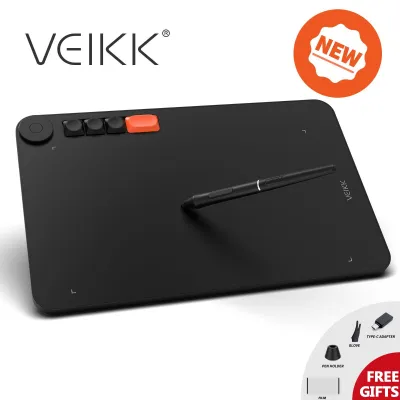
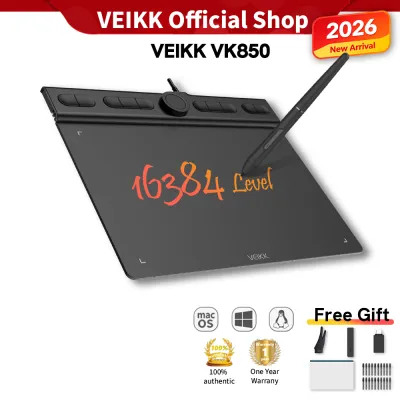
Prices are valid at publication and may change. Please refer to the product page for the latest price.
The aspect ratio of the screen is equally critical. While widescreen formats like 16:9 are excellent for video playback, they offer limited vertical space when drafting. Screens with a 4:3 or 3:2 aspect ratio provide a taller, more balanced workspace that closely resembles standard A4 or A3 drafting paper. This extra vertical space is invaluable when viewing multi-layered blueprints, managing toolbars, or sketching elevations alongside plan views.
Stylus Precision and Tilt Recognition
The stylus is your primary design tool, making its responsiveness and accuracy paramount. When evaluating a tablet, pay close attention to the pen’s initial activation force, which determines how much physical pressure is required before the screen registers a stroke. A high-quality stylus should register a line with the lightest touch, allowing for delicate, precise linework.
Tilt recognition and pressure sensitivity are essential for creating realistic sketches and technical annotations. Tilt support allows the tablet to adjust line thickness and shading density based on the angle of the pen, mimicking the natural behavior of graphite pencils and technical drafting pens. Look for active styluses with high polling rates to ensure that the digital ink follows the pen tip with zero noticeable lag, which is vital when tracing quick conceptual layouts.
Palm Rejection and Screen Friction
Drafting requires resting the side of your hand on the drawing surface to stabilize your wrist for straight lines and detailed work. Reliable palm rejection is critical; the tablet must ignore touch inputs from your hand while prioritizing the stylus tip. If palm rejection is inconsistent, you will experience accidental canvas rotations, unwanted zoom levels, or stray marks that disrupt your drawing flow.
The physical texture of the screen also heavily influences your drawing control. Writing on smooth, high-gloss glass can feel slippery and unpredictable, leading to hand fatigue over long drafting sessions. Many architects prefer a matte screen finish, which introduces micro-texture and physical resistance. If a tablet features a glossy screen, you can verify if compatible matte or paper-like screen protectors are available to achieve that familiar tactile friction.
Outdoor Visibility and Durability
Architects do not work exclusively in air-conditioned offices; site visits require reviewing digital plans in outdoor environments. To combat harsh glare and direct sunlight, look for displays with high peak brightness—ideally 600 nits or higher—and advanced anti-reflective coatings. Without sufficient brightness, the screen becomes highly reflective, straining your eyes and obscuring fine lines.
Durability is another major consideration for site-bound hardware. Construction sites are dusty, humid, and prone to accidental drops. While few premium tablets carry high ingress protection (IP) ratings out of the box, you should check the availability of rugged, third-party protective cases. A high-quality case with reinforced corners, screen borders, and sealed port covers is essential to protect your investment from concrete dust, moisture, and impact.
Comparing Tablet Categories for Architecture Workflows
High-Performance Mainstream Tablets (iOS/Android)
High-performance mainstream tablets running iOS or Android represent the most popular category for conceptual design and client-facing work. These devices feature highly optimized, touch-first operating systems and stunning displays with high refresh rates (often up to 120Hz). This high refresh rate ensures that the transition of your stylus across the screen feels incredibly fluid and instantaneous.

The primary strength of these tablets lies in their rich ecosystem of dedicated design applications. Apps like Morpholio Trace, Concepts, and SketchUp Viewer are built specifically for touch and stylus input, allowing you to quickly overlay yellow-trace paper, sketch over 3D models, and present vibrant, color-accurate concepts to clients. Their lightweight profiles and long battery lives make them exceptionally easy to carry throughout the day.
However, these mobile platforms cannot run full, desktop-grade Computer-Aided Design (CAD) or Building Information Modeling (BIM) software natively. While you can view, annotate, and perform light edits on AutoCAD or Revit files using mobile companion apps, you cannot execute heavy structural modeling or run complex parametric scripts. For these intensive tasks, these tablets function as highly capable companion devices rather than complete workstation replacements.
Windows 2-in-1 Convertibles
Windows 2-in-1 convertibles are the go-to choice for architects who need a single, portable device capable of handling the entire project lifecycle. Because these machines run full desktop Windows, they can execute native versions of industry-standard software like AutoCAD, Revit, Rhino, SketchUp Pro, and ArchiCAD. This eliminates the need to simplify or convert files when transitioning from your office desk to an on-site coordination meeting.
With a Windows 2-in-1, you can access your complete local project files, run complex scripts, and perform detailed geometry edits directly on the go. When paired with a keyboard and mouse, the device functions as a full-fledged laptop; when folded back, it becomes a powerful digital drafting board. This versatility is highly beneficial for independent practitioners who travel frequently between client meetings and job sites.
The trade-offs for this desktop-class power are weight, thermal output, and battery life. Windows convertibles are generally heavier and thicker than mobile-OS tablets because they require internal cooling fans and larger batteries to power robust processors. Under heavy CAD or rendering loads, the battery life drops significantly, often requiring you to stay near a power outlet. Additionally, legacy desktop CAD software is not always optimized for touch, making a physical keyboard and mouse necessary for efficient drafting.
E-Ink Digital Notepads for Concept Sketching
E-Ink digital notepads offer a highly focused, distraction-free alternative designed strictly for early-stage ideation, site notes, and pure sketching. These devices utilize electronic paper displays that reflect ambient light rather than emitting a strong backlight. This results in an incredibly comfortable, paper-like reading and writing experience that does not strain your eyes, even during hours of continuous use.
The matte surface of an E-Ink screen provides natural friction right out of the box, mimicking the feel of a physical sketchbook. Because E-Ink displays only consume power when the screen state changes, these devices offer exceptional battery life, often lasting several weeks on a single charge. This makes them highly reliable tools for long site surveys, structural inspections, and daily hand-drawn journaling.
However, the limitations of E-Ink are significant and absolute. Most E-Ink devices are monochromatic or offer very limited, muted color palettes, making them unsuitable for reviewing color-coded mechanical, electrical, and plumbing (MEP) layouts or presenting final color renders to clients. Their slow screen refresh rates cause visible ghosting and lag when panning across large, complex PDF blueprints. They also lack the processing power and operating system support to run CAD or 3D modeling applications, restricting their utility to basic sketching and PDF annotation.
Software Compatibility and File Management Checks
App Availability and Optimization
Before investing in a digital notepad tablet, perform a thorough audit of your daily software toolset. Do not assume that because a software suite is available on desktop, its mobile counterpart will offer the same functionality. Check the respective app stores to verify if key tools like SketchUp Viewer, AutoCAD Mobile, Bluebeam Revu, or Shapr3D are fully optimized for the tablet’s operating system.
Pay close attention to user reviews from other design professionals, focusing on application stability when handling large, multi-layered files. Some mobile apps are highly streamlined and responsive, while others may suffer from frequent crashes when loading complex architectural models. Ensuring your essential tools are well-optimized for your chosen platform prevents frustration and lost work hours.
File Format Support
Architectural workflows rely heavily on precise file interchange between different design teams. Your tablet and its associated apps must be capable of importing and exporting industry-standard formats—including DWG, DXF, PDF, and various 3D formats like OBJ or IFC—without stripping out critical metadata, layer structures, or line weight configurations.
Verify the file conversion path before committing to a device. If a mobile app forces you to convert a DWG to a flat PDF before you can annotate it, you lose the ability to toggle layers or snap to vector geometry. A seamless workflow requires that your tablet apps can read and write native CAD formats directly, preserving the integrity of the drawing data for the next team member in the pipeline.
Cloud Integration and Syncing
Modern construction projects are highly collaborative, requiring real-time communication between architects, engineers, main contractors, and clients. Your digital notepad tablet must integrate flawlessly with cloud storage solutions and dedicated project management platforms such as Autodesk Construction Cloud, BIM 360, Procore, Dropbox, or OneDrive.
Ensure the tablet can maintain local, offline copies of critical blueprints for sites with poor connectivity, and automatically sync your redlines and annotations back to the central project repository once a network connection is re-established. This real-time synchronization prevents version-control errors, ensuring that the field team is always working off the latest issued-for-construction drawings.
Matching the Tablet to Your Working Environment
Construction Site Usage
Carrying a tablet on an active construction site in a tropical, high-humidity environment like Singapore presents unique challenges. High ambient temperatures and direct sunlight require a display with exceptional peak brightness to overcome glare. Look for devices that offer automatic brightness adjustments and robust thermal efficiency.
A rugged, drop-tested protective case is non-negotiable to guard against accidental drops on concrete, exposure to airborne dust, and sudden tropical downpours. Additionally, ensure the device has sufficient battery capacity to last an entire day of site inspections without requiring a recharge, as power outlets are rarely accessible in buildings under construction.
Studio and Office Usage
When used primarily within an office or home studio, the tablet’s role shifts toward that of an ergonomic drafting board or secondary monitor. Prioritize devices that feature versatile USB-C ports capable of outputting video to external high-resolution monitors (4K or 5K) and connecting to local high-speed networks via Ethernet adapters.
Look for desktop stands that allow you to adjust the angle of the tablet to a comfortable 15-to-30-degree drafting slope to reduce neck and wrist strain during long drawing sessions. Integrated stylus charging docks and physical keyboard attachments are also highly beneficial for transitioning quickly between sketching and answering project emails.
Thermal Management
Intensive tasks such as viewing complex 3D models, rendering scenes, or running continuous CAD sessions generate significant internal heat. In warm, tropical climates, this heat generation is exacerbated, which can lead to thermal throttling—a protective mechanism where the device automatically slows down its processor to cool itself.
This results in stuttering performance, laggy stylus input, and rapid battery drain. When selecting a tablet, review manufacturer specifications regarding thermal design. If you anticipate heavy, prolonged processing loads in non-air-conditioned environments, look for devices with active fan cooling or consider purchasing specialized cooling stands and keeping the device out of direct sunlight during intensive tasks.
Frequently Asked Questions (FAQ)
Can I use a digital notepad tablet for full 3D rendering?
While modern tablets are highly capable, they are generally not designed to handle full-scale, production-grade 3D architectural rendering. Heavy rendering tasks—such as those performed in Lumion, V-Ray, or Enscape—rely on high-wattage, dedicated desktop graphics processing units (GPUs) and sophisticated thermal management systems to sustain peak performance for hours. A tablet can comfortably run mobile viewing applications, allow you to navigate 3D BIM models, and perform light, conceptual rendering or cloud-based rendering tasks. However, for final high-fidelity production renders, you will still need to offload the processing to a powerful desktop workstation or a dedicated cloud rendering service.
Do I need a matte screen protector for architectural drafting?
Whether to install a matte screen protector depends on your personal drawing preferences and primary working environment. A matte protector adds micro-texture to a glossy glass screen, providing a satisfying tactile resistance that closely mimics drawing with a pencil on paper, which can significantly improve line control and reduce hand fatigue during long drafting sessions. It also diffuses reflections, making the screen much easier to read outdoors or under harsh office lighting. However, this texture comes with trade-offs: it can slightly reduce overall screen sharpness, dim the display’s maximum brightness, and alter color accuracy. If your workflow involves presenting final, high-contrast color renderings to clients on the tablet, you may prefer the pristine clarity of the bare glass screen, whereas if your focus is primarily on technical drafting and sketching, the ergonomic benefits of a matte surface generally outweigh the minor loss in visual fidelity.

Community discussion
Share your experience or ask a question. Comments are reviewed before publication.