
Niimbot label stickers are not universally interchangeable across all models. Compatibility is determined by three main factors: your printer model’s maximum physical print width, its feed mechanism (such as gap, continuous, or black mark detection), and whether your specific device requires an RFID-enabled smart label roll to communicate with the companion mobile application. To avoid buying incompatible refills, you must match your printer’s model series with the corresponding label roll dimensions and chip requirements.
Using the wrong label roll can lead to physical jams, feed errors, or a complete refusal to print from the companion app. Because these compact devices rely on direct thermal printing technology, they do not use ink or toner; instead, the print head applies heat directly to specially coated thermal paper. Ensuring a perfect match between the printer’s physical capabilities and the label roll’s specifications is the only way to achieve clear, smudge-free prints and reliable feeding.
Identify Your Printer's Physical and System Limits
Before purchasing any replacement rolls, you must locate the exact model number of your device. This identifier is typically printed on a silver or white specification sticker located on the bottom of the printer, inside the paper roll compartment, or on the original packaging. Portable models are generally grouped into distinct design families, such as the pocket-sized D-series, the retro-styled B-series, or the lightweight H-series, each with vastly different compartment sizes.
Products mentioned in this guide
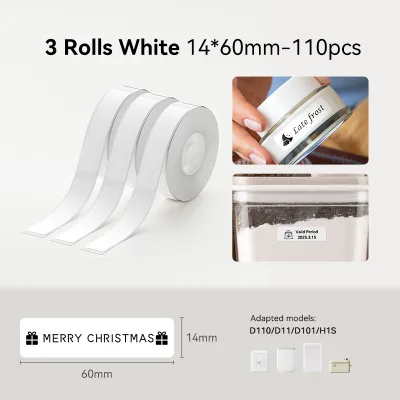
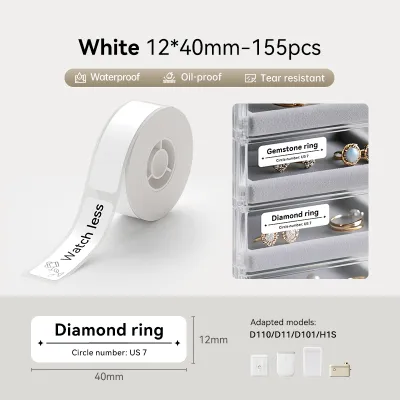
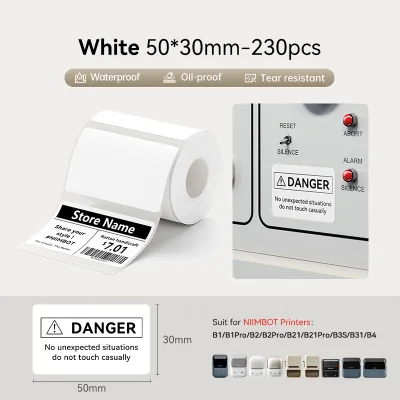
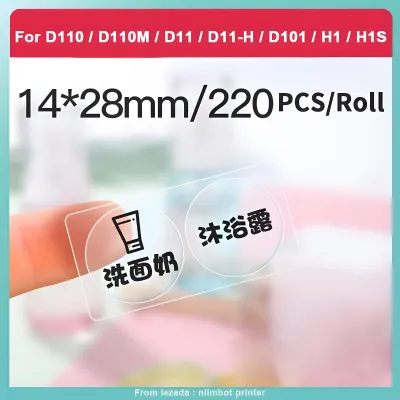
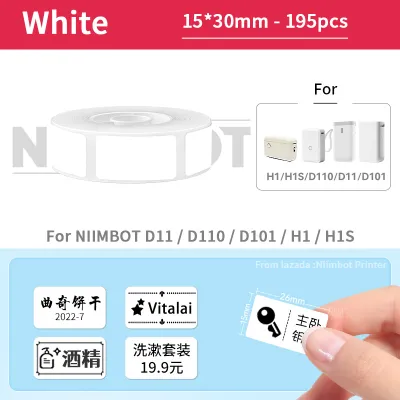
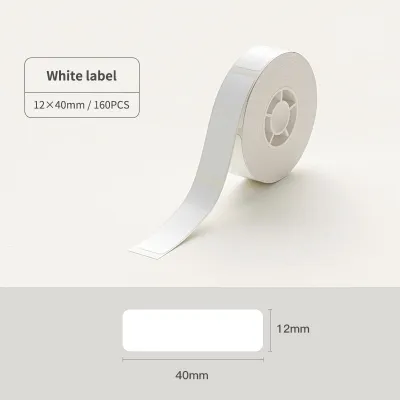
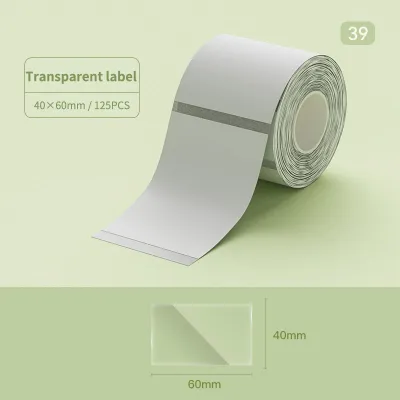
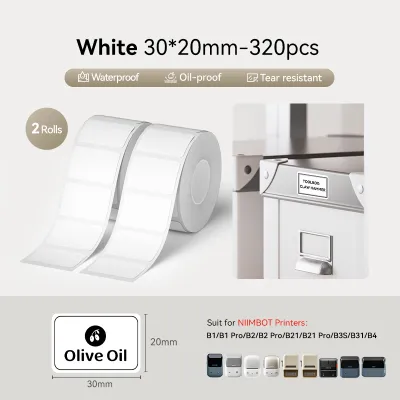
Prices are valid at publication and may change. Please refer to the product page for the latest price.
The physical width of the paper compartment dictates the maximum label size your printer can accommodate. Pocket-sized models are designed for narrow organization tasks and typically support label widths up to 15mm. In contrast, larger desktop or semi-industrial models feature wider print heads and spacious compartments that can handle labels up to 50mm or even 75mm wide. Attempting to force a wider roll into a narrow compartment will prevent the door from latching and can damage the delicate feed rollers.
Beyond width, you must identify the specific feed mechanism your printer uses to align each label. Some models rely on a central spindle that holds the roll in place, while others use adjustable side guides or a simple drop-in compartment where the roll spins freely. The printer’s internal optical sensor must also align with the backing paper’s gaps or black marks to detect where one label ends and the next begins. If the roll’s outer diameter is too large, the feed motor may stall, resulting in misaligned prints or blank labels.
Compare Niimbot Label Formats and Sizes
Thermal labels are available in two primary formats: pre-cut (die-cut) labels and continuous rolls. Pre-cut labels are individually shaped stickers on a continuous backing sheet, separated by small gaps that the printer’s sensor detects automatically. These are ideal for uniform tasks like price tagging, file labeling, or date-marking food containers. Continuous rolls, on the other hand, allow you to print custom lengths of text, which you then cut manually using the printer’s built-in slide cutter or an automatic cutting mechanism.

Standard width ranges are tailored to specific organizational use cases and printer tiers. Narrow labels ranging from 12mm to 15mm are the standard choice for home organization, cable identification, and school supplies. Medium-width labels, spanning 20mm to 50mm, are highly versatile and commonly used for retail price tags, address labels, and storage bin categorization. Wide-format labels exceeding 50mm are reserved for larger desktop models and are suitable for shipping labels, detailed asset tracking, and warning signs.
Specialty formats expand the utility of your label maker but require specific hardware compatibility. Cable wraps, often designed as T-type or F-type flags, feature a non-adhesive tail and a printable tab specifically for wrapping around electrical cords. Jewelry tags include a long, adhesive-free center loop to prevent glue residue from touching delicate items. Always verify that your printer model’s firmware and sensor array support these specialty shapes, as standard pocket printers may not align correctly on non-rectangular backing paper.
Understand RFID Chips and App Recognition
Many modern portable label makers utilize Radio Frequency Identification (RFID) technology to simplify the printing process. Official label rolls often feature a tiny, flexible RFID chip embedded inside the plastic or cardboard core of the roll. When you drop the roll into the compartment, the printer’s internal reader scans this chip and instantly transmits the label’s exact dimensions, material type, and color to the companion mobile app via Bluetooth.
This digital handshake automatically loads the correct template on your smartphone screen, eliminating the need to manually measure the label and input dimensions. However, this system introduces strict compatibility limits. If you attempt to use an older roll or a third-party alternative that lacks a compatible RFID chip, the companion app may display a warning message, restrict access to certain design templates, or refuse to initiate the print job entirely.
If your software displays a “label not recognized” or dimension mismatch error, there are several troubleshooting steps you can take. First, open the compartment and ensure the roll is inserted in the correct direction, as the RFID chip must be positioned close to the printer’s internal sensor grid. Next, check that your mobile app is updated to the latest version, as outdated software databases may not recognize newly released label styles. If the roll is chipped but still unrecognized, inspect the core for physical damage or dirt that might block the signal.
Execute a Pre-Purchase Compatibility Checklist
To avoid the hassle of returning incompatible refills, establish a systematic verification routine before completing your purchase on online marketplaces. Sellers often list compatible printer models in the product title or description, but these lists can sometimes be incomplete or outdated. Relying on a structured checklist ensures you get the right fit every time.
First, cross-reference the exact model number of your printer with the compatibility matrix provided in the product listing. If your specific model is not explicitly listed, do not assume it will fit based on visual similarity alone. Many rolls look identical online but differ by a few millimeters in width or core diameter, which is enough to cause feeding issues in tight compartments.
Second, leverage the companion mobile application as a reliable reference tool. Connect your printer to the app via Bluetooth and navigate to the built-in label catalog or store menu. The app will automatically filter the available designs, showing you only the sizes, shapes, and material types that your connected hardware is certified to support. You can use these official product codes to search for matching refills.
Finally, inspect the physical remnants of your current, successful label roll. The inner plastic core or the original packaging box usually features a small sticker detailing the exact width, length, and model compatibility code. Keeping an empty core on your desk serves as an excellent physical reference that you can measure with a ruler to double-check listing specifications before buying.
Decision Framework: Match Materials to Use Cases
Once you have confirmed physical and digital compatibility, your final step is selecting the right material and adhesive for your specific environment. Standard thermal paper is the most common and cost-effective option, making it excellent for temporary indoor tasks. Use standard paper for labeling office files, storage boxes, or dry pantry items that are kept away from direct sunlight and moisture.
For demanding environments, synthetic materials like polyethylene or polyester are highly recommended. In humid climates, such as in Singapore, standard paper labels applied to kitchen spice jars, bathroom toiletries, or children’s water bottles can quickly soften, peel, or smudge. Waterproof, oil-proof, and tear-resistant synthetic labels feature a protective topcoat that preserves the printed image even when exposed to condensation, frequent handling, or light washing.
| Material Type | Best Use Cases | Key Characteristics | Environmental Suitability |
|---|---|---|---|
| Standard Thermal Paper | Office files, dry pantry jars, temporary price tags | Cost-effective, easy to peel, crisp black print | Dry, indoor areas only; sensitive to heat and light |
| Synthetic (PET/PP) | Water bottles, toiletries, outdoor gear, kitchen spices | Waterproof, oil-proof, tear-resistant, smudge-resistant | High humidity, moisture exposure, frequent handling |
| Specialty Cable Film | Electrical cords, charger cables, network wiring | Flexible, high tensile strength, non-conductive | Indoor utility closets, behind desks, high-friction areas |
Adhesive properties must also match the application surface. Standard labels feature a strong permanent adhesive designed to stick firmly to flat plastic, glass, and paper surfaces. However, if you are labeling delicate items, school textbooks, or reusable containers, look for “removable” or “residue-free” options. These allow you to peel the label off cleanly without leaving a sticky, unsightly residue behind. For highly curved surfaces like pens or thin cables, choose flexible film labels, as stiff paper labels will naturally flag and lift at the edges over time.
Frequently Asked Questions (FAQ)
Can I use third-party thermal labels in my device?
While some third-party thermal labels may physically fit inside your printer’s compartment, using them can be difficult if your model requires RFID recognition. Without the official RFID chip in the roll’s core, the companion app may block printing or refuse to load templates. Additionally, generic labels may use backing paper of varying thicknesses, which can cause slipping, uneven feeding, or sensor calibration errors. If you choose to try third-party options, verify if your specific printer model supports manual size entry in the app and perform a small trial run to check print alignment and adhesive quality.
Why does my app show the wrong label size after loading a new roll?
This issue typically occurs when the printer’s internal RFID reader fails to scan the chip inside the label roll, causing the app to default to a generic or previously used template. To resolve this, turn off the printer, open the compartment, and ensure the roll is seated correctly with the chip side facing the sensor. Dust, paper lint, or adhesive residue on the internal optical sensors can also prevent accurate reading; gently clean the sensors with a dry cotton swab. If the roll is unchipped, you will need to bypass the automatic detection and manually select the correct dimensions from the app’s setup menu before printing.

Community discussion
Share your experience or ask a question. Comments are reviewed before publication.