
Selecting the ideal writing pad tablet for craft and illustration work requires balancing your creative habits with the technical capabilities of the industry’s leading brands: Wacom, XP-Pen, and Huion. While Wacom has long held a reputation as the premium industry standard for professional studios, Huion and XP-Pen have emerged as highly competitive alternatives, offering feature-rich hardware at more accessible price points. The right choice does not depend on finding a universal winner, but rather on matching a tablet’s pen performance, build quality, and software integration to your specific workspace and budget.
By evaluating how each brand handles physical shortcut keys, stylus technology, and driver stability, you can select a tool that integrates seamlessly into your creative process. Whether you are designing intricate vector paths for papercrafts or painting detailed digital illustrations, understanding these core differences ensures your hardware supports your artistic goals without technical friction.
Identifying Your Craft and Illustration Requirements
Before comparing specific brands, you must define the precise demands of your creative workflow and the physical limitations of your workspace. Casual digital crafting, such as creating simple stickers or personal journal layouts, requires far less hardware precision than professional illustration or complex vector design. For instance, if your primary task is vector design for papercraft, your work will involve plotting precise anchor points and manipulating bezier curves, which demands a highly responsive stylus with minimal lag. Professional illustrators, on the other hand, require exceptional pressure sensitivity and tilt recognition to mimic traditional media like charcoal, watercolors, or fine-line pens.
Products mentioned in this guide
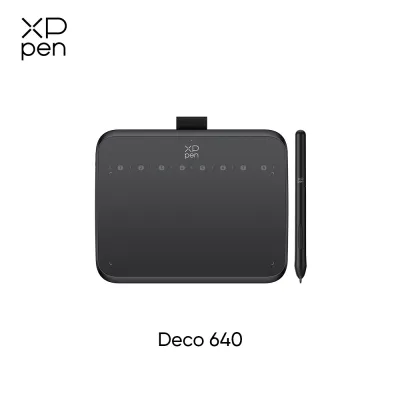
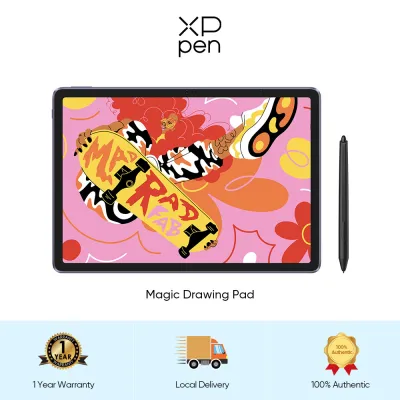
Prices are valid at publication and may change. Please refer to the product page for the latest price.
The physical size of the tablet’s active area is another critical factor that must align with your drawing style and desk space. A small tablet is highly portable and fits easily on crowded desks, making it ideal for artists who draw primarily with wrist movements. However, if you prefer sweeping arm movements or work on a large, high-resolution monitor, a medium or large tablet prevents your hand movements from feeling cramped or overly sensitive. You should measure your available desk space and compare it against the physical dimensions listed on manufacturer specification sheets before making a purchase.
Additionally, physical shortcut keys, dials, and scroll wheels play a vital role in streamlining repetitive tasks within crafting and design software. If your workflow involves constantly zooming in to edit fine details, adjusting brush sizes, or undoing strokes, a tablet with customizable physical controls can significantly reduce your reliance on keyboard shortcuts. Some crafters prefer a minimalist tablet to pair with an external keyboard, while others seek a fully integrated control layout that allows them to work entirely on the tablet surface.
Comparing Pen Performance and Drawing Feel
The stylus is your primary connection to your digital canvas, making pen performance and the tactile feel of the drawing surface paramount. All three brands—Wacom, XP-Pen, and Huion—utilize battery-free Electro-Magnetic Resonance (EMR) technology in their modern styluses. This technology eliminates the need to charge the pen or replace internal batteries, ensuring the stylus is always ready for use and lightweight enough to prevent hand fatigue during long sessions. However, the internal engineering of these pens varies, affecting how they register your hand’s movements.

When evaluating pen performance, you should consult official product specification sheets to verify key metrics such as pressure sensitivity levels, tilt recognition, and initial activation force (IAF). Pressure sensitivity, commonly rated up to 8,192 levels, dictates how easily you can vary line width or opacity by changing how hard you press. Tilt recognition, typically supported up to 60 degrees, allows for realistic shading when using digital brushes that mimic traditional pencils or markers. Perhaps the most critical metric for fine detail work is the initial activation force, which is the minimum amount of pressure required for the tablet to register a stroke; a lower activation force allows you to draw incredibly light, whisper-thin lines without the pen skipping.
The physical interaction between the pen tip and the tablet surface determines the overall drawing feel, which ranges from a smooth, glass-like glide to a textured, paper-like resistance. Wacom tablets are widely recognized for their balanced surface texture, which provides a subtle friction that mimics traditional paper. Huion and XP-Pen have made significant strides in this area, often applying textured overlays or offering specialized matte screen protectors on their display models to reduce slipperiness. Because drawing feel is highly subjective, you can test this by observing how easily the pen tip slides across the surface; a surface with too little friction can cause your hand to slip during precise vector plotting, while too much friction can accelerate nib wear.
Nib wear is an inevitable part of tablet maintenance that you must plan for. As you draw, the friction between the stylus and the tablet surface gradually wears down the plastic or felt nib, requiring periodic replacement to prevent the worn tip from scratching the tablet surface. You should check the availability and cost of replacement nibs for each brand, as well as the variety of nib materials offered, such as standard plastic or high-friction felt, to customize your drawing experience.
Evaluating Build Quality and Workspace Ergonomics
A tablet’s physical design and build quality directly impact its durability and your physical comfort during extended crafting sessions. The placement and tactile feedback of physical shortcut keys and scroll wheels vary significantly across brands. Wacom’s premium models often feature highly tactile, rubberized buttons and touch-sensitive rings that offer precise control over brush sizes and canvas rotation. Huion and XP-Pen frequently incorporate mechanical click keys, physical dials, or dual-touch bars, which provide clear physical feedback but may feel different depending on your preference for silent or clicky controls.
The materials used in the tablet’s construction also influence its longevity and stability on your desk. Premium models often feature aluminum backplates, reinforced glass surfaces, and robust rubber feet that prevent the tablet from sliding during vigorous drawing. Budget-friendly options may rely more heavily on plastic chassis, which are lighter and more portable but may flex slightly under heavy hand pressure. Additionally, you should examine the bezel width around the active drawing area; a wider bezel provides a comfortable resting place for your wrist, preventing fatigue at the edges of the canvas.
Cable management is another crucial ergonomic consideration for maintaining a tidy and functional workspace. Many modern tablets offer versatile connectivity options, including USB-C to USB-C single-cable connections, multi-input breakout cables, or wireless Bluetooth connectivity. If you prefer a clutter-free desk, verifying Bluetooth support and battery life on wireless models is essential. Furthermore, left-handed artists must ensure the tablet’s driver software supports 180-degree orientation switching, allowing the physical shortcut keys to be positioned on the right side of the device for comfortable access.
Checking Software Compatibility and Driver Setup
No matter how impressive the hardware specifications are, a writing pad tablet is only as good as its software integration and driver stability. Before purchasing, you must verify that the manufacturer provides official driver support for your specific operating system, whether you use Windows, macOS, ChromeOS, or Linux. Furthermore, you should check compatibility with your preferred creative software, ranging from industry-standard illustration programs like Adobe Photoshop and Clip Studio Paint to specialized vector crafting applications used for digital die-cutting and papercraft design.
The driver installation and setup process is where you customize the tablet to fit your workflow. Once the driver is installed, you can map the physical buttons on both the stylus and the tablet to execute specific keyboard shortcuts or system commands. You can also adjust the pressure curve settings, which calibrate how the tablet responds to your unique hand pressure, and configure screen mapping to ensure the tablet’s active area aligns perfectly with your monitor’s aspect ratio. This is particularly important if you use multiple monitors, as you will need to decide whether the tablet maps to a single screen or spans across both.
Despite advancements in driver design, software conflicts or pen cursor lag can occasionally occur, especially after operating system updates. To minimize these issues, it is advisable to uninstall any previous tablet drivers before installing a new one. If you experience persistent cursor offset, lag, or a loss of pressure sensitivity, you should check the manufacturer’s official support forums for updated drivers or step-by-step troubleshooting guides. If basic troubleshooting steps—such as restarting the driver service or changing the USB port—do not resolve the issue, you should stop and contact the manufacturer’s technical support team for assistance.
Navigating Budget Tiers and Value Propositions
Aligning your budget with the features and support offered by each brand is essential for making a smart investment. The general market positioning of these three brands provides a helpful starting point for your search. Wacom is widely positioned as the premium industry standard, offering exceptional build quality, highly stable drivers, and robust professional support, though this comes at a higher initial cost. Huion generally occupies the mid-to-high tier, offering advanced features like high-resolution displays and large active areas at competitive prices. XP-Pen is often positioned in the budget-to-mid tier, making it highly popular among beginners, hobbyists, and crafters looking for accessible entry-level hardware.
When calculating the total value of a tablet in S$, you must look beyond the initial purchase price and consider the long-term cost of ownership. This includes evaluating the warranty terms, the accessibility of customer support in your region, and the value of any bundled software. Some brands include valuable creative software licenses with their tablets, which can offset the hardware cost if you do not already own design software. Additionally, you should factor in the ongoing cost of consumable accessories, such as replacement nibs, drawing gloves, and protective carrying cases.
To protect your investment, always purchase your tablet through authorized local distributors or official online brand stores. Buying from unauthorized sellers on online marketplaces can leave you with counterfeit hardware or void your manufacturer warranty, making it difficult to obtain replacement parts or technical support if the device malfunctions. Verifying the seller’s authorization status before checkout ensures you receive genuine hardware and full warranty coverage.
Decision Framework: Which Brand Fits Your Workflow?
To finalize your decision, consider how each brand’s strengths align with your specific creative priorities, technical requirements, and budget constraints.
Choose Wacom if you prioritize long-term durability, industry-standard driver stability, and a highly refined drawing feel. This brand is ideal for professional illustrators and serious crafters who require absolute reliability, precise pen calibration, and a robust support network, and who are willing to invest a premium in S$ for a tool that will last for years of daily use.
Choose Huion if you are seeking a balance of advanced features, large active drawing areas, and competitive mid-tier pricing. This brand is well-suited for intermediate artists and dedicated crafters who want high-end specifications—such as excellent pressure sensitivity and laminated screens on display models—without paying the premium price associated with industry-standard legacy brands.
Choose XP-Pen if you are a beginner, hobbyist, or casual crafter looking for highly accessible entry-level models that offer solid basic performance. This brand provides an excellent starting point for those who want to explore digital crafting and illustration without a significant financial commitment, offering functional shortcut keys and reliable pen performance at a budget-friendly price point.
Verify first if you have confirmed the following details before completing your purchase:
- The tablet's physical dimensions fit comfortably within your designated workspace.
- The manufacturer's website lists official driver support for your exact operating system version.
- Your preferred illustration or vector crafting software is explicitly supported by the tablet's drivers.
- The retailer is an authorized distributor offering a valid local warranty and a clear return policy.
Frequently Asked Questions (FAQ)
Do I need a display tablet instead of a standard writing pad for illustration?
The choice between a screenless writing pad and a pen display tablet depends on your budget and how comfortable you are with hand-eye coordination. Screenless tablets require you to look at your computer monitor while drawing on your desk, which involves a learning curve but is highly ergonomic and budget-friendly. Pen display tablets allow you to draw directly on the screen, offering a more natural and intuitive experience for detailed illustration, but they require more cables, external power sources, and a higher financial investment.
Can I use these tablets for papercraft design and vector cutting software?
Yes, writing pad tablets are highly effective tools for papercraft design and vector cutting software. When designing cut lines, you can use the stylus to manipulate vector nodes, draw custom shapes, and trace templates with far greater precision than a standard mouse allows. Before purchasing, you should verify that your specific vector software supports pen input and check the tablet’s driver settings to ensure the cursor maps accurately to your design canvas.
Community discussion
Share your experience or ask a question. Comments are reviewed before publication.