
Choosing the right writing pad tablet is a pivotal decision for digital artists, designers, and students alike. While Wacom, Huion, and XP-Pen dominate the creative landscape, there is no single option that suits every hand. The ideal device depends on how you balance your budget, your specific drawing style, and the technical demands of your creative software. By examining how these brands approach hardware design, stylus technology, and driver stability, you can find a tablet that integrates seamlessly into your workspace.
Understanding the Core Differences Between the Brands
Wacom has long been recognized as an industry standard in professional creative studios. The brand has built its reputation on exceptional build quality, highly reliable driver support, and precise stylus performance. This legacy of professional adoption often comes with a premium price tag, making their devices an investment for those who require long-term durability and consistent performance across complex software environments.
Huion has established itself as a powerful challenger by rapidly iterating its hardware and offering competitive specifications at a mid-range price point. They frequently introduce updated models featuring large active drawing areas, high pressure sensitivity, and modern connectivity options. This rapid development cycle allows artists to access advanced hardware features without the premium cost typically associated with legacy brands.
Products mentioned in this guide
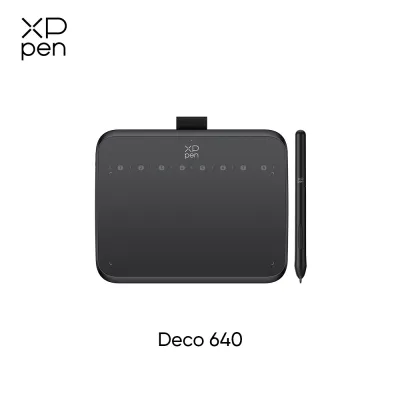
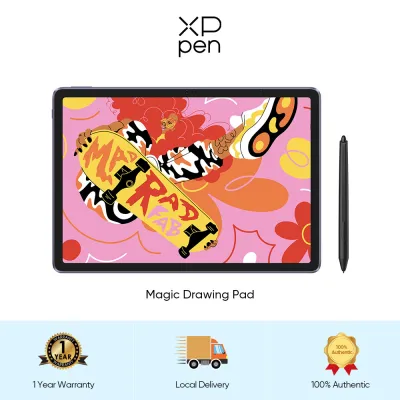
Prices are valid at publication and may change. Please refer to the product page for the latest price.
XP-Pen focuses heavily on accessibility, making it a popular choice for beginners, students, and hobbyists. Their product lineup emphasizes budget-conscious options that do not compromise on essential drawing features. XP-Pen often packages their tablets with comprehensive accessory bundles, including extra nibs, drawing gloves, and customizable shortcut keys, providing an all-in-one entry point for those starting their digital art journey.
While these brand profiles offer a general guide, it is crucial to remember that brand reputation alone does not guarantee a specific model will meet your needs. Hardware features, driver compatibility, and build materials can vary significantly across different product tiers. Always verify the exact specifications and user feedback for the specific model you intend to purchase rather than relying solely on overall brand perception.
Key Specifications to Compare Before Buying
When evaluating a writing pad tablet, several technical specifications directly impact your daily drawing experience. The first consideration is the active area dimension, which refers to the actual surface space responsive to the stylus. A larger active area allows for broader arm movements and finer detail control, which is ideal for large-scale digital painting. However, it also requires more physical desk space. Conversely, a smaller active area is highly portable and fits easily alongside a keyboard, but it may require more frequent zooming and panning within your software.

Pressure sensitivity levels and tilt recognition are critical for replicating the feel of traditional media. Most modern tablets offer up to 8,192 levels of pressure sensitivity, allowing you to control line weight and opacity through physical pressure. Tilt recognition, typically measured in degrees, enables the tablet to detect the angle of the stylus, allowing for realistic shading with digital brushes. Rather than relying on marketing numbers, always check the manufacturer’s official specification sheets to confirm these features are fully supported by both the hardware and your preferred drawing software.
Express keys and physical dials or wheels can significantly streamline your workflow by reducing your reliance on keyboard shortcuts. Look for tablets that offer customizable buttons positioned comfortably for your non-dominant hand. Physical dials or scroll wheels are particularly useful for quickly adjusting brush sizes, zooming in on details, or rotating the digital canvas.
Finally, connectivity options and device compatibility must align with your current computer setup. Modern writing pad tablets typically connect via USB-C, USB-A, or wireless Bluetooth. Ensure your computer has the necessary ports, or plan to use a compatible adapter. Additionally, verify whether the tablet requires external power or can run directly off your computer’s battery, especially if you plan to work on the go.
Matching the Tablet to Your Drawing Style and Workflow
Your specific artistic style should dictate the hardware features you prioritize. For artists focused on line art, inking, or precise vector illustration, stylus stability and a low initial activation force are paramount. Initial activation force refers to how much physical pressure is required for the tablet to register a stroke. A low activation force ensures that even the lightest touch produces a clean, continuous line without skipping or jittering.
If your workflow centers on digital painting, blending, and complex shading, you should prioritize a tablet with robust tilt support and a wider active area. The broad physical space allows for natural, sweeping shoulder and elbow movements, mimicking the experience of painting on a physical canvas. Tilt support is essential here, as it allows digital oil, watercolor, or charcoal brushes to change shape and texture based on how you hold the pen.
For professionals engaged in 3D sculpting, photo editing, or digital note-taking, the layout of shortcut keys and ergonomic accessories becomes a primary focus. Sculpting software often requires rapid switching between various brushes and tools, making a tablet with a high number of customizable express keys or an external shortcut remote highly beneficial. For note-taking and document annotation, a compact, lightweight non-screen tablet is often preferred for its portability and ease of setup.
Choosing between a screen tablet (pen display) and a non-screen writing pad is another fundamental decision. Non-screen tablets require you to look at your computer monitor while drawing on your desk, which demands a period of hand-eye coordination adjustment. However, they are highly durable, portable, and budget-friendly. Screen tablets allow you to draw directly on the display, offering a more intuitive, traditional feel, but they are generally more expensive, heavier, and require more cables and power management.
Evaluating Build Quality, Stylus, and Software Compatibility
The physical construction of both the tablet and the stylus determines the longevity of your investment. Most modern writing pad tablets utilize battery-free electromagnetic resonance (EMR) technology. This means the stylus does not require charging or batteries, making it lightweight and always ready to use. When comparing styluses, pay close attention to the grip design; a rubberized, ergonomic grip can significantly reduce hand fatigue during long drawing sessions compared to a hard plastic finish.
The texture of the drawing surface greatly influences the tactile feedback of your pen strokes. Many tablets feature a matte textured film designed to mimic the natural friction of paper. While this texture provides excellent control, it also increases the wear rate of your stylus nibs. Smoother surfaces offer less resistance and prolong nib life, but they can feel slippery to artists accustomed to traditional media. Check if the manufacturer includes replacement nibs in the box, as these are consumable items you will need to replace periodically.
Software and operating system compatibility can make or break your user experience. Driver conflicts can lead to issues like lost pressure sensitivity, lag, or unresponsive shortcut keys. Before making a purchase, visit the official support page of the brand you are considering. Verify that they offer up to date drivers for your specific operating system version, whether you use macOS, Windows, ChromeOS, or Android. Additionally, check user forums to ensure the tablet drivers integrate smoothly with your primary creative software, such as Adobe Photoshop, Clip Studio Paint, or Blender.
Decision Framework: Which Brand Should You Choose?
To finalize your decision, align your purchase with your current skill level, budget, and professional requirements. Consider Wacom if you are a professional artist, designer, or studio animator who demands long-term durability, highly stable drivers, and consistent performance across enterprise-level software. While the initial cost is higher, the reliability and extensive customer support can save valuable time in a professional production environment.
Opt for Huion if you are an intermediate artist or a hobbyist looking to maximize your hardware specifications within a mid-range budget. Huion offers an excellent balance of large active drawing areas, advanced stylus features, and modern designs, making it a compelling choice for those who want professional-grade specs without the premium price tag.
Choose XP-Pen if you are a beginner, student, or casual creator seeking an affordable, feature-rich entry point into digital art. Their budget-friendly models and generous accessory bundles provide everything you need to start drawing immediately, allowing you to develop your skills before investing in high-end hardware.
Before completing your purchase, always verify local warranty terms and return policies in Singapore. Purchasing through authorized local distributors ensures you have access to reliable customer service and straightforward replacement options if you encounter any hardware issues. Additionally, double-check that your computer’s operating system and your preferred creative software are fully supported by the tablet’s latest drivers.
Frequently Asked Questions (FAQ)
Do I need a screen tablet or a non-screen writing pad?
Deciding between a screen tablet and a non-screen writing pad depends on your budget, workspace, and comfort with hand-eye coordination. A non-screen writing pad requires you to look at your computer monitor while drawing on the desk. While this takes some practice to master, these tablets are highly durable, lightweight, and cost-effective. A screen tablet allows you to draw directly on the display, offering a natural transition for traditional artists. However, screen tablets are more expensive, less portable, and require multiple cable connections. If you have limited desk space or travel frequently, a non-screen pad is often the more practical and ergonomic choice.
Are third-party styluses compatible across these brands?
No, third-party styluses are generally not compatible across different tablet brands. Although Wacom, Huion, and XP-Pen all utilize electromagnetic resonance (EMR) technology, the underlying communication protocols, frequencies, and hardware calibrations are proprietary to each manufacturer. Attempting to use a stylus from one brand on a tablet from another will typically result in no response, erratic cursor behavior, or inaccurate pressure sensitivity. To avoid damaging your hardware or voiding your warranty, always use the exact stylus model recommended by your tablet’s manufacturer. If you need a replacement, verify compatibility on the brand’s official accessory page before purchasing.
Community discussion
Share your experience or ask a question. Comments are reviewed before publication.