
Choosing the right drawing tablet can feel like a daunting task, especially with Wacom, Huion, and XP-Pen dominating the digital art landscape. The ideal brand for your creative workflow depends entirely on your skill level, budget, and specific technical requirements. While one artist might require the absolute driver stability of an industry-standard device, another might prioritize screen size and color accuracy at a more accessible price point.
For professional illustrators, animators, and design studios in Singapore who require flawless reliability and certified software compatibility, Wacom remains the premier choice. Enthusiasts and intermediate creators seeking an excellent balance of high-resolution displays and mid-range pricing will find Huion to be a compelling option. Meanwhile, beginners, students, and casual sketchers who want to explore digital art without a heavy financial commitment will get the most value out of XP-Pen’s feature-rich, budget-friendly lineup. Aligning your choice with your current creative stage ensures you do not overspend on features you do not yet need, or underspecify a tool critical to your livelihood.
Key Dimensions for Evaluating Drawing Tablets
To make an informed decision, you must look past marketing buzzwords and evaluate drawing tablets across three primary technical pillars. These dimensions directly impact your daily drawing experience, ergonomic comfort, and overall productivity.
Products mentioned in this guide

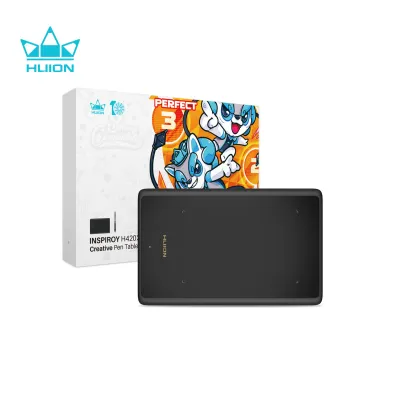
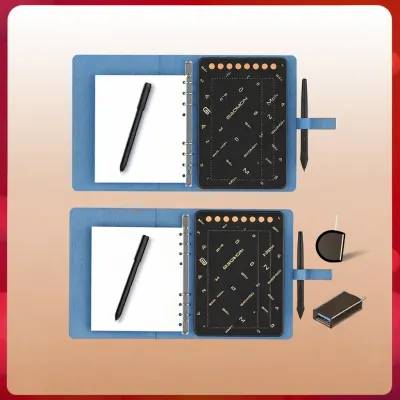
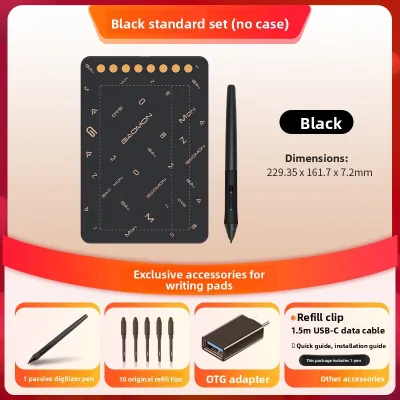
Prices are valid at publication and may change. Please refer to the product page for the latest price.
Pen Performance and Stylus Technology
The stylus is your primary connection to your digital canvas, making its underlying technology critical. When comparing pens, look closely at the pressure sensitivity levels, tilt recognition, and Initial Activation Force (IAF). Modern tablets typically offer either 8,192 or 16,384 levels of pressure sensitivity, which dictate how smoothly you can transition from thin lines to thick strokes.
Tilt recognition, usually supported up to plus or minus 60 degrees, allows you to shade naturally, much like using the side of a pencil. However, IAF is often the most telling metric of a premium pen; it represents the minimum physical force required for the tablet to register a stroke. A stylus with low IAF allows you to sketch with the lightest feather-touch, whereas a high IAF requires you to press down noticeably before a line appears. Always verify these precise metrics on the manufacturer’s official specification sheet rather than relying on generalized retail descriptions.
Build and Display Quality
If you are opting for a pen display (a tablet with a built-in screen), the quality of that screen directly affects your optical comfort and accuracy. Key specifications to evaluate include screen lamination, surface texture, and color gamut coverage. Laminated displays fuse the protective glass and the underlying LCD panel together, eliminating the air gap that causes parallax—the visual distance between your physical pen tip and the digital cursor.
Surface texture also plays a massive role in the tactile experience. Premium displays use chemically etched glass to mimic the natural resistance of paper, which also diffuses ambient light to reduce glare. Budget-friendly models often use textured plastic films instead, which can wear down over time and require replacement. For color accuracy, verify the color gamut coverage percentages, such as sRGB, Adobe RGB, or DCI-P3. If you are preparing work for print, a wide Adobe RGB gamut is essential, whereas sRGB is the standard for web-based digital art.
Software and Driver Ecosystem
A drawing tablet is only as good as its software driver. The driver translates the physical movements of your pen into digital coordinates and pressure data for your operating system. Reliable driver stability prevents sudden cursor offsets, lag, and software crashes mid-stroke.
Additionally, consider the customizability of the driver software. Look for systems that allow you to map custom express keys and radial menus on a per-application basis, meaning your physical buttons will automatically switch functions when you move from Adobe Photoshop to Blender or Clip Studio Paint. Before purchasing, check the manufacturer’s official compatibility list to confirm support for your specific operating system, whether you run Windows, macOS, Linux, ChromeOS, or Android.
Wacom: The Industry Standard for Professionals
Wacom has long held the reputation of being the gold standard in the creative industry. This legacy is built upon their highly refined, proprietary Electro-Magnetic Resonance (EMR) pen technology, which delivers an incredibly natural drawing feel with virtually non-existent latency and an industry-leading low Initial Activation Force. Professional studios and freelance artists globally rely on Wacom because their hardware is built to withstand years of daily, heavy-duty production.

For creative professionals in Singapore, Wacom’s ecosystem offers unmatched peace of mind. Their drivers are exceptionally stable, receiving regular updates that align seamlessly with major operating system upgrades and creative software patches. Furthermore, Wacom provides robust local warranty support and authorized service centers in Singapore, ensuring that if a device does require troubleshooting or repair, professional downtime is kept to an absolute minimum.
However, this level of professional reliability comes with a significant price premium. Wacom’s high-end pen displays, such as the Cintiq Pro line, represent a major financial investment, often starting well over S$1,500 and climbing significantly for larger screen sizes. If you are considering Wacom’s entry-level models, such as the One by Wacom or the standard Wacom One, it is crucial to verify their hardware specifications. These budget Wacom models often lack laminated screens, high color gamuts, and physical express keys—features that competitor brands frequently offer as standard at the exact same price point.
Huion: The Balanced Choice for Enthusiasts
Huion has evolved from a budget alternative into a highly competitive mid-range powerhouse. They have closed the performance gap with Wacom by introducing impressive hardware specifications at a fraction of the cost. Huion’s pen displays, particularly the Kamvas and Kamvas Pro series, offer stunning 2.5K and 4K resolutions, laminated screens, and exceptionally wide color gamuts (often exceeding 120% sRGB) that appeal directly to visual artists.
This brand is highly suited for art students, freelance illustrators, and dedicated hobbyists who want to upgrade from a basic non-screen tablet to a large, high-performance pen display. Huion has also modernized its connectivity options, with many models supporting a clean, single-cable USB-C connection that carries power, data, and video signals simultaneously. This is particularly advantageous for Singaporean creators working in compact study spaces or HDB flats where minimizing cable clutter is a priority.
Despite these strengths, there are minor trade-offs to verify before purchasing. While Huion’s driver stability has improved dramatically over the years, some users still report occasional software conflicts or shortcut mapping quirks, particularly when transitioning between multiple monitors or utilizing niche creative software. It is highly recommended to browse community art forums and read recent driver release notes to ensure your primary drawing applications run smoothly on Huion’s current software builds.
XP-Pen: High Value for Beginners and Students
XP-Pen has carved out a dominant position in the entry-level market by focusing on extreme affordability, generous accessory packages, and rapid technological iteration. Their tablets are designed to lower the barrier to entry for digital art, making them the go-to recommendation for beginners, school students, and casual hobbyists. XP-Pen frequently bundles their tablets with essential accessories that other brands sell separately, such as protective cases, drawing gloves, replacement nibs, and even specialized shortcut remotes.
In recent years, XP-Pen has made significant strides in pen performance with the introduction of their X3 Smart Chip stylus technology. This chip-based stylus design dramatically reduces the Initial Activation Force to just 3 grams and shortens the physical retraction distance of the pen nib, resulting in a much firmer, more responsive drawing feel that rivals more expensive competitors. This technology is featured across their Artist and Artist Pro lines, bringing professional-grade pen physics to budget-conscious buyers.
When choosing XP-Pen, the primary limitation to verify is the long-term physical durability of the hardware. To maintain their highly competitive pricing, XP-Pen models often utilize lightweight plastic chassis designs that may feel less rigid than Wacom’s robust builds. Additionally, the pre-applied textured screen protectors on their budget displays can scratch or wear down over extended periods of heavy use. If you plan to use your tablet intensely for several hours every day, you should factor in the eventual need to replace these protective films or handle the device with extra care.
Pre-Purchase Specification Checklist
Before finalizing your purchase on an online marketplace or at a local electronics retailer, you should systematically compare the technical specifications of your shortlisted models. Use this checklist to ensure you are comparing equivalent features across Wacom, Huion, and XP-Pen:
- Active Area Size: Measure your physical desk space. A medium-sized tablet (roughly 10 by 6 inches of active drawing area) is the ergonomic sweet spot for most creators, while larger displays require dedicated desk real estate.
- Screen Resolution: For pen displays, ensure the resolution matches the screen size. A 1080p resolution is acceptable on a 12-inch to 16-inch screen, but on displays 22 inches or larger, a 2.5K or 4K resolution is highly recommended to prevent pixelation.
- Color Gamut Coverage: Verify the color space standards. Look for at least 99% sRGB for digital-only work, and look for high Adobe RGB or DCI-P3 percentages if you specialize in print design or video color grading.
- Stylus Technology: Check if the pen is battery-free (EMR) and verify the Initial Activation Force (IAF) rating. Ensure the package includes a sufficient supply of replacement nibs, as these wear down naturally over time.
- Physical Connectivity: Confirm your host computer has the necessary ports. Some tablets require an HDMI port and two USB-A ports, while others can run off a single, full-featured USB-C port that supports DisplayPort Alternate Mode.
- Ergonomics and Mounting: Check if the tablet has built-in tilt legs or if it features a standard VESA mount (75x75mm or 100x100mm) on the back, which is essential if you plan to mount the display on an adjustable monitor arm.
Final Decision Framework: Match Brand to Skill Level
To make your final decision as straightforward as possible, match your current creative situation and technical demands to the ideal brand pathway outlined below.
Choose Wacom if:
- You are a working professional, commercial illustrator, or studio artist whose income depends directly on daily hardware reliability.
- You require absolute driver stability with zero software conflicts, especially when working on complex, multi-layered files in industry-standard programs.
- You value premium physical build quality, local Singapore-based customer service, and a stylus with the lowest possible Initial Activation Force.
Choose Huion if:
- You are an intermediate artist, freelance creator, or design student looking to upgrade to a large, high-resolution pen display without spending thousands of dollars.
- You want a vibrant screen with excellent color accuracy and modern, clean single-cable connectivity to keep your workspace organized.
- You are comfortable occasionally troubleshooting minor driver updates or software settings to achieve an excellent price-to-performance ratio.
Choose XP-Pen if:
- You are a beginner, hobbyist, or student purchasing your very first drawing tablet and want to keep your initial investment low.
- You want a highly responsive stylus experience, such as their X3 Smart Chip technology, along with a comprehensive bundle of out-of-the-box accessories.
- You prioritize upfront value and feature accessibility over premium chassis materials or long-term structural wear.
Verify first if:
- You plan to connect your drawing tablet to a mobile device, such as an Android phone or an iPad, or if you use a niche operating system like Linux. Always cross-reference the brand's official compatibility list for your exact device model and operating system version before making a purchase.
Frequently Asked Questions (FAQ)
Are Wacom, Huion, and XP-Pen styluses cross-compatible?
No, styluses from Wacom, Huion, and XP-Pen are not cross-compatible. Each brand utilizes proprietary Electro-Magnetic Resonance (EMR) or active chip technologies that operate on different wireless frequencies and digitizer configurations. Even within the same brand, a stylus designed for one specific tablet series may not work with another. You should only purchase replacement pens that are explicitly listed as compatible with your exact tablet model on the manufacturer’s official website.
Do I need a separate monitor for a non-screen drawing tablet?
Yes, a non-screen drawing tablet (often called a pen tablet or graphics tablet) acts strictly as an input device, similar to a highly precise mouse. It does not display images on its own surface. You must connect it to a computer, laptop, or compatible mobile device, and look at your external computer monitor or screen while drawing on the tablet’s surface. In contrast, a pen display features a built-in screen that displays your computer’s desktop directly on the device, allowing you to draw directly on your digital canvas.
Community discussion
Share your experience or ask a question. Comments are reviewed before publication.