
Quick Answer: Which LCD Drawing Tablet Brand Fits Your Workflow?
Selecting an LCD drawing tablet for architectural work requires balancing technical precision with your specific career stage and budget. For established professionals working in architecture firms, Wacom is often the industry standard due to its long-standing reputation for driver stability and precise stylus calibration. However, students and independent designers in Singapore frequently find that mid-range options from Huion or budget-friendly models from XP-Pen offer comparable drafting utility at a fraction of the cost.
The ideal choice depends on verifying how well a specific model integrates with your primary CAD and 3D modeling software, rather than relying solely on brand prestige. While professionals may require the high-end color accuracy and robust support of a premium device, students can comfortably complete their coursework using more affordable alternatives that prioritize core drawing functionality.
Key Specifications to Verify for Architectural Drafting
Before investing in an LCD drawing tablet, you must evaluate several technical parameters to ensure the device can handle complex architectural workflows. Unlike general digital illustration, architectural drafting demands high structural precision, clear line visibility, and seamless software integration.
Products mentioned in this guide
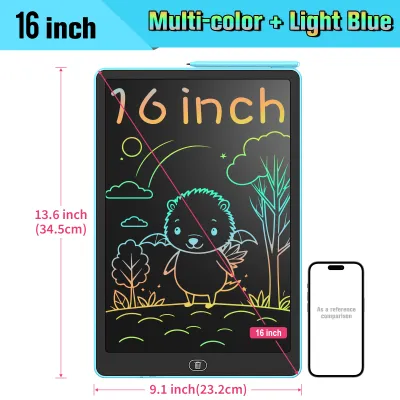
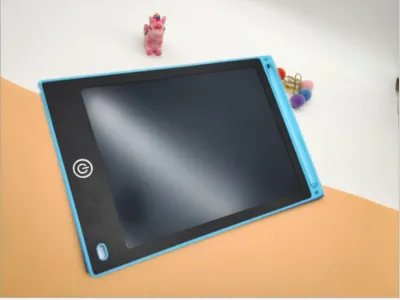
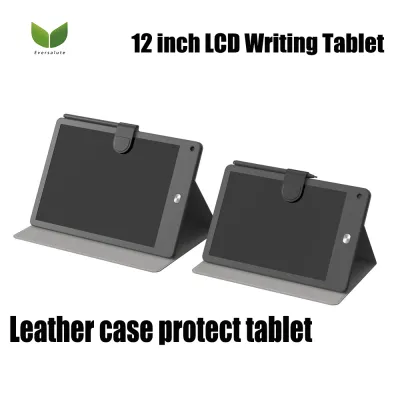
Prices are valid at publication and may change. Please refer to the product page for the latest price.

Screen size and resolution are critical when viewing detailed floor plans, elevations, and intricate 3D wireframes. A screen that is too small will force you to constantly zoom and pan, disrupting your drafting rhythm. Look for a display size of at least 13 to 16 inches, with a minimum resolution of Full HD (1920×1080), though 2K or 4K displays are highly recommended for larger 22-inch to 24-inch models to prevent pixelation of fine vector lines.
Stylus performance is another vital factor to check. While high pressure sensitivity is standard across most modern tablets, you should specifically verify the stylus’s initial activation force and tilt recognition. A low initial activation force ensures that the tablet registers the lightest touch, which is essential for delicate conceptual sketching and precise line placement in CAD programs.
Connectivity and software compatibility must be confirmed before purchase. Ensure the tablet drivers are fully compatible with your operating system and your primary architectural software suites, such as AutoCAD, Revit, SketchUp, and Rhino. Some tablets connect via a single USB-C cable, which helps keep compact Singapore home office desks tidy, while others require bulky three-in-one cables that demand multiple ports on your computer.
Finally, consider ergonomics and physical durability. Architectural drafting sessions often last for hours, making an adjustable stand essential to prevent neck and wrist strain. Verify whether the tablet comes with a built-in stand or if you need to purchase a compatible VESA mount or external stand separately.
Wacom: Precision and Professional Ecosystem
Wacom has long been the benchmark for professional digital creators, and its pen displays are highly regarded in corporate architecture and design firms. The brand’s primary appeal lies in its exceptional stylus tracking accuracy, minimal pen latency, and highly reliable driver ecosystem.
For professional architects, Wacom’s color-accurate screens and consistent performance across both Windows and macOS environments justify the premium pricing. The drivers are regularly updated to maintain compatibility with major design software, reducing the risk of sudden workflow disruptions during critical project deadlines.
However, this professional-grade reliability comes with a significant financial investment, with high-end models often costing upwards of S$1,500. You must verify whether your daily tasks—such as markup reviews, conceptual sketching, or 3D sculpting—actually require this level of color accuracy and specialized hardware, or if a more modest device would suffice.
When considering a Wacom tablet, always check the manufacturer’s specifications regarding warranty coverage and the long-term availability of replacement parts. Because professional use leads to wear and tear, knowing you can easily source replacement stylus nibs or power cables locally in Singapore is an important factor in calculating the total cost of ownership.
Huion: Mid-Range Performance and Build Quality
Huion has positioned itself as a strong competitor by offering feature-rich LCD drawing tablets that bridge the gap between budget alternatives and premium professional displays. This makes them highly attractive to freelance architects and advanced students looking for high performance without the premium price tag.
Many of Huion’s mid-tier models feature fully laminated screens, which reduce parallax—the physical gap between the stylus tip and the digital cursor. This lamination, combined with anti-glare glass or film, provides a more natural pen-on-paper feel that is highly beneficial when tracing over existing floor plans or sketching structural details.
When evaluating Huion models, it is important to test or research the stylus’s initial activation force. Some older or lower-end styluses may require slightly more physical pressure to register a stroke, which can lead to hand fatigue during long drafting sessions.
Additionally, you should verify driver stability by checking recent user feedback concerning your specific operating system and CAD software. While Huion’s hardware build quality has improved significantly, ensuring that their drivers run smoothly alongside resource-heavy rendering engines is crucial for a frustration-free workflow.
XP-Pen: Budget-Friendly Options for Students
For architecture students in Singapore managing tight academic budgets, XP-Pen offers highly accessible entry-level LCD drawing tablets. These devices provide the essential functionality needed to learn digital drafting, 3D modeling, and conceptual rendering without a massive upfront financial commitment.
XP-Pen tablets are particularly useful for early-stage design studio projects, allowing students to quickly sketch over digital site plans, annotate PDF drawings, and experiment with digital painting tools. Many of their models are lightweight and compact, making them easy to transport between home and the university studio.
However, to keep prices low, certain trade-offs are inevitable. You should carefully check reviews regarding screen uniformity and color consistency, as budget displays may exhibit slight color shifts near the edges. Additionally, verify whether the stylus is battery-free or requires charging, as a passive stylus is far more convenient for long study sessions.
To maximize a limited S$ budget, prioritize essential drafting features—such as a responsive stylus and a clear, matte screen—over non-essential extras like extensive shortcut key arrays or high-end color gamut coverage. Many students find that a basic, reliable screen is more than adequate for their academic coursework.
Decision Framework: Matching the Tablet to Your Needs
To make an informed decision, you should match the tablet’s specifications directly to your professional status, daily workflow, and physical workspace constraints.
Choose Wacom if: You are a practicing professional or working within an architecture firm where absolute driver reliability, precise stylus tracking, and long-term software support are critical to your daily billable hours. Your budget allows for a premium investment (typically exceeding S$1,000) to secure a device with industry-standard color accuracy and robust local warranty support.
Choose Huion if: You are a freelancer, independent designer, or advanced student seeking a balance of professional features—like a laminated screen and high-resolution display—at a moderate price point (typically between S$400 and S$900). You are willing to spend a little time configuring drivers and testing software compatibility to achieve a high-quality drafting experience.
Choose XP-Pen if: You are an architecture student or beginner looking for an affordable entry point (often under S$400) to learn digital sketching and basic 3D modeling. You prioritize portability and value, and do not require advanced color calibration or high-end professional ecosystem support.
Verify first if: Your current computer hardware has the necessary video output ports (such as HDMI, DisplayPort, or USB-C with DP Alt Mode) and processing power to run an external display alongside heavy CAD software. Additionally, ensure your desk space can comfortably accommodate the physical dimensions of the tablet, especially if you plan to use an external monitor arm or a dedicated drafting stand. Finally, always purchase through official brand stores or authorized local electronics retailers in Singapore to ensure you receive a valid local warranty and access to reliable customer service.
Frequently Asked Questions (FAQ)
Can I use an LCD drawing tablet without a computer?
Most LCD drawing tablets, also known as pen displays, function as external monitors and must be connected to a host computer to operate. They do not have their own processor, RAM, or storage, meaning they cannot run resource-heavy architectural software like AutoCAD or Revit on their own. Always check the manufacturer’s product classification to ensure you are purchasing a pen display rather than a standalone pen computer, which is a fully independent device but comes at a much higher cost.
Do I need a screen protector for architectural drafting?
Whether you need a screen protector depends on the tablet’s screen material and your personal drawing habits. Many mid-range and premium tablets come with pre-applied anti-glare film or etched glass that already provides a textured, paper-like friction. Adding an aftermarket screen protector can alter this friction, sometimes increasing stylus nib wear or reducing screen clarity. Before applying one, check the manufacturer’s guidelines to ensure it will not interfere with stylus tracking or void your warranty.

Community discussion
Share your experience or ask a question. Comments are reviewed before publication.