
Selecting the perfect digital notepad tablet involves navigating a highly competitive landscape where three major brands dominate the creative market: Wacom, Huion, and XP-Pen. There is no single “best” brand for every creator; instead, the ideal choice hinges on your specific budget, workflow demands, and level of experience. Wacom remains the choice for industry professionals who require absolute driver stability, precise color reproduction, and extensive enterprise support. Huion appeals to intermediate artists and freelancers seeking a high performance-to-price ratio alongside rapid hardware innovation, such as high-resolution laminated displays. XP-Pen serves as an accessible entry point, offering students and hobbyists highly capable, budget-friendly hardware without a steep initial financial hurdle.
As digital art, design, and note-taking workflows evolve, a digital notepad tablet has transitioned from a niche luxury to an essential creative tool. Whether you are sketching architectural drafts, editing high-resolution photography, or taking handwritten notes in a lecture hall, understanding the nuances of these three manufacturers ensures you invest in a device that complements your physical workspace and digital pipeline. By analyzing the underlying technology, display characteristics, and driver ecosystems of each brand, you can make a calculated decision that enhances your creative efficiency without overspending.
Core Comparison Dimensions for a Digital Notepad Tablet
To make an informed decision, you must look past marketing buzzwords and evaluate the technical specifications that directly impact your daily drawing and writing experience.
Products mentioned in this guide
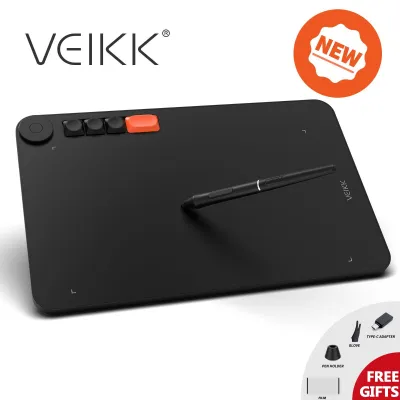
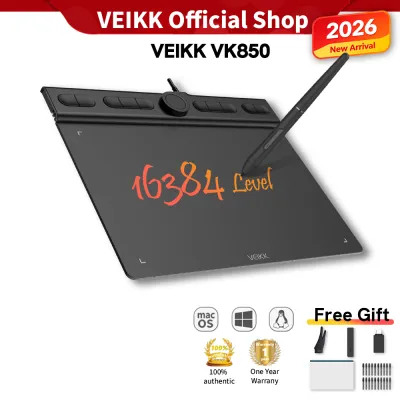
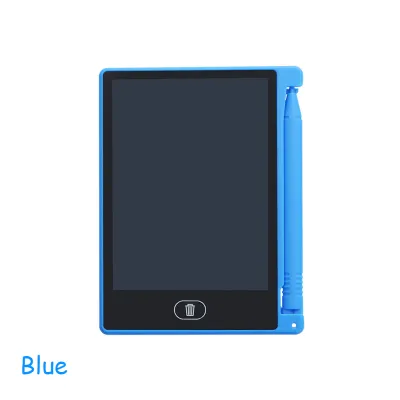
Prices are valid at publication and may change. Please refer to the product page for the latest price.
Pen Technology and Pressure Sensitivity The stylus is your primary interface, making its underlying technology critical. Most modern digital notepad tablets utilize Electromagnetic Resonance (EMR) technology, which eliminates the need for batteries or charging cables in the pen. When reviewing specifications, look closely at the Initial Activation Force (IAF)—the physical weight required for the tablet to register a stroke. A lower IAF means the pen can draw with the lightest touch, mimicking traditional graphite on paper. While pressure sensitivity levels are often marketed at 8,192 (8K) or even 16,384 (16K) levels, your real-world experience is heavily influenced by the pen’s tilt recognition (usually up to 64 degrees) and the linearity of the pressure curve. Look for customizable pressure curve settings in the driver software to tailor the pen’s responsiveness to your drawing hand.
Active Area and Form Factor The physical size of the tablet’s active drawing area dictates how you move your hand. Small tablets (typically around 6 by 4 inches) are highly portable and fit easily alongside a laptop keyboard, but they require small, wrist-centric movements. Medium to large tablets (10 by 6 inches or larger) allow for sweeping arm movements from the shoulder, which is generally better for ergonomic health during long drawing sessions. You must also decide between a screenless pen tablet, which requires you to look up at an external monitor while drawing on your desk, and a pen display, which lets you draw directly on a built-in screen. Screenless tablets are highly durable, lightweight, and promote excellent neck posture, whereas pen displays offer immediate hand-eye coordination at the cost of higher power consumption, extra cabling, and increased workspace footprint.
Express Keys and Workflow Customization Physical shortcut keys, dial wheels, and touch strips can significantly accelerate your creative speed by reducing your reliance on a keyboard. When comparing models, evaluate the tactile feedback and layout of these express keys. Some brands offer physical scroll wheels that let you smoothly adjust brush sizes, zoom in on your canvas, or rotate your workspace. However, hardware is only as good as the software supporting it. The customization utility must allow you to map these keys on a per-application basis, meaning a button that triggers “Undo” in Photoshop can seamlessly switch to “Undo” or “Orbit” in Blender or Clip Studio Paint when you switch active windows.
Software and OS Compatibility A common pitfall is assuming every digital notepad tablet works flawlessly with every computer. Before purchasing, visit the official download page of each brand to verify driver support for your exact operating system version, whether you are running macOS, Windows, or ChromeOS. If you plan to connect the tablet to an Android mobile device or an iPad, verify the specific model compatibility and whether the tablet requires external power when connected to a phone. Furthermore, check community forums or official support documentation regarding compatibility with your preferred creative software suite, as certain driver versions can occasionally conflict with specific builds of creative software.
Brand Profiles: Strengths and Ideal User Types
Each of the three major brands has carved out a distinct identity in the creative community, catering to different priorities and professional demands.

Wacom: The Industry Standard
Wacom has long held its position as the premium benchmark for digital art hardware. The brand’s reputation is built on exceptional build quality, industry-leading pen ergonomics, and incredibly stable software drivers. Wacom’s EMR technology is highly refined, offering an incredibly low initial activation force and a natural, predictable pressure curve that professional artists rely on for precision work.
The primary trade-off with Wacom is its premium pricing structure. Their professional lines, such as the Intuos Pro and Cintiq Pro series, represent a major financial investment. This positions Wacom as the ideal choice for professional illustrators, animation studios, design agencies, and enterprise environments where downtime is costly and seamless integration with high-end workstations is mandatory. For these users, the long-term durability, reliable color accuracy, and robust customer support justify the premium cost.
Huion: The Value and Innovation Contender
Huion has transformed from a budget alternative into a formidable competitor by focusing on rapid hardware iteration and offering high-end specifications at competitive mid-range prices. The brand has been quick to adopt modern display standards, offering fully laminated screens that minimize parallax (the visual gap between the pen tip and the digital cursor), high-resolution panels (2.5K and 4K), and wide color gamuts covering professional standards like Adobe RGB and DCI-P3.
Huion’s latest stylus offerings feature improved pen stability and reduced physical wobble, bringing the drawing feel closer to its premium competitors. The ideal user profile for Huion includes intermediate artists, independent freelancers, and design students who want the advanced features of a professional pen display—such as a laminated screen and high-resolution canvas—without the steep premium price tag. It offers a compelling balance of modern hardware innovation and practical cost efficiency.
XP-Pen: The Budget-Friendly Alternative
XP-Pen has established itself as an exceptionally accessible brand, particularly favored by those entering the digital art world for the first time. By focusing on aggressive pricing and solid, dependable entry-level to mid-tier product lines, XP-Pen has democratized access to digital notepad tablet technology. Their Deco series for screenless tablets and Artist series for pen displays offer remarkable value, frequently bundled with creative software trials and comprehensive accessory kits.
While XP-Pen devices may feature slightly more plastic in their construction compared to Wacom, their recent stylus developments, such as the introduction of smart-chip technology, have significantly improved stroke stability and responsiveness. XP-Pen is the ideal match for hobbyists, art students, traditional media painters transitioning to digital, and beginners on a strict budget. It provides a highly capable, low-risk entry point that allows creators to develop their skills before committing to high-end professional gear.
How to Verify Specifications and Compatibility Before Buying
To ensure your chosen digital notepad tablet integrates seamlessly into your creative setup in Singapore, perform a series of practical validation checks before making your purchase.
Driver and OS Verification Never rely solely on the compatibility logos printed on the product packaging. Navigate to the official support or driver download page of Wacom, Huion, or XP-Pen and search for your specific operating system version. If you are using a newer Apple Silicon Mac or a specific Linux distribution, confirm that the brand offers native, updated drivers. Additionally, search user forums for potential driver conflicts with your specific version of drawing or note-taking software to avoid unexpected lag or pen-pressure dropouts.
Physical Workspace Check A common oversight when purchasing a large pen display or a spacious screenless tablet is underestimating its physical footprint. Measure your desk depth, keyboard placement, and monitor height. A pen display requires space for both the tablet itself and your arms to rest comfortably. Ensure your desk can accommodate the tablet’s angle adjustment stand and that your computer has the necessary physical ports—such as a full-featured USB-C port that supports DisplayPort Alternate Mode, or a combination of HDMI and USB-A ports. If your computer lacks these, you will need to budget for a compatible, powered hub.
Nib and Consumable Availability Because drawing styles vary, the rate at which you wear down pen nibs will depend on your physical drawing pressure and the texture of the tablet’s surface. Before finalizing your purchase, verify the availability and cost of replacement nibs. Check if official replacement parts, 3-in-1 connection cables, and replacement styluses are readily in stock on official online stores or through authorized local electronics retailers in Singapore. Relying on hard-to-source consumables can lead to frustrating project delays if your only stylus or nib fails during a deadline.
Return and Warranty Policies Because the tactile feel of a stylus is highly subjective, the only true test of a tablet is drawing on it. The initial activation force, the physical friction of the screen coating, and the weight of the pen are highly personal preferences. When purchasing in Singapore, verify the local warranty duration and the return policies of the retailer. Opt for sellers that offer a clear return window or visit physical demo showrooms in local retail hubs to test the physical pen-on-screen feel before committing your budget.
Final Decision Framework
To help you finalize your selection, use this structured, conditional decision framework to identify the path that aligns with your creative goals and budget.
- Choose Wacom if: You are a professional artist, animator, or designer working in a studio environment where absolute driver reliability, precise color calibration, and long-term durability are critical, and you have a flexible budget to invest in industry-standard hardware.
- Choose Huion if: You are an intermediate creator, freelancer, or advanced student looking for cutting-edge display specifications—such as fully laminated 2.5K or 4K screens and excellent color accuracy—at a highly competitive, mid-tier price point.
- Choose XP-Pen if: You are a beginner, hobbyist, or student on a strict budget who needs a reliable, accessible entry point into digital art with solid performance, generous accessory bundles, and a low financial risk.
- Verify first if: You plan to use niche software, older computer hardware, or mobile devices, as driver compatibility, port requirements, and connection stability vary significantly across individual tablet models.
Frequently Asked Questions (FAQ)
Do I need a pen tablet or a pen display?
The choice depends on your budget, ergonomic preference, and drawing style. Screenless pen tablets require you to look at your computer monitor while drawing on your desk, which promotes excellent neck posture and is highly cost-effective, though it requires a brief period of hand-eye coordination adjustment. Pen displays allow you to draw directly on the screen for an intuitive, natural feel, but they are more expensive, require more desk space, and introduce additional cable management complexity.
Are third-party replacement nibs safe to use?
It is highly recommended to use official, manufacturer-approved replacement nibs. Third-party nibs may not match the exact physical dimensions or material hardness specified by the brand. Using a nib that is too hard can permanently scratch your tablet’s drawing surface or screen coating, while a poorly sized nib can get stuck or damage the delicate pressure sensor inside your stylus, potentially voiding your manufacturer’s warranty.
Community discussion
Share your experience or ask a question. Comments are reviewed before publication.