
Selecting the right drawing tablet depends on your technical requirements, your artistic goals, and your budget. Wacom has long been the established industry standard, favored by professional studios for its exceptional color accuracy, highly stable driver software, and premium pen physics. However, these professional-grade features come with a significant price premium, which can be difficult to justify for those just starting out or working on a modest budget.
Conversely, Huion and XP-Pen have transformed the creative landscape by offering feature-rich drawing tablets and pen displays at highly competitive price points. These brands provide high-resolution screens, laminated displays, and customizable shortcut keys that rival the specifications of high-end models for a fraction of the cost. For beginners and intermediate hobbyists, these budget-friendly alternatives offer an accessible entry point into digital art without compromising on essential hardware performance.
Ultimately, your decision should align with your current skill level and workflow needs. If you require absolute software reliability for professional client work, Wacom remains the safest investment. If you want to maximize your hardware features, screen size, and shortcut configurations while staying within a strict budget, Huion and XP-Pen offer outstanding value.
Products mentioned in this guide
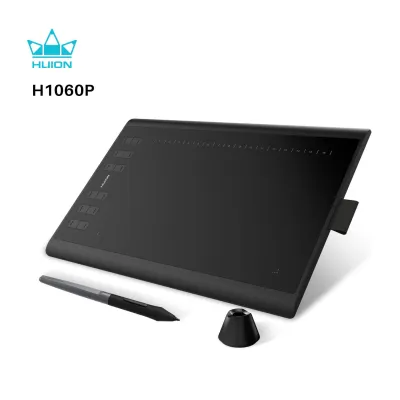
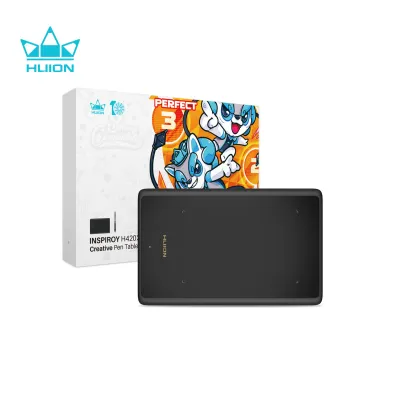
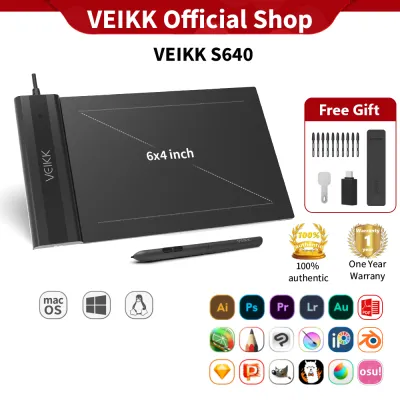
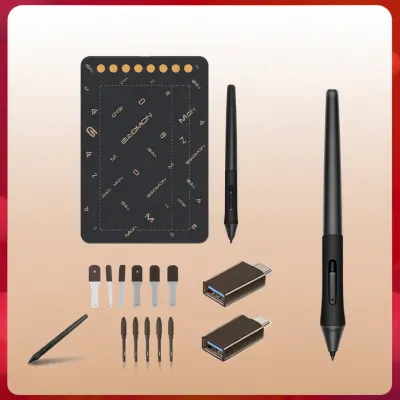
Prices are valid at publication and may change. Please refer to the product page for the latest price.
Core Features to Compare Before You Buy
To make an informed decision, you must look beyond marketing claims and understand the technical specifications listed on product boxes and retail listings. These technical details directly affect your daily drawing comfort, speed, and physical posture.
Active Area Size The active area refers to the actual surface portion of the tablet that registers pen input, which is distinct from the physical outer dimensions of the device. A small active area (such as 4 by 6 inches) is highly portable and fits easily on a cramped desk, but it forces you to make micro-movements with your wrist, which can lead to repetitive strain injuries over time. A medium (8 by 5 inches) or large (10 by 6 inches or more) active area allows you to draw from your elbow and shoulder, promoting better ergonomics and mimicking the natural feel of drawing on physical paper.
Pen Technology, Nibs, and Friction Modern drawing tablets utilize battery-free electromagnetic resonance technology, meaning the stylus does not require charging or batteries. However, the tactile experience depends heavily on the pen nibs and the tablet’s surface texture. Plastic nibs gliding on smooth plastic surfaces can feel slippery, whereas felt nibs on textured glass or matte screen protectors offer a tactile resistance similar to pencil on paper. You should verify the cost and local availability of replacement nibs, as these are consumable items that wear down over time depending on your drawing pressure. While pressure sensitivity levels are often marketed at 8,192 (8K) or 16,384 (16K) levels, the physical spring tension and initial activation force—the minimum pressure required for the tablet to register a stroke—have a much greater impact on real-world drawing feel.
Connectivity and Power Delivery Screenless pen tablets typically connect via a simple USB-C cable or wireless Bluetooth, drawing minimal power directly from your computer. Pen displays, which function as secondary monitors, have much higher power and data requirements. Many mid-sized and large pen displays require a three-in-one cable setup (combining HDMI, USB-A for data, and a USB-A connection to a wall outlet) or a full-featured USB-C cable that supports both power delivery and video signals. Before purchasing, verify that your computer has the necessary compatible ports to avoid the added expense of external adapters or specialized hubs.
Express Keys and Ergonomics Physical shortcut buttons, scroll wheels, and touch bars mapped to your tablet’s frame can significantly accelerate your creative workflow. These express keys allow you to execute common commands like undoing a stroke, resizing brushes, or zooming in and out without constantly reaching for your keyboard. Ergonomics are equally critical for long drawing sessions; check whether the tablet includes built-in fold-out legs or requires an external adjustable stand to maintain a comfortable viewing and drawing angle.
How Wacom, Huion, and XP-Pen Compare Across Skill Levels
Evaluating these brands requires looking at how their specific product lines cater to different stages of an artist’s journey, balancing hardware capabilities against financial investment.

Beginners: Prioritizing Budget and Ease of Use
For those entering the digital art space, screenless pen tablets are the most practical and cost-effective starting point. These devices require you to look at your computer monitor while drawing on the desk surface, a hand-eye coordination skill that typically takes a few days of practice to master.
Huion and XP-Pen dominate the beginner market by offering spacious, feature-rich screenless tablets at highly accessible prices. Their entry-level models often include generous accessory bundles containing drawing gloves, pen holders, and dozens of replacement nibs. These brands frequently partner with software developers to include entry-level drawing programs with your purchase, providing a complete out-of-the-box creative solution.
Wacom’s beginner options, such as the One by Wacom or the entry-level Wacom Intuos, are physically minimalist and often feature fewer physical shortcut keys than their competitors at the same price point. However, Wacom excels in build durability and software reliability. Their drivers are exceptionally stable, meaning you are less likely to encounter software glitches or cursor offset issues when setting up your device for the first time.
When choosing your first tablet, prioritize a comfortable active area size over high-end technical specifications. A medium-sized screenless tablet from Huion or XP-Pen provides the physical space needed to develop proper drawing habits without a large financial commitment. If you prioritize long-term durability and plug-and-play simplicity, Wacom’s entry-level models are highly reliable choices.
Intermediate Users: Balancing Advanced Features and Cost
As artists develop their skills, many choose to upgrade to a pen display, which allows them to draw directly on a screen. This transition improves speed and accuracy but introduces new technical variables like screen resolution, color accuracy, and parallax.
Huion and XP-Pen offer an extensive range of mid-tier pen displays that provide impressive hardware specifications at moderate price points. Many of these models feature fully laminated screens, which eliminate the air gap between the protective glass and the underlying LCD panel. This design minimizes parallax, ensuring that the digital ink appears directly beneath the physical pen tip. These displays also boast high color gamuts and sharp resolutions, making them highly attractive to art students and freelance illustrators.
Wacom’s intermediate displays, such as the standard Wacom Cintiq line, often carry a higher price tag while offering lower screen resolutions and non-laminated displays in their entry-sized options. However, Wacom compensates for this with superior color calibration straight out of the box. Their displays exhibit minimal color drift over time, which is crucial if your work is intended for print or professional digital publication.
For intermediate creators, the decision hinges on the balance between hardware features and software stability. If you want the largest screen size, a laminated display, and numerous physical express keys for your budget, Huion and XP-Pen are highly competitive. If your work demands precise color matching and you want to avoid the hassle of manual screen calibration, Wacom’s intermediate models are worth the extra investment.
Professionals: Demanding Precision, Durability, and Support
Professional artists, studio animators, and industrial designers rely on their tablets as daily production tools. In these high-stakes environments, equipment downtime can lead to missed deadlines and lost revenue, making reliability and precision the primary considerations.
Wacom remains the dominant force in professional production studios globally. Their flagship Cintiq Pro displays feature premium etched glass surfaces that diffuse reflections and provide a natural, paper-like drawing resistance. These professional displays offer exceptional color accuracy, covering high percentages of the Adobe RGB and DCI-P3 color spectrums. Wacom’s professional pens also feature an incredibly low initial activation force, allowing the tablet to register the lightest, most delicate physical strokes with perfect accuracy.
Huion and XP-Pen have introduced premium flagship lines, such as the Huion Kamvas Pro and XP-Pen Artist Pro series, designed to compete directly with Wacom’s professional offerings. These models feature high-resolution 4K screens, etched glass, and advanced digital pens with high pressure sensitivity levels. While these devices perform exceptionally well on paper, some professional users note that their drivers can occasionally conflict with complex multi-monitor setups or specialized 3D modeling software.
Professionals must carefully evaluate their specific software ecosystem and hardware configurations. If your workflow relies on seamless integration with industry-standard applications like Adobe Creative Cloud, Pixologic ZBrush, or Toon Boom Harmony, Wacom’s long-standing driver optimization offers peace of mind. Additionally, you should consider the availability of local customer support and repair services, as professional-grade equipment requires rapid troubleshooting options.
Brand Positioning and Value Comparison Matrix
To help you quickly compare how these three brands position their products in the market, the table below outlines their general target audiences, pricing tiers, strengths, and potential trade-offs.
| Brand | Target Skill Level | Typical Price Tier | Key Strengths | Potential Trade-offs |
|---|---|---|---|---|
| Wacom | Intermediate to Professional | Premium (S$300 to S$3,000+) | Industry-standard driver stability, exceptional color accuracy, etched glass surfaces, low initial pen activation force. | High retail price, fewer physical accessories included, expensive replacement nibs and accessories. |
| Huion | Beginner to Intermediate/Pro | Budget to Mid-Range (S$60 to S$1,500+) | Excellent price-to-performance ratio, laminated displays on mid-range models, generous accessory bundles. | Occasional driver conflicts, color calibration may require manual adjustment out of the box. |
| XP-Pen | Beginner to Intermediate/Pro | Budget to Mid-Range (S$50 to S$1,400+) | Highly affordable, innovative shortcut dials, excellent entry-level packages, responsive customer support. | Pen pressure curve can feel slightly stiffer, build materials may feel more plastic-heavy on budget models. |
Note: You must verify the exact specifications, regional model availability, and current retail prices from official brand stores or authorized local distributors before making your purchase.
Verifying Compatibility and Warranty in Singapore
Before purchasing a drawing tablet, you must ensure that the device is fully compatible with your existing computer hardware and operating system. While basic support for Windows and macOS is standard across all three brands, compatibility with ChromeOS, Linux, or Android mobile devices varies significantly depending on the specific model and driver version.
Pen displays require robust physical connectivity. Many modern displays utilize a single, full-featured USB-C cable that carries video, data, and power simultaneously. However, your computer’s USB-C port must support DisplayPort Alternate Mode and Power Delivery for this connection to work. If your computer lacks this capability, you will need to use a multi-cable configuration (typically combining HDMI and USB-A) or purchase a compatible, powered USB-C hub to bridge the connection.
In Singapore’s humid climate, physical maintenance is also an important consideration. Matte screen protectors and textured tablet surfaces can degrade or accumulate oils over time, and replacement parts should be easily accessible. Additionally, ensure that the power adapters supplied with larger pen displays are compatible with Singapore’s standard Type G three-pin power outlets or that you have a safe, certified adapter on hand.
Crucially, you should verify the warranty terms and local support options before finalizing your purchase. Purchasing your tablet from official brand stores or authorized local distributors in Singapore ensures that you receive a valid local warranty. While buying international models from unauthorized online marketplaces may offer minor upfront savings, these units often lack local warranty protection. If a hardware defect or screen issue arises, you may be forced to ship the heavy tablet back to an overseas service center at your own expense, resulting in expensive shipping fees and prolonged work disruptions.
Final Decision Guide: Which Brand Should You Pick?
To make your final decision, evaluate your specific creative needs and budget against the strengths of each brand.
Choose Wacom if
- You are a professional artist, studio animator, or design student who requires absolute driver reliability, industry-standard color accuracy, and a highly precise pen feel, and you have the budget to invest in premium hardware.
- You prefer a plug-and-play experience with minimal driver troubleshooting across multiple operating systems and software updates.
- You want premium physical build quality, such as etched glass screens and highly durable chassis materials.
Choose Huion or XP-Pen if
- You are a beginner, hobbyist, or independent creator looking for the best hardware features—such as a laminated pen display or a large active area with physical shortcut keys—at a highly accessible price point.
- You want to maximize your screen real estate and physical shortcut options without a massive upfront financial investment.
- You appreciate generous accessory bundles that include drawing gloves, extra pen nibs, and adjustable stands included in the box.
Verify first if
- You use a specialized operating system (such as Linux or ChromeOS) or rely on a complex multi-monitor setup, as driver configuration and screen mapping can vary across different hardware brands.
- You require specific software integrations, as certain legacy creative programs may have better compatibility with one brand's driver architecture over another.
Community discussion
Share your experience or ask a question. Comments are reviewed before publication.