
Selecting the right drawing tablet for architectural drafting is a decision that directly impacts your daily productivity, physical comfort, and precision in CAD and BIM environments. Unlike digital illustrators who prioritize fluid brush strokes and color accuracy, architects require absolute line precision, robust driver stability, and seamless integration with complex technical software. There is no single brand that fits every professional; the ideal choice depends on your budget, required precision, and software ecosystem.
For established professionals and design firms prioritizing maximum driver stability, long-term hardware durability, and seamless integration with complex CAD/BIM workflows, Wacom remains the industry standard, despite its premium price. Conversely, Huion and XP-Pen represent excellent alternatives for architecture students, freelancers, or budget-conscious professionals who need large active drawing areas and competitive hardware specifications without the premium brand tax. Because both Huion and XP-Pen have significantly closed the hardware gap in recent years, software driver stability and local warranty support in Singapore have become the primary differentiators for professional use.
Defining the Core Needs of Architectural Drafting Tablets
Architectural drafting demands a distinct set of features compared to general digital art. While an illustrator might focus heavily on pressure curves and color gamuts, an architect relies on absolute coordinate tracking, physical shortcut efficiency, and multi-screen compatibility. Understanding these fundamental requirements is essential before comparing individual brands.
Products mentioned in this guide

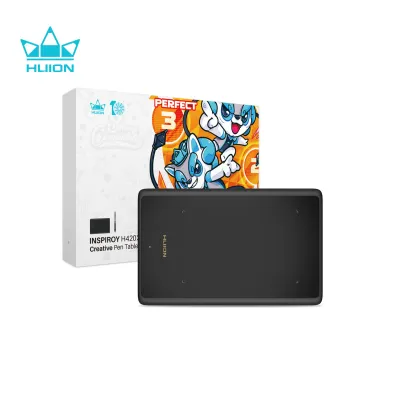
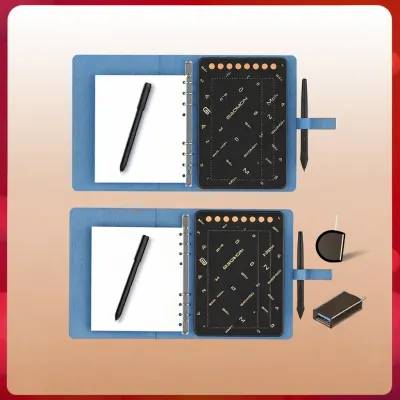
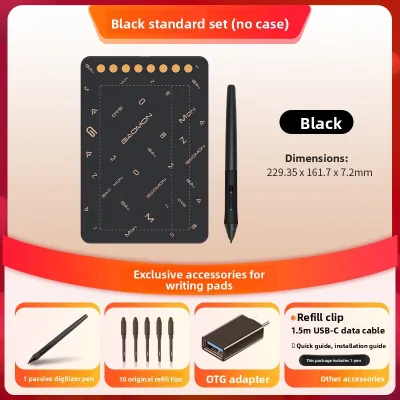
Prices are valid at publication and may change. Please refer to the product page for the latest price.
Active Area Size and Working Scale
When working on complex floor plans, structural elevations, or site layouts, a larger active drawing area is highly beneficial. Medium or Large tablets (roughly equivalent to A4 or A3 paper sizes) allow you to execute precise, long-stroke line work and zoom in on details without losing your sense of overall scale. Small tablets often require excessive panning and zooming, which can slow down your drafting speed and disrupt your spatial awareness of the project.
Express Keys and Customization for CAD Commands
Architectural workflows rely on a massive library of keyboard shortcuts and commands. Programmable physical buttons, dials, and touch strips on a drawing tablet allow you to map frequent CAD actions—such as Line, Trim, Offset, Pan, Zoom, and Orbit—directly to your non-dominant hand. This customization minimizes the need to constantly switch back and forth between your tablet, keyboard, and mouse, streamlining your drafting process.
Multi-Monitor Mapping and Coordinate Systems
Most modern architectural offices utilize multi-monitor setups, often dedicated to displaying AutoCAD or Revit on one screen, reference PDFs on another, and 3D renders on a third. A drafting tablet must support precise display mapping, allowing you to lock the tablet’s active area to your primary drafting monitor. The driver software must handle this transition seamlessly, ensuring the cursor does not drift or jump when moving between different application windows.
Desk Space, Ergonomics, and Cable Management
Architects typically work with a crowded desk containing physical reference drawings, scale rulers, a keyboard, and a mouse alongside the tablet. The physical footprint of the device and its cable management system are critical considerations. A tablet that supports a single USB-C connection reduces clutter, while a compact chassis design ensures the device can sit comfortably alongside your existing desktop tools without forcing your arms into awkward, fatiguing angles.
Pen Accuracy and Line Stability for Precision CAD Work
The interaction between the stylus tip and the tablet surface is the foundation of any digital drafting workflow. For technical drawings where a fraction of a millimeter matters, pen accuracy, registration speed, and surface tactile feedback are paramount.

Initial Activation Force (IAF) and Pressure Levels
Initial Activation Force (IAF) refers to the physical pressure required for the stylus to register a mark on the tablet. A low IAF is crucial for architects because it ensures that light, delicate reference lines or quick annotations register instantly without requiring you to press down hard on the surface. While manufacturers frequently advertise high pressure levels (such as 8,192 or 16,384 levels), these marketing metrics are less critical for technical drafting than a low, consistent IAF. You should consult the manufacturer’s physical specifications to verify the actual force required for activation.
Line Stability, Diagonal Jitter, and Smoothing Algorithms
When drawing diagonal lines slowly in CAD or vector programs, lower-quality digitizers can suffer from “jitter,” resulting in wavy or jagged lines. Wacom has historically led the industry in driver-level smoothing and hardware-level signal processing, ensuring perfectly straight lines even during slow pen movements. However, competitors have closed this gap significantly. Huion’s PenTech and XP-Pen’s X3 Pro smart chip technologies have introduced hardware-level enhancements that greatly reduce diagonal jitter. Before making a purchase, it is highly recommended to test diagonal line drawing in your preferred software to evaluate the stability of the pen.
Tilt Recognition in Architectural Sketching
Tilt recognition allows the tablet to detect the angle of the stylus, adjusting the line width or shading behavior accordingly. While tilt support is highly useful for conceptual sketching, site analysis diagrams, and landscape rendering in applications like Photoshop or SketchUp, it is generally irrelevant for strict 2D CAD drafting. If your daily work is confined strictly to technical drafting and BIM modeling, you do not need to prioritize advanced tilt sensitivity.
Nib Wear, Surface Friction, and Consumable Costs
The texture of the tablet surface dictates both the drafting experience and the lifespan of your pen nibs. Matte, paper-like surfaces offer excellent tactile feedback and prevent the stylus from slipping, which helps in maintaining precise control over your lines. However, this high-friction texture acts like fine sandpaper, accelerating nib wear. Smoother glass or polished plastic surfaces preserve your nibs but can feel slippery and less natural. When choosing a tablet, factor in the long-term cost and local availability of replacement nibs in Singapore, as you will need to replace them periodically to maintain optimal precision.
Build Quality and Ergonomics for Long Drafting Sessions
Architectural drafting often involves long, continuous hours at a desk. The physical construction of the tablet and the ergonomics of its stylus play a massive role in preventing repetitive strain injuries and ensuring the device survives the rigors of daily professional use.
Surface Materials and Glare Resistance
The choice of surface material affects both comfort and visibility. High-end pen displays often feature chemically etched glass surfaces, which disperse reflections and reduce glare under bright office lighting. Cheaper models may use textured plastic screen protectors that can scratch over time or create a distracting glare. For non-screen tablets, a durable, high-grade textured plastic surface is standard, but you should check how evenly the surface wears under heavy, localized pen pressure.
Chassis Rigidity and Structural Durability
Wacom tablets are widely recognized for their robust, industrial-grade chassis designs, often utilizing reinforced plastics and rubberized backings that withstand being shoved into laptop bags or moved around a busy office. Huion and XP-Pen have made substantial progress, transitioning from flexible, lightweight plastics to aluminum alloy backplates on their mid-range and premium models. While entry-level models from these competitors may still feel somewhat plasticky, their structural integrity is generally sufficient for stationary desk use.
Button Placement, Tactility, and Dial Controls
The physical feedback of a tablet’s express keys is highly important. Clicky, responsive buttons with raised physical markers allow you to locate and press shortcuts without looking down from your monitor. Mushy or flat buttons can lead to missed commands and disrupt your drafting rhythm. Rotary dials and touch wheels—highly popularized by XP-Pen—are incredibly useful for architects, as they allow for smooth, continuous adjustments such as zooming in on a floor plan or rotating a 3D model in Rhino.
Pen Design, Weight Balance, and Grip Ergonomics
A poorly balanced stylus can cause hand fatigue and cramping during extended drafting sessions. Look for a pen with a flared, rubberized or high-quality silicone grip that prevents your fingers from slipping, especially in Singapore’s warm, humid climate if your workspace is not continuously air-conditioned. The pen should feel balanced in your hand, neither too top-heavy nor too light. Fortunately, battery-free electromagnetic resonance (EMR) technology is now standard across Wacom, Huion, and XP-Pen, meaning you do not have to worry about the added weight or inconvenience of charging a pen battery.
Stand Stability and VESA Mount Compatibility
If you choose a pen display (a tablet with an integrated screen), ergonomics dictate that you should not work with the screen lying flat on your desk, as this causes severe neck and shoulder strain. A robust, adjustable stand is essential to achieve a comfortable drafting angle similar to a traditional drafting table. For larger displays, verify whether the device features standard VESA mount compatibility (75x75mm or 100x100mm), which allows you to mount the display on an adjustable monitor arm for maximum desk flexibility.
Software Integration: Navigating AutoCAD, Revit, and 3D Tools
Hardware specifications mean very little if the tablet’s driver software fails to communicate reliably with your architectural suite. Operating system updates, multi-screen configurations, and application-specific shortcut profiles are where the real differences between these brands emerge.
Driver Stability and OS Update Cycles
Wacom’s primary competitive advantage is its enterprise-grade driver stability. Their drivers are meticulously updated to maintain compatibility with both Windows and macOS, ensuring that sudden operating system updates do not break your workflow. Huion and XP-Pen have improved their driver support significantly, but they still release updates more frequently, which can occasionally introduce temporary bugs or compatibility issues. For professional environments where downtime translates directly to lost revenue, checking community forums for recent driver feedback before updating your operating system is a wise precaution.
CAD and BIM Software Button Mapping
Architectural applications like AutoCAD, Revit, SketchUp, and Rhino rely heavily on mouse-click combinations, such as holding down the middle mouse button to pan or combining Shift with the middle button to orbit. Your tablet’s driver must allow you to map these specific mouse clicks and keyboard modifiers to the pen buttons and express keys flawlessly. If the driver fails to register a click-hold action reliably, navigating a 3D model or panning across a large 2D drawing becomes incredibly frustrating.
Multi-Monitor Mapping Tools and Cursor Alignment
In a multi-monitor setup, you must be able to map the tablet’s active area to a single screen with absolute precision. Wacom’s driver software offers highly advanced display toggle features, allowing you to jump the cursor between screens or lock the tablet to a specific application window with a single button press. Huion and XP-Pen also offer multi-monitor mapping, but you should verify that the mapping coordinates remain stable and do not reset when your computer wakes from sleep mode.
On-Screen Controls and Radial Menus
When physical express keys are not enough to cover your shortcut needs, on-screen radial menus provide an excellent solution. These customizable, circular overlays appear at your cursor’s location, allowing you to access dozens of additional CAD commands with a quick pen click. Wacom’s radial menus are highly sophisticated and can be programmed to change automatically depending on which software application is active. Huion and XP-Pen offer similar on-screen shortcut utilities, though their customization interfaces are sometimes less intuitive than Wacom’s refined software.
Verification and Testing Protocols
Before fully integrating any new tablet into your professional workflow, always verify compatibility by downloading the latest drivers directly from the manufacturer’s official support page. Test the device thoroughly with your specific versions of AutoCAD, Revit, or Rhino during the retailer’s return window. Pay close attention to pen tracking near the edges of the screen, button mapping reliability, and whether the driver conflicts with any existing peripheral software on your system.
Value, Budget, and Local Support Considerations
While hardware and software performance are critical, the practicalities of budget, accessories, and local customer support in Singapore are equally important when making a professional investment.
Brand Positioning and Price Tiers in Singapore
The market is clearly segmented by price and target audience. Wacom sits firmly in the premium tier, where a professional-grade tablet or pen display can cost double or triple the price of a similarly sized competitor. Huion and XP-Pen position themselves as high-value alternatives, offering expansive drawing areas, high-resolution screens, and rich accessory bundles at highly competitive mid-range and budget price points. For students and freelancers, this price-to-size ratio is often the deciding factor.
Calculating the Total Cost of Ownership
When comparing prices, look beyond the initial purchase cost. Consider the long-term expenses associated with the device. Wacom accessories, such as replacement pens, specialized stands, and replacement nibs, carry a premium price tag. In contrast, Huion and XP-Pen often include adjustable stands, drawing gloves, and a generous supply of replacement nibs directly in the box, significantly lowering the total cost of ownership over the lifespan of the device.
Local Warranty and Support Services in Singapore
For a working professional, hardware failure during a critical project deadline is a worst-case scenario. Buying your tablet through authorized local distributors in Singapore is essential. Authorized distributors provide local warranty coverage, allowing you to visit a local service center for rapid diagnostics, repairs, or immediate replacements. If you rely on your tablet daily, inquire with local retailers about the availability of loaner units or express replacement services to minimize potential downtime.
Risks of Grey Market Purchases
It can be tempting to purchase tablets from unauthorized online sellers or overseas listings on global ecommerce platforms to save on costs. However, these grey market imports rarely carry a valid local warranty in Singapore. If the device develops a defect, local service centers may reject your warranty claim, forcing you to pay for expensive repairs or ship the unit back to an overseas seller at your own expense, resulting in weeks of lost productivity.
Final Decision Framework: Choosing the Right Brand
To make your final decision, align your professional profile, budget, and software requirements with the distinct strengths of each brand.
- Choose Wacom if: You are an established architect, design firm, or corporate enterprise where absolute driver reliability, long-term build quality, and seamless integration with complex CAD/BIM software are non-negotiable. You have the budget to invest in premium hardware and value the peace of mind that comes with industry-standard professional equipment and robust local enterprise support.
- Choose Huion if: You are an architecture student, freelancer, or visualizer who needs a spacious, high-resolution pen display or a large drawing tablet on a moderate budget. You want high hardware specifications, a generous bundle of included accessories, and are comfortable managing occasional driver updates and adjustments.
- Choose XP-Pen if: You prioritize physical shortcut ergonomics, highly tactile express keys, and innovative physical dial controls to speed up your drafting workflow. You want an incredibly competitive price-to-size ratio and are willing to run compatibility tests with your specific 3D modeling and rendering tools during the initial setup phase.
- Verify First if: You rely on highly specialized, legacy architectural plugins, or unique multi-monitor configurations. Always test the tablet's driver stability and pen mapping with your exact software stack immediately after purchase to ensure a seamless integration into your daily drafting routine.
Frequently Asked Questions (FAQ)
Do I need a screen tablet (pen display) or a non-screen tablet for architecture?
Non-screen tablets (often called slate tablets) are generally preferred for strict 2D CAD drafting because they allow you to maintain an ergonomic, head-up posture looking directly at your main monitor, reducing neck strain. Pen displays, which feature an integrated screen, are better suited for conceptual sketching, 3D modeling, digital rendering, and client presentations where direct hand-eye coordination on the canvas is highly beneficial.
Can I use an iPad with Apple Pencil instead of a dedicated drawing tablet for CAD?
While iPads are outstanding tools for mobile site markups, conceptual sketching, and PDF annotations, they lack the robust desktop-class driver integration, advanced multi-monitor mapping, and extensive physical shortcut keys required for heavy, professional CAD and BIM workflows. Dedicated drawing tablets remain the industry standard for desktop architectural applications due to their seamless integration with full-scale desktop operating systems and design suites.
Community discussion
Share your experience or ask a question. Comments are reviewed before publication.