
When purchasing printing paper, you will inevitably encounter a number followed by the letters “GSM.” This specification is one of the most critical factors in determining how your documents look, feel, and feed through your machine. Choosing the right paper weight is not simply a matter of picking the highest number available; instead, it requires balancing your printer type, ink coverage, and the intended use of the document. Selecting an inappropriate weight can lead to frustrating paper jams, excessive ink bleed-through, or a document that feels too flimsy for its purpose.
What GSM Actually Measures (and What It Doesn't)
GSM stands for Grams per Square Meter, which is a metric measurement of area density. Specifically, it tells you how much a single sheet of paper measuring one square meter would weigh in grams. While it is a reliable indicator of the paper’s overall mass, it is a common misconception that GSM directly measures physical thickness or stiffness.
In reality, two different reams of paper with the exact same GSM rating can feel completely different in the hand. The actual thickness, rigidity, and texture of a sheet are heavily influenced by the raw fiber composition, the manufacturing process, and any applied surface coatings. For example, a highly compressed, smooth paper might feel thinner and more flexible than a rougher, bulkier sheet of the same weight. Therefore, a higher GSM number does not automatically guarantee a more premium feel or better print quality for your specific printer.
Products mentioned in this guide
![PaperOne™ Digital Premium Quality 100gsm Copy Paper A4 [2 Reams]](https://img.lazcdn.com/g/p/19b942556bf5e935f0ea0c7e4750b7df.jpg_400x400q80.jpg_.webp)
![PaperOne™ Copier Paper 70gsm / 75gsm Copy Paper A4 [1 Box]](https://img.lazcdn.com/g/p/62f961291078a3b12171dd45eea2a9a4.jpg_400x400q80.jpg_.webp)
![PaperOne™ Digital Premium Quality 85gsm / 80gsm Carbon Neutral Copy Paper A4 [1 Box]](https://img.lazcdn.com/g/p/314e28db684b5a59446140a7a613d0c3.jpg_400x400q80.jpg_.webp)

Prices are valid at publication and may change. Please refer to the product page for the latest price.
Matching Standard GSM Ranges to Your Printing Tasks
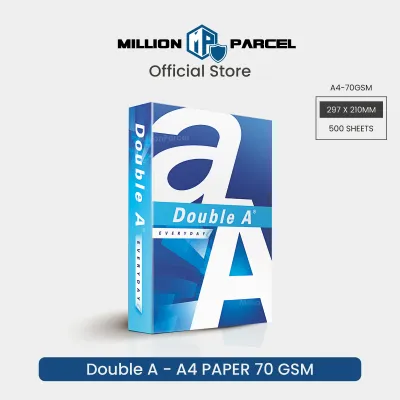
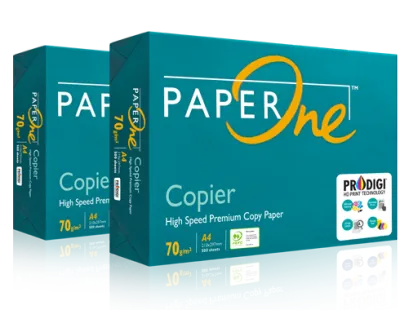
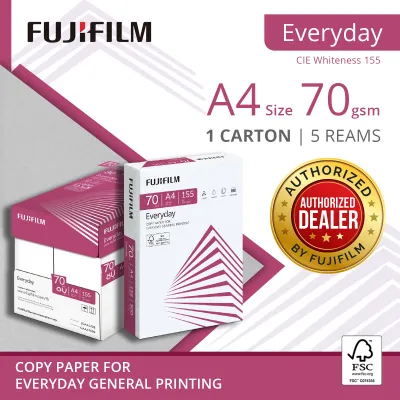
Selecting the right paper weight depends on matching the document’s purpose with the appropriate density range. For high-volume, everyday office tasks such as printing internal drafts, emails, or single-sided text documents, paper in the 70 GSM range is a common choice. This lighter weight is highly economical and takes up less physical storage space, though it is more prone to show-through if printed on both sides.

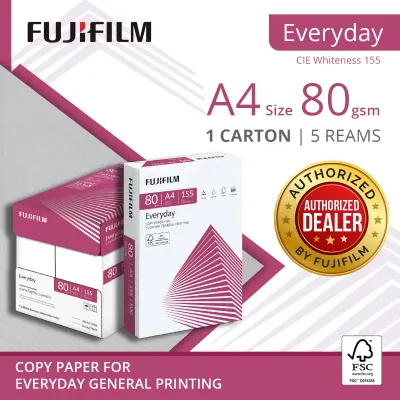
For standard business correspondence, reports, and general double-sided printing, 80 GSM is widely considered the industry standard. This weight offers a practical balance between durability and cost, providing enough opacity to prevent standard text from easily showing through the reverse side. It is also the weight that most standard office copiers and desktop printers are optimized to handle without feeding issues.
When you need to print presentation materials, resumes, or documents with heavy color graphics, stepping up to 100 GSM or higher is often beneficial. These heavier papers offer enhanced opacity and a more substantial feel, making them ideal for client-facing materials. However, the optimal choice always depends on your specific printer’s capabilities and the level of handling the document will receive.
How Paper Weight Interacts with Print Output
The weight of your paper plays a significant role in how it handles ink, especially when using inkjet printers that deposit liquid onto the page. Heavier papers generally handle wet ink better, reducing the risk of the paper warping or curling as it dries. While a higher GSM can help minimize ink show-through on double-sided prints, the actual sharpness and color vibrancy of the print depend heavily on other factors like surface smoothness and specialized coatings.
To achieve the best results, it is essential to check the paper packaging for its intended use, as some heavier papers are specifically optimized for laser toner rather than inkjet inks. Before committing to a large print run, always perform a test print with a single sheet. This allows you to observe how the paper behaves under your specific ink load, checking for any signs of excessive curling, bleeding, or slow drying times.
Verifying Your Printer’s Paper Weight Compatibility
Before purchasing heavier paper stocks, you must verify that your printing hardware can safely feed and process the weight. Feeding paper that exceeds your printer’s maximum limit can cause immediate paper jams, misfeeds, or even permanent damage to the internal rollers and heating elements. To find these limits, consult your printer’s official user manual or look for the specification label located on the machine itself.
Keep in mind that printers often have different weight limits depending on which paper tray you use. The main paper cassette typically has a lower maximum GSM limit because the paper must travel through a tight, curved path inside the machine. In contrast, the manual feed slot or bypass tray usually supports heavier media because it offers a flatter, more direct paper path. If your manual does not specify a weight limit for a particular paper type, stop and contact the manufacturer before attempting to print.
Frequently Asked Questions (FAQ)
Is 80gsm paper always thicker than 70gsm paper?
No, 80 GSM paper is not always physically thicker than 70 GSM paper. Because GSM measures area density rather than physical thickness (caliper), the manufacturing process plays a major role in the final feel. A 70 GSM sheet made with bulkier fibers or less compression can feel just as thick, or even thicker, than a highly compressed 80 GSM sheet. If physical thickness is a strict requirement for your project, you should check the packaging for caliper specifications rather than relying solely on the GSM rating.
Can I use heavier paper in a standard home printer?
Whether you can use heavier paper depends entirely on your specific printer model, so you must verify its compatibility in the user manual first. If your printer does support heavier paper, it is highly recommended to feed these sheets through the manual feed slot or bypass tray rather than the main paper cassette. This reduces the bending angle of the paper path, minimizing the risk of jams. If the printer struggles to pull the paper or makes unusual noises, do not force it through the machine.

Community discussion
Share your experience or ask a question. Comments are reviewed before publication.