
Paper weight is a critical yet misunderstood aspect of printing. When shopping for printing paper, you will see a number followed by “GSM” on the packaging. GSM stands for Grams per Square Meter, measuring paper weight and density. Choosing the correct GSM is not just about feel; it directly impacts how smoothly sheets feed through your printer, how much ink they absorb, and how professional your documents look. Selecting the wrong weight can lead to paper jams, ink bleeding, or printer damage.
What Paper GSM Means and Why It Matters
GSM measures the density of a single sheet of paper cut to a one-meter-by-one-meter square. It is important to note that GSM is not a direct measurement of thickness (caliper), though they are closely related. The manufacturing process, fiber composition, and surface coatings heavily influence how thick a sheet actually feels. Two papers with the exact same GSM can feel entirely different depending on these factors.
As paper GSM increases, the sheet generally becomes more opaque and stiffer. High opacity prevents text from showing through to the other side, which is essential for double-sided documents. Stiffness determines how the paper behaves as it feeds through the printer’s rollers. If paper lacks stiffness, it can easily crumple under feed pressure. If it is too stiff, it may fail to bend around the internal paper path.
Products mentioned in this guide
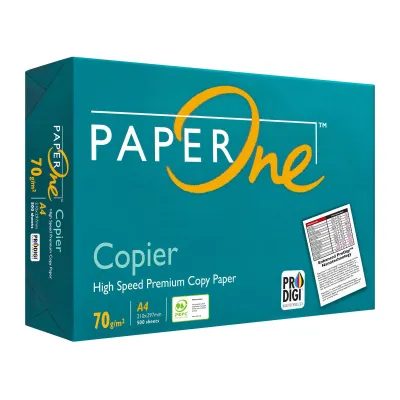
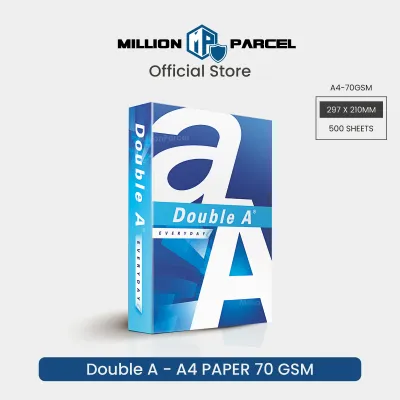
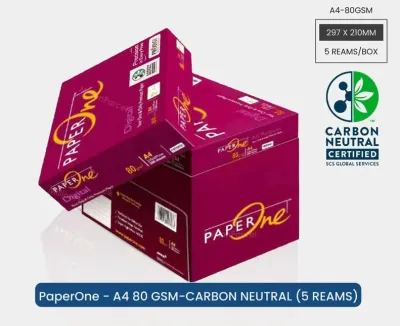
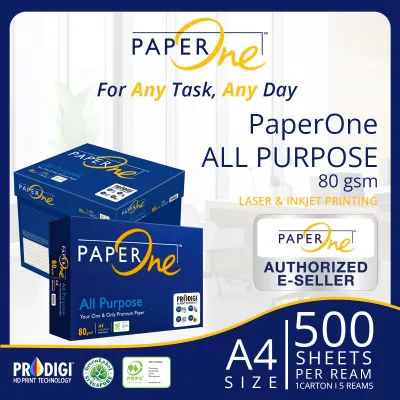
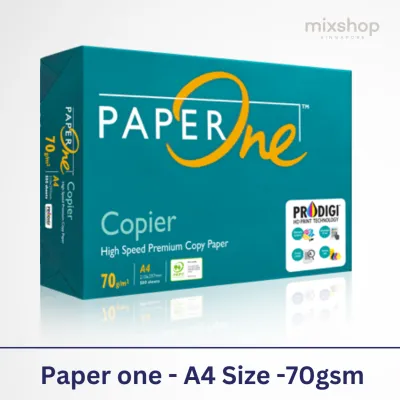
Prices are valid at publication and may change. Please refer to the product page for the latest price.
Choosing the right GSM is about matching the paper’s physical properties to your printer’s mechanics and the document’s purpose, rather than simply buying the heaviest option.
How to Find Your Printer’s Maximum Paper Weight Limit
Before purchasing heavy-duty printing paper, you must determine your printer’s maximum weight limit. This information is found in the printer user manual, on the manufacturer’s support website, or on a label inside the paper tray. Exceeding these limits can wear down pickup rollers or cause immediate jams.

Most printers feature two feeding paths: the main paper cassette and the manual feed slot or bypass tray. The main cassette is designed for high-volume, standard-weight documents, typically supporting 70 to 105 GSM. The manual feed slot provides a straighter paper path for heavier cardstocks, often supporting up to 220 GSM or more.
Exceeding the recommended GSM causes issues because pickup rollers cannot grip thick paper effectively, or the internal path is too tight, forcing the paper to bend and jam. Conversely, check the minimum GSM limit too; paper that is too light (under 60 GSM) lacks the structural integrity to feed correctly and may crumple inside the fuser.
Which Paper GSM to Choose for Different Printing Tasks
Selecting the right printing paper requires matching the document’s purpose with the appropriate weight class to ensure high-quality output.
| GSM Range | Common Use Cases | Opacity Level | Recommended Printer Tray |
|---|---|---|---|
| 70–80 GSM | Daily drafts, high-volume text, internal memos | Low to Moderate | Main Paper Cassette |
| 90–120 GSM | Double-sided reports, resumes, presentations | High | Main Paper Cassette |
| 150–200+ GSM | Photos, brochures, greeting cards, cardstock | Very High | Manual Feed / Bypass Tray |
70–80 GSM This is the standard for everyday office copy paper. It is highly economical and ideal for high-volume text printing. However, low opacity means noticeable show-through if you print double-sided or use heavy ink.
90–120 GSM This range represents premium office paper. It features improved opacity and a premium feel, making it the ideal choice for double-sided reports, resumes, and client-facing presentations.
150–200+ GSM This category includes photo paper and heavy cardstock. It requires manual feeding via the bypass tray and specific printer support to prevent feeding issues.
Additionally, consider your printer type. Inkjet papers require specific coatings to absorb liquid ink quickly without bleeding. Laser papers must withstand high fuser temperatures without scorching or leaving residue.
How Humidity Affects Paper Weight and Printer Performance
In tropical environments like Singapore, high ambient humidity (often exceeding 80%) heavily impacts paper performance. Paper is hygroscopic and absorbs moisture from the air, causing it to curl, lose its natural stiffness, and jam easily, even if the GSM is within the printer’s limits.
To maintain optimal performance, keep paper in its original moisture-proof wrapper until ready to use. Store reams in a cool, dry environment, and avoid leaving exposed paper in the tray. Load only the amount of paper needed for the current print job.
Before loading the paper stack, fan it gently to separate the sheets. This physical step reduces static cling, breaks the moisture seal between pages, and prevents multi-sheet feeding.
Troubleshooting Jams and Print Quality Issues Related to Paper Weight
If you encounter printing issues, they are often related to incorrect paper weight selection or improper handling.
Frequent Paper Jams Verify if the loaded GSM exceeds your specific tray’s limit. If printing on heavier media, switch to the manual feed slot. Ensure the tray guides are snug but not pinching the paper.
Ink Bleeding or Show-Through This indicates the GSM is too low for the ink volume. Switch to a higher GSM paper or adjust your printer settings to reduce ink saturation for double-sided jobs.
Printer Failing to Pick Up Paper This occurs if the paper is too light, has curled due to humidity, or if the pickup rollers are dusty. Try using fresh paper from a sealed pack. If needed, clean the rubber rollers gently with a damp, lint-free cloth.
Always adjust the “Paper Type” or “Media Weight” setting in your printer driver software when switching to heavier paper. This tells the printer to adjust its fuser temperature and feed speed to match the paper’s physical properties.
Frequently Asked Questions (FAQ)
Can I use 80 GSM paper for double-sided printing?
While physically possible, 80 GSM paper often causes noticeable show-through with heavy ink or dark graphics. For professional-looking double-sided documents, we recommend using 90 to 100 GSM paper to ensure adequate opacity.
Is thicker paper always better for my printer?
No, thicker paper (higher GSM) is not universally better. It can cause severe mechanical jams if it exceeds your printer’s design limits. The best paper is the one that matches both the document’s purpose and your printer’s specified capacity.
What is the difference between paper weight and paper brightness?
GSM measures physical weight and density, which affects stiffness and feeding. Brightness measures the percentage of light reflected from the surface, indicating whiteness. Both affect readability, but brightness does not change the physical thickness or feeding requirements.
Community discussion
Share your experience or ask a question. Comments are reviewed before publication.