
Transitioning from traditional drafting tables to digital workflows requires tools that match the precision of a technical pen and the speed of modern computer-aided design (CAD) software. For architects, interior designers, and structural engineers, a writing pad tablet is a core productivity tool. Unlike graphic designers who prioritize fluid brush strokes and blending, architectural professionals require absolute coordinate mapping, high-precision snapping, and ergonomic comfort for long hours of drafting. Selecting the right device involves understanding how digital pen inputs translate to precise vector lines, complex 3D models, and building information modeling (BIM) environments.
Core Requirements for Architectural Drafting Workflows
Architectural drafting demands a level of precision that standard office peripherals cannot easily replicate. When working on detailed floor plans, sections, and elevations, every millimeter matters. A high-quality writing pad tablet provides absolute positioning, meaning the tablet surface maps directly to your monitor screen. This allows you to place your pen precisely where a wall intersection or column grid lies, eliminating the repetitive dragging motion associated with a standard mouse. Line stability is critical; when sketching initial spatial concepts or tracing over structural layouts, the digital ink must flow without jitter or lag, ensuring that clean, straight lines are maintained throughout the design process.
Ergonomics play an equally vital role in the daily routine of an architectural professional. Spending long hours navigating complex CAD and BIM environments can lead to repetitive strain injuries in the wrist and forearm. A pen input device encourages a natural writing grip, distributing physical strain across the hand and arm rather than concentrating it on the index finger and wrist. This natural posture reduces fatigue during intensive drafting sessions, allowing for a more comfortable and sustainable workflow.
Products mentioned in this guide

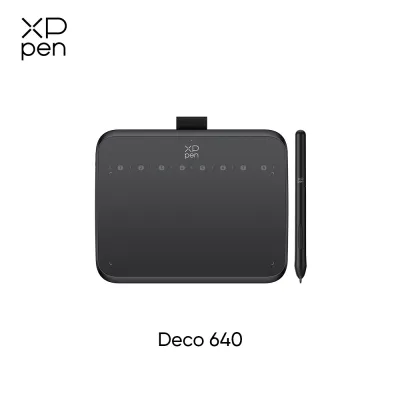
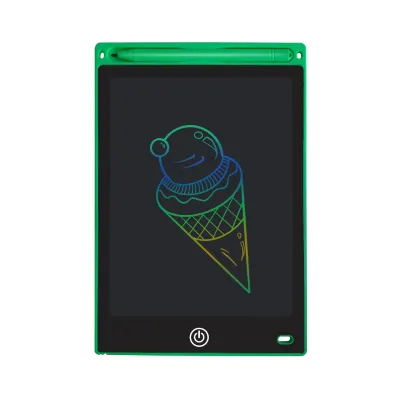
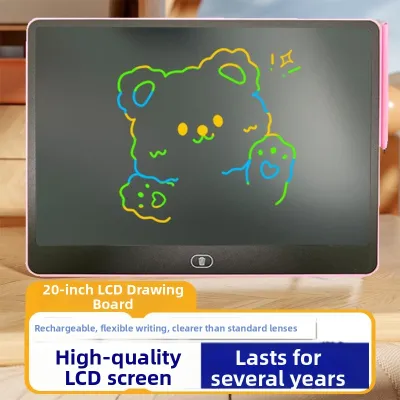
Prices are valid at publication and may change. Please refer to the product page for the latest price.
Furthermore, the efficiency of an architectural workflow relies heavily on rapid tool switching and command execution. Modern CAD software utilizes hundreds of keyboard shortcuts for commands like trim, extend, offset, and copy. A writing pad tablet equipped with customizable physical express keys, dials, or touch strips allows you to map these frequent commands directly to your non-dominant hand. By executing shortcuts on the tablet while your dominant hand guides the pen, you create a fluid, dual-handed workflow that significantly accelerates drafting speed and minimizes reliance on the keyboard.
Pen Displays vs. Pen Tablets: Choosing the Right Form Factor
When selecting a writing pad tablet, the primary decision lies between a pen display, which features a built-in screen, and a screenless pen tablet, which acts as a tracking pad mapped to an external monitor. Each form factor offers distinct advantages depending on your physical workspace, mobility requirements, and drafting style.

Pen displays offer an intuitive drawing experience because you write and sketch directly on the screen, mimicking the traditional pen-on-paper feel. This direct visual feedback is highly beneficial for freehand conceptual sketching, site plan tracing, and detailed 3D modeling in programs like SketchUp or Rhino. By eliminating the disconnect between hand and eye coordination, pen displays allow you to annotate construction documents and sketch spatial details with immediate visual precision. However, these devices typically require a fixed studio setup due to their size, weight, and multiple cable connections. They also occupy a significant amount of desk space, which can be a limiting factor in compact home offices or shared studio desks in high-density urban environments like Singapore.
In contrast, screenless writing pad tablets offer a highly portable, durable, and budget-friendly alternative. Because you look up at your main monitor while drawing on the desk, these tablets promote an upright, ergonomic posture that keeps your neck in a neutral position. Screenless tablets are exceptionally well-suited for multi-monitor setups, as they can be mapped to span across dual screens, allowing you to keep your CAD workspace on one monitor and your reference PDFs or specification sheets on another. Their slim profile and lightweight design make them easy to slip into a laptop bag for site visits, client presentations, or commuting between the office and home.
Your choice should also consider the spatial layout of your workspace. A large-format pen display requires a dedicated desk area with sufficient clearance for an adjustable stand, power bricks, and cable routing. If your desk is already crowded with reference manuals, material samples, and large-format printed blueprints, a compact screenless tablet that can be easily pushed aside when not in use may be the more practical option.
Essential Specifications to Verify on the Product Label
Before purchasing a writing pad tablet, it is essential to verify several technical specifications on the manufacturer’s label, as these metrics directly impact how the device performs under professional drafting conditions.
First, examine the active area size and aspect ratio. The active area refers to the actual portion of the tablet that registers pen input, which is distinct from the overall physical dimensions of the device. For architectural work, the aspect ratio of the active area should ideally match the aspect ratio of your primary monitor (typically 16:9 or 16:10) to prevent distortion when mapping the pen coordinates. A medium-sized active area (approximately 8 by 5 inches to 10 by 6 inches) is generally considered the sweet spot, providing enough physical space for sweeping hand movements without requiring excessive arm travel to reach the corners of the screen.
Second, check the pressure sensitivity levels and the initial activation force (IAF). While high pressure sensitivity (such as 8,192 levels) is often marketed for digital painters, it is also valuable for architects who want to control line weights dynamically when sketching conceptual diagrams. More importantly, a low initial activation force ensures that the tablet registers the lightest touch of the pen, allowing you to draw faint construction lines or execute precise clicks without having to press down hard on the surface.
Third, evaluate the resolution and report rate. Tablet resolution is measured in lines per inch (LPI), with professional-grade tablets typically offering 5,080 LPI. A higher LPI ensures that the cursor tracks smoothly and snaps accurately to vector points in CAD software. The report rate, measured in reports per second (RPS) or points per second (PPS), dictates how frequently the tablet communicates the pen’s position to the computer. A report rate of 200 RPS or higher is recommended to eliminate cursor lag, ensuring that the digital line keeps pace with your physical hand movements during rapid drafting.
Finally, verify the connectivity options and power delivery requirements. Modern workstations benefit from USB-C connectivity, which can transmit data, video, and power through a single cable, reducing desk clutter. If you opt for a wireless model, ensure it utilizes a stable connection, such as a dedicated 2.4 GHz wireless receiver or Bluetooth 5.0, to prevent input latency. Check if the tablet can run entirely on bus power from your laptop, which is a crucial consideration for mobile drafting setups.
Condition-Based Selection Guide for Different User Profiles
To help you navigate the wide variety of options available on the market, we have established a conditional framework based on your specific professional role, workspace constraints, and daily workflow requirements.
For professional architects working in a fixed studio or corporate office, a large-format pen display (16 inches or larger) is often the ideal choice. These professionals require high color accuracy (such as 90% Adobe RGB or DCI-P3 coverage) to ensure that material finishes, rendering textures, and presentation boards display correctly before being sent to clients or local authorities for planning approval. A fixed studio setup allows for the integration of heavy-duty adjustable stands, enabling you to tilt the screen to a comfortable drafting angle similar to a traditional parallel bar drawing board. Look for models that feature physical dials or express keys that can be programmed with complex macro commands for BIM software.
For site-visiting architects, project managers, and mobile professionals who frequently travel between the office, construction sites, and client meetings, portability and durability are the primary concerns. In this scenario, a compact, screenless writing pad tablet with wireless connectivity is highly recommended. These devices can easily withstand the bumps and dust of a construction site office and can be quickly paired with a laptop to mark up drawings or note structural changes on-site. Alternatively, a standalone pen computer that combines a high-performance tablet with a built-in operating system can serve as a single-device solution, though this option requires a significantly higher budget and careful consideration of battery life under heavy CAD processing loads.
For architecture students and entry-level designers, balancing cost with functionality is essential. A mid-sized screenless pen tablet offers the best value, providing the necessary precision and active area size without the premium price tag of a built-in screen. Students should prioritize tablets that offer robust, stable driver support across both Windows and macOS, ensuring that the device remains compatible with various educational software licenses. A simple, durable design with a few customizable express keys will suffice for learning the fundamentals of digital drafting and 3D modeling.
Software Compatibility and Driver Verification
A writing pad tablet is only as good as its software integration. Before finalizing your purchase, you must verify that the tablet’s drivers are fully compatible with the specific architectural software programs you use daily, such as AutoCAD, Revit, Rhino, SketchUp, and ArchiCAD.
Start by checking the manufacturer’s official compatibility lists and user forums. While most modern tablets support standard operating systems like Windows and macOS, CAD applications often rely on precise mouse emulation and coordinate mapping. Ensure that the tablet driver allows you to toggle between “Pen Mode” (absolute positioning) and “Mouse Mode” (relative positioning), as some legacy CAD programs navigate more comfortably when the pen behaves like a traditional mouse.
Furthermore, investigate the frequency of driver updates provided by the manufacturer. Operating system updates can occasionally disrupt tablet functionality, causing cursor offset, loss of pressure sensitivity, or unresponsive shortcut keys. Manufacturers with a track record of frequent, stable driver updates ensure that your tablet will continue to function reliably for years, preventing costly downtime during critical project deadlines.
Once you have set up the tablet, perform a series of hands-on tests within your primary CAD environment. Verify that the pen’s hover tracking is responsive, allowing you to preview snap points and cursor locations before the pen tip actually touches the surface. Test the custom button mapping on both the pen and the tablet body; ensure that you can assign common mouse clicks, such as middle-click pan and right-click context menus, directly to the pen buttons. Finally, check if the tablet supports pen tilt recognition, which can be useful for controlling brush angles and shading when creating conceptual presentation renderings.
Frequently Asked Questions (FAQ)
Can a standard writing pad tablet replace a mouse for CAD software?
Yes, a writing pad tablet can replace a mouse, but it requires an adjustment period. The primary advantage of a pen is its ergonomic posture, which reduces wrist strain, and its absolute positioning, which allows for faster navigation across large screens. However, CAD software is historically designed around mouse inputs, particularly the scroll wheel for zooming and the middle button for panning. To successfully transition, you must configure the buttons on your digital pen to emulate these mouse clicks. Many architects find that a hybrid workflow—using the pen for drafting, sketching, and annotating, while keeping a mouse nearby for heavy 3D navigation—provides the most efficient and comfortable balance.
Do I need a laminated screen for architectural drafting?
A laminated screen is highly recommended if you choose a pen display. Lamination bonds the display panel, touch sensor, and protective glass into a single layer, eliminating the air gap between them. This reduction in physical space minimizes parallax, which is the visual offset between the physical pen tip and the digital cursor on the screen. In architectural drafting, where you must precisely snap lines to specific coordinates and trace fine structural details, minimizing parallax is crucial for accuracy. Non-laminated screens can make it feel as though you are drawing on a pane of glass suspended above your artwork, which can hinder your precision and cause eye strain over time.
How do I maintain the tablet surface and pen nibs during heavy drafting use?
Maintaining your writing pad tablet involves regular cleaning and monitoring of wear components. To clean the surface, use a dry, lint-free microfiber cloth to remove dust, fingerprints, and skin oils; avoid harsh chemical cleaners or excessive moisture, which can damage the anti-glare coating or seep into the bezel. Regularly inspect your pen nibs for flat spots or sharp edges. Heavy drafting on textured tablet surfaces acts like fine sandpaper, gradually wearing down the plastic nib. Replacing a worn nib promptly is essential, as a sharp, angled nib can scratch the tablet’s protective surface. Keep a stock of replacement nibs on hand, and consider using a drawing glove to reduce friction and keep the tablet surface clean.

Community discussion
Share your experience or ask a question. Comments are reviewed before publication.