
When choosing between screen and non-screen drawing sketching tablets for architectural drafting, the ideal choice depends on your primary daily tasks rather than a single “best” overall option. If your workflow centers on heavy CAD and BIM production, a non-screen graphics tablet offers superior ergonomic health and seamless multi-monitor integration. Conversely, if your days are filled with conceptual sketching, digital redlining, and interactive client presentations, a screen-based display tablet provides the intuitive, direct hand-eye coordination needed for freehand work.
The Quick Verdict: Matching the Tablet to Your Drafting Role
Architectural roles dictate your hardware needs. Because duties fluctuate between highly structured technical drawing and expressive schematic design, your choice of tablet directly impacts daily efficiency and physical comfort.
Non-screen graphics tablets, often referred to as pen tablets, are the unsung workhorses of long-hour technical drafting. Because they map directly to your primary workstation monitor, they allow you to keep your head up and your spine aligned while navigating complex BIM models in Autodesk Revit or drafting precise construction documents in AutoCAD. For architects who spend seventy percent or more of their time in production software, the non-screen tablet functions as a highly precise, ergonomic mouse replacement that minimizes repetitive strain injuries.
Products mentioned in this guide

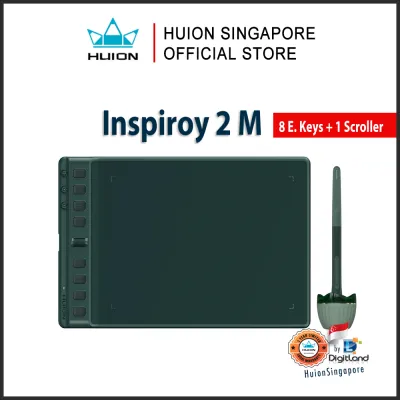
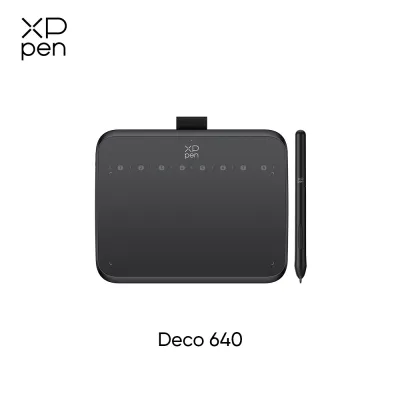
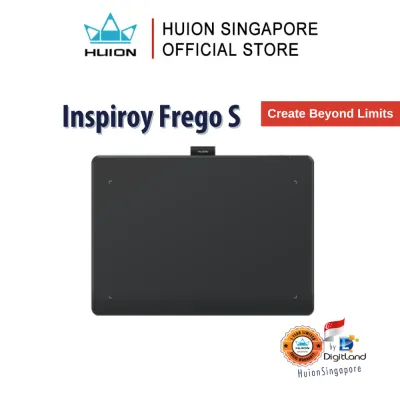
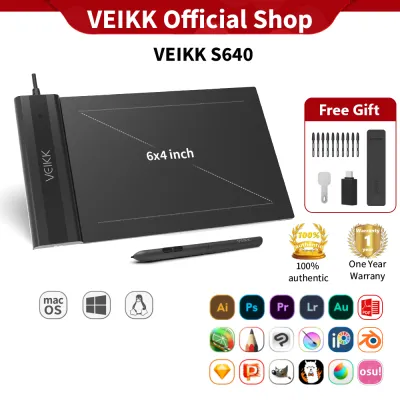
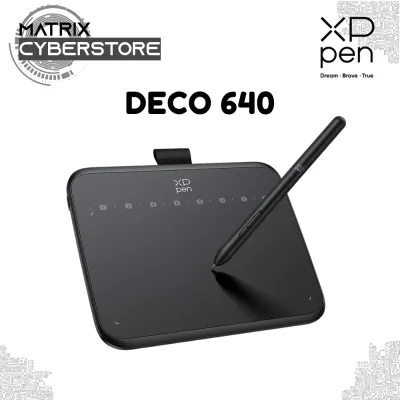
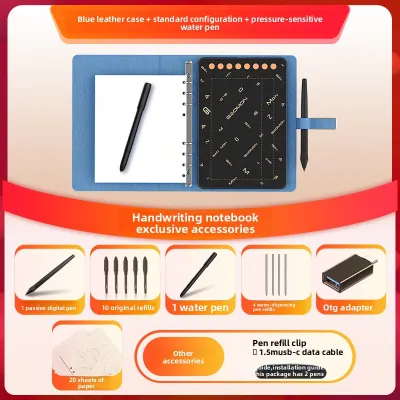
Prices are valid at publication and may change. Please refer to the product page for the latest price.
On the other hand, screen tablets (or pen displays) shine during the initial phases of a project. When you are sketching site analyses, overlaying spatial concepts on tracing-paper-like software, or presenting design options directly to a client, the ability to draw directly on the screen is unmatched. This direct feedback loop is highly beneficial for schematic design, landscape planning, and interior details where organic lines and rapid spatial ideation take precedence over rigid coordinate inputs.
Line Precision and Parallax in Professional Drawing Sketching Tablets
In architectural drafting, a fraction of a millimeter can represent a major discrepancy on-site. Therefore, the precision of your pen input is paramount when drawing detailed wall assemblies, window frame profiles, or complex structural joints. When evaluating drawing sketching tablets, three critical pen specifications dictate how accurately your digital lines translate to the screen: pressure sensitivity, pen tilt support, and initial activation force (IAF).

High pressure sensitivity (up to 8,192 levels) allows dynamic line-weight control, mimicking physical technical pens. Pen tilt support is essential for rendering elevation drawings, allowing software to detect your hand angle. However, a low initial activation force (IAF) is critical for technical drafting, ensuring the tablet registers a stroke the moment the pen tip touches the surface, preventing missed lines or misclicked CAD icons.
For screen-based tablets, parallax is a persistent technical challenge that can compromise line precision. Parallax is the visual distance or gap between the physical point where your pen tip touches the glass and the digital cursor rendered on the display below. This gap is caused by the thickness of the protective glass and the display panel beneath it. Even a minor parallax offset can cause you to misalign lines or miss snap points when drafting intricate details.
Non-screen tablets bypass the parallax problem entirely. Because the tablet surface acts as a tracking pad mapped directly to your primary computer monitor, your eyes are focused on the screen while your hand moves on a separate plane. The digital cursor is rendered directly by your operating system on your main monitor, ensuring absolute alignment with zero physical glass interference.
If you decide that a screen tablet is necessary for your workflow, mitigating parallax requires choosing a device with an optically bonded display. Optical bonding glues the display panel and the outer glass together, eliminating the air gap and reducing parallax to near-invisible levels. Additionally, look for displays with chemically etched glass rather than smooth glossy screens. Etched glass provides a subtle, paper-like friction that prevents the plastic pen tip from sliding uncontrollably, giving you the tactile resistance needed to draw straight, steady technical lines without a physical ruler.
When testing a tablet’s drawing smoothness and line stability, perform an easy observable trial: draw a series of slow, diagonal lines across the screen using a digital ruler tool. If the lines exhibit “jitter” or wavy distortions, it indicates poor coordinate reporting or driver latency, which can severely hinder technical drafting. Additionally, check the availability of replacement pen nibs (felt or plastic), as different nib materials drastically alter the friction and smoothness of the pen-on-screen experience.
Hand-Eye Coordination and the Digital Transition
Transitioning from traditional physical media—such as drafting boards, parallel bars, and yellow tracing paper—to a digital workflow presents a distinct cognitive hurdle. The speed at which you adapt to this transition depends heavily on the spatial mapping of your chosen tablet type.
Screen tablets offer an immediate, highly intuitive hand-eye mapping. Because you look directly at your hand as you draw, the digital interface behaves exactly like physical paper. This makes the learning curve virtually non-existent for architects who are accustomed to sketching ideas by hand.
In contrast, non-screen tablets utilize indirect mapping, which separates your visual focus from your physical hand movements. When using a non-screen tablet, your hand moves across the active area on your desk while your eyes remain fixed on your vertical monitor. This separation requires your brain to build new neuromuscular pathways, translating physical distances on the tablet to visual distances on the screen.
Most architects adapt to indirect mapping within one to two weeks of daily use. Once mastered, non-screen tablets enable faster navigation because your visual field remains unobstructed by your arm or the pen. This allows you to maintain a holistic view of your drawing canvas while executing rapid commands through muscle memory.
Ergonomics and Desk Setup for Long BIM Sessions
Architectural drafting is a demanding task that often requires sitting at a desk for eight to ten hours a day, especially during intense BIM coordination phases or tight submission deadlines. The physical layout of your workspace plays a monumental role in preventing chronic neck, shoulder, and wrist pain, making ergonomics a primary consideration when choosing a tablet.
A typical architect’s desk is a complex ecosystem. In space-constrained design studios, such as those often found in Singapore, desks must be highly organized to accommodate keyboards, reference drawings, material samples, and dual monitors. Fitting a large drawing tablet into this setup requires careful planning.
Non-screen tablets offer an exceptional ergonomic advantage due to their compact physical footprint and flexible placement. Because they do not contain a display, they are thin, lightweight, and can easily slide under a keyboard when not in use or sit comfortably on your lap. More importantly, using a non-screen tablet allows you to maintain a neutral, upright posture. Your main monitor can be positioned at eye level, keeping your neck straight and your shoulders relaxed while your hand rests naturally on the desk. This setup dramatically reduces the risk of “tech neck” and upper back strain during long drafting sessions.
Screen tablets, by contrast, present significant ergonomic challenges. To draw comfortably on a screen, the device must be angled, which typically requires placing it flat or at a slight incline on your desk. This forces you to look down continuously, placing substantial strain on your cervical spine—a posture identical to the traditional drafting board slouch that modern ergonomics seeks to correct.
Using a screen tablet safely for extended periods requires an adjustable monitor arm or articulating stand. This allows you to pull the screen down for sketching and lift it to eye level for modeling or typing, preventing physical discomfort during long production runs.
Portability for Site Visits and Client Pitches
Architects do not work exclusively at their desks. Site visits, client progress meetings, and coordination consultations with structural and MEP engineers require a high degree of mobility. Your tablet’s ability to transition from the studio to the field is a major deciding factor.
For site inspections and client pitches, screen-based tablets offer a clear, interactive advantage. During a site walk in Singapore’s humid, fast-paced building environments, you can carry a screen tablet to verify dimensions, mark up PDF plans, and capture site photos. When presenting to clients, drawing directly on a screen allows you to illustrate design modifications in real-time, making the meeting highly collaborative and helping clients visualize spatial changes instantly.
Non-screen tablets, while incredibly lightweight and easy to slip into a backpack, are highly impractical for active construction sites or dynamic meetings. Because they require a separate screen to function, you cannot use them while standing or walking around a site. You must set up your laptop on a stable, flat surface, connect the tablet, and look back and forth between the two devices. This multi-step setup defeats the purpose of rapid, on-the-go digital redlining.
When deciding which tablet to purchase, evaluate your actual field-to-desk ratio. If you spend eighty percent of your time in the office drafting and only twenty percent on-site, optimizing your desk ergonomics with a non-screen tablet is likely the wiser choice. However, if your role involves frequent site supervision, project management, and face-to-face client consultations, the mobile versatility of a screen-based device is invaluable.
Shortcut Mapping and CAD Software Integration
Efficiency in architectural drafting is measured by how quickly you can execute commands. Professional CAD and BIM software like AutoCAD, Revit, Rhino, and Vectorworks rely heavily on keyboard shortcuts, modifier keys, and complex navigation commands such as panning, zooming, and rotating 3D models.
Non-screen graphics tablets are designed with workflow efficiency in mind, typically featuring a generous array of physical shortcut buttons, touch rings, and multi-function dials built directly into the bezel. These physical controls can be customized to execute your most frequent architectural commands—such as Esc, Enter, Undo, or switching between drawing tools. Because these buttons are physical and tactile, you can easily locate them by touch alone. This allows you to keep your eyes locked on your main screen, maintaining your focus on the drawing canvas while your non-dominant hand operates the shortcuts seamlessly.
Screen tablets also feature shortcut keys, but their integration can be more challenging. Because the screen occupies the vast majority of the device’s footprint, physical buttons are often minimized or omitted entirely to keep the device compact. Instead, screen tablets frequently rely on on-screen radial menus, virtual express keys, or side UI panels.
On-screen shortcuts can be counterproductive, requiring you to look away from your active drawing area and temporarily obscuring your workspace. Furthermore, because your hand is actively drawing on the screen, your arm can physically block your view of these virtual menus. To maintain maximum efficiency, many architects using screen displays still keep a compact keyboard or a dedicated shortcut remote next to their tablet, which adds to the complexity and footprint of the desk setup.
Final Decision Framework: Which Should You Buy?
To finalize your decision between screen and non-screen drawing sketching tablets, evaluate your daily architectural responsibilities against the following structured criteria.
Choose a non-screen tablet if:
- Your daily workflow consists primarily of technical CAD drafting, 3D BIM modeling, or structural detailing.
- You work with a multi-monitor or ultra-wide screen setup and want to navigate across screens seamlessly.
- You prioritize long-term ergonomic health, neck comfort, and maintaining an upright posture.
- You have limited desk space and require a device that can be easily stored or moved aside.
- You are looking for a highly durable, cost-effective tool with a lower initial investment (typically ranging from S$100 to S$300).
Choose a screen tablet if:
- Your primary tasks involve conceptual sketching, schematic design, hand-rendered elevations, or interior perspectives.
- You frequently conduct site visits, verify dimensions in the field, or perform digital redlining on active construction sites.
- You host interactive client presentations and need to sketch spatial ideas or modifications in real-time.
- You strongly prefer a traditional, paper-like hand-eye experience and want to avoid the learning curve of indirect mapping.
- You have the budget (typically ranging from S$500 to S$2,500) and desk space to accommodate a larger, heavier device along with an adjustable ergonomic mounting arm.
Before purchasing, verify that the tablet’s active drawing area matches your monitor’s aspect ratio to prevent line distortion, and ensure driver compatibility with your architectural software suite.
Frequently Asked Questions (FAQ)
Do I need a standalone drawing tablet with its own operating system for site visits?
If you already carry a lightweight, capable laptop to construction sites, a tethered screen tablet or a highly portable non-screen tablet is usually the most cost-effective solution. However, standalone tablets with integrated operating systems offer the ultimate in grab-and-go portability. The trade-off is that standalone mobile devices often run mobile-simplified operating systems, which may not support full desktop versions of heavy BIM software like Revit or ArchiCAD. For heavy model manipulation, a tethered setup connected to a powerful laptop remains superior.
Can I use a standard consumer tablet instead of a dedicated drawing tablet for drafting?
Standard consumer tablets can be used for basic sketching and PDF markups, but they generally fall short for professional, long-hour architectural drafting. Consumer tablets often use glossy screens that lack the precise tactile friction of etched glass, and their stylus pens may have higher initial activation forces and less precise tilt calibration. More importantly, mobile app versions of CAD and BIM software are often stripped-down versions of their desktop counterparts, limiting your ability to execute complex technical drafting and 3D modeling tasks efficiently.
Community discussion
Share your experience or ask a question. Comments are reviewed before publication.