
Navigating the roads requires a seamless approach to managing vehicle-related payments. In Singapore, the NETS Motoring Card serves as a primary tool for handling electronic payments at car parks and Electronic Road Pricing (ERP) gantries. Whether you are a new driver adjusting to daily commutes or an experienced motorist transitioning to a different payment card, understanding how to handle, insert, and maintain this card is essential for preventing unexpected delays.
A payment failure at a busy car park exit or an ERP gantry can lead to unnecessary stress, traffic congestion, and administrative fines. Because these cards rely on physical contact chips and wireless communication interfaces, proper handling directly affects their reliability. By mastering the correct usage techniques, physical maintenance, and balance management strategies, you can ensure that every journey remains smooth and uninterrupted.
Preparing Your NETS Motoring Card for Daily Use
Before setting off on any journey, taking a few moments to inspect your motoring card can save you from major inconveniences on the road. The card is a specialized piece of stationery featuring an embedded contact chip and, in some versions, an internal antenna for contactless transactions. Begin by physically examining the card body. Look for any signs of bending, warping, or delamination, which can occur if the card is left exposed to direct sunlight on your dashboard. The intense heat inside a parked vehicle can warp the plastic substrate, preventing the card from sliding smoothly into your In-Vehicle Unit (IU) or card reader.
Products mentioned in this guide
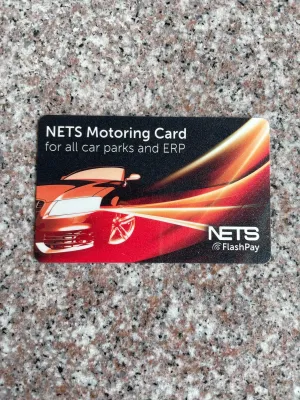
Prices are valid at publication and may change. Please refer to the product page for the latest price.
Next, pay close attention to the gold-colored contact chip on the surface of the card. This chip must be free of deep scratches, grease, and oxidation to establish a clean electrical connection with the reader. If you notice a dull film or dirt on the metal pads, it can prevent the IU from reading the card data, leading to immediate payment errors. A quick visual check before inserting the card ensures that the physical interface is fully prepared for data transfer.
Financial readiness is just as important as physical integrity. You should establish a routine to verify your card’s stored value before starting your vehicle. You can check your balance using various local self-service terminals, automated teller machines (ATMs), or compatible mobile applications that utilize Near Field Communication (NFC) technology on your smartphone. Keeping a mental note of your balance helps you avoid situations where your card has insufficient funds to cover parking fees or ERP charges during peak hours.
Step-by-Step Guide to Using the Card at Car Parks
Car parks across the city utilize different generations of parking systems, meaning you must be prepared for both contactless tapping and physical card insertion. For older car parks that require manual payment at the exit gantry, you will need to present your card to a physical reader. When approaching the exit barrier, bring your vehicle to a complete stop close enough to the reader column so you can reach it comfortably without straining or opening your car door fully.

If the gantry requires tapping, hold the card flat against the designated target area on the reader. Avoid waving the card rapidly or tapping it at an angle, as this can interrupt the wireless data transfer and cause a read error. Maintain steady physical contact or keep the card within a few millimeters of the reader surface for at least two seconds. You will know the transaction is successful when you hear a clear, single confirmation beep from the reader and see the barrier gate begin to rise. The screen on the reader column will also display the deducted amount and your remaining card balance.
In car parks equipped with the Electronic Parking System (EPS), the gantry communicates directly with your vehicle’s IU. In this scenario, you do not need to remove the card from the unit. The system automatically detects the card inside your IU as you drive through the entry and exit lanes. To ensure a successful transaction, maintain a slow, steady speed of under 10 kilometers per hour when approaching the gantry. This gives the overhead sensors sufficient time to register your vehicle and process the payment.
If a barrier fails to open at an exit gantry, remaining calm is crucial for your safety and the flow of traffic. Do not attempt to force your way through or exit your vehicle to inspect the barrier. First, check your IU screen to see if an error code is displayed. If the system does not register, safely reverse your vehicle slightly—only if there are no cars directly behind you—to allow the overhead sensors to reset, then pull forward slowly again. If the barrier remains closed, press the physical intercom button on the gantry column to contact the facility’s management office for assistance, rather than attempting to slide the card repeatedly.
Navigating ERP Gantries with Your Motoring Card
Electronic Road Pricing (ERP) gantries require rapid, automated communication between the overhead gantry sensors and your vehicle’s IU while traveling at highway speeds. To ensure this process occurs without error, you must insert your motoring card into the IU slot before you start your engine. Slide the card into the slot with the gold contact chip facing the correct direction, which is typically facing upward and pointing forward into the unit, depending on your specific IU model. Push the card in gently until you feel it click or seat firmly in place.
Once you turn on your vehicle’s ignition, the IU will perform a self-diagnostic check and read the card. Listen for a short, clear confirmation beep, which indicates that the unit has successfully recognized the card. The liquid crystal display (LCD) on the IU will briefly show your current card balance. If the screen remains blank, displays an error message, or emits a continuous warning tone, turn off the engine, remove the card, inspect it for correct orientation, and reinsert it carefully before starting the engine again.
As you drive through an active ERP gantry, the overhead antennas communicate with your IU to deduct the required toll. A successful transaction is indicated by a single beep from your IU, accompanied by a temporary display of the deducted amount and the updated balance on the screen. You do not need to slow down abruptly when passing under a gantry, as the system is designed to process transactions at standard highway speeds. Maintaining a steady speed and staying within your lane helps ensure optimal signal transmission.
If your IU emits a rapid, high-pitched warning alarm or displays an error message while you are driving under a gantry, do not make sudden maneuvers or stop on the roadside. Stopping on an active expressway or near a gantry is extremely dangerous and illegal. Instead, continue driving safely to your destination. A payment failure at an ERP gantry will result in an administrative notice sent to the registered vehicle owner. You can easily resolve this payment online or at designated self-service portals within the stipulated timeframe to avoid further penalties.
Managing Balances and Reloading Your Card
To prevent payment failures at critical checkpoints, you should establish a proactive routine for monitoring and topping up your card balance. A low-balance warning is typically triggered when your card’s stored value falls below a certain threshold, such as S$10. When this occurs, your IU may emit a distinct beep pattern upon startup, or the parking exit reader may display a low-balance alert alongside your transaction details. Paying attention to these subtle indicators allows you to plan your next reload before the card runs completely out of funds.
There are several convenient channels available for reloading your motoring card, depending on your preferences. Physical top-up terminals are widely available at local convenience stores, petrol stations, and self-service transit link kiosks. To use these terminals, place your card securely on the reader tray, select your desired top-up amount, and complete the payment using a debit card, credit card, or mobile payment service. Additionally, you can utilize compatible mobile applications on NFC-enabled smartphones to top up your card directly on the go, eliminating the need to search for a physical terminal.
For a more hands-free experience, you can explore automated top-up services offered by the card issuer. These services link your motoring card to a designated credit card or bank account. When your card balance falls below a pre-set limit while passing through an ERP gantry or EPS car park, the system automatically reloads a specified amount onto your card. This ensures that you always have sufficient funds for your daily commute without having to manually monitor the balance.
Regardless of the reloading method you choose, always verify that the new balance has been successfully written to the card’s chip. After completing a manual top-up, wait for the terminal or mobile application to display a confirmation message indicating a successful transaction. You can double-check the updated balance by inserting the card back into your vehicle’s IU and confirming the value displayed on the screen. Never remove the card from a reader or close a mobile app while a top-up is in progress, as this can corrupt the card data and require a physical replacement.
Troubleshooting Common Payment Failures
When a payment failure occurs, determining whether the issue lies with your motoring card or the reading hardware is the first step toward a resolution. If your card consistently fails to register at multiple car parks and your vehicle’s IU displays a persistent error code, the card itself is likely the source of the problem. However, if the card works perfectly fine in your IU and at most locations but fails at one specific car park exit, the issue is probably a faulty or dirty reader at that particular facility.
Physical wear and environmental factors are common causes of card-related failures. Over time, the gold contact pads on the card’s chip can accumulate a layer of microscopic dirt, skin oils, or oxidation from exposure to humid air. To clean the chip safely, use a dry, lint-free microfiber cloth. Gently wipe the gold contacts in a straight, outward motion. Avoid using water, household detergents, alcohol, or abrasive materials like pencil erasers, as these can strip away the protective metallic coating or leave static charges that damage the internal circuitry.
Similarly, the card slot inside your vehicle’s IU can accumulate dust and debris over time, especially if you frequently drive with the windows down. You can clean the slot by using a can of compressed air to blow out any loose dust particles gently. Never insert damp cloths, metal paperclips, or sharp tools into the IU slot, as this can permanently bend the delicate internal contact pins and render the entire unit inoperable.
If physical cleaning does not resolve the issue and your card continues to trigger error messages, it is time to stop self-troubleshooting and seek professional assistance. If the card is physically cracked, deeply scratched, or completely unresponsive at all terminals, contact the card issuer to arrange for a replacement or a refund of the remaining balance. If multiple cards fail to work in your vehicle’s IU, visit an authorized vehicle workshop to have the unit inspected for electrical faults or hardware degradation.
Frequently Asked Questions (FAQ)
Can I use the same NETS Motoring Card for multiple vehicles?
Yes, a standard motoring card is not permanently locked to a single vehicle or In-Vehicle Unit (IU). You can easily transfer the card between different cars, motorcycles, or rental vehicles as long as the receiving vehicle has a compatible IU installed. This flexibility is highly convenient for families who share multiple vehicles or drivers who frequently use rental services.
However, you must be aware of specific exceptions regarding linked services. If you have registered your card for vehicle-specific services, such as corporate season parking or automated building access control, those privileges are tied to your vehicle’s registration number. Using the card in an unregistered vehicle will not grant you access to those specific facilities, even though standard ERP and public parking deductions will still function normally.
What should I do if my card gets stuck in the IU or parking reader?
If your card becomes lodged inside your vehicle’s IU, do not panic or attempt to yank it out with force. Most IU models feature a physical eject button or a spring-loaded mechanism designed to release the card. Press the eject button firmly but gently several times to see if the mechanism dislodges the card. If the card is slightly visible but stuck, you can use your fingertips to apply light, even pressure and slide it out slowly.
Never use sharp metal objects, such as tweezers, screwdrivers, or knives, to pry the card out of the slot. These tools can easily scratch the card’s chip, puncture the plastic body, or permanently damage the sensitive electrical contacts inside the IU. If the card is stuck in a public car park reader, do not attempt to dismantle or force the machine; instead, press the intercom button immediately to request assistance from a facility technician who has the proper tools to open the reader housing safely.
Community discussion
Share your experience or ask a question. Comments are reviewed before publication.