
Navigating the roads of Singapore requires a seamless payment system for Electronic Road Pricing (ERP) and parking fees. The EZ-Link Motoring Card is a dedicated reloadable contactless card designed specifically to facilitate these transactions through your vehicle’s In-Vehicle Unit (IU). By understanding how to properly insert, maintain, and top up this card, you can ensure smooth journeys across the island without the stress of unexpected payment failures or administrative fines.
This guide provides a comprehensive walkthrough on using your motoring card effectively. From understanding the physical setup in your car to troubleshooting common error codes at gantries and carparks, you will find practical steps to manage your daily driving payments.
Understanding the EZ-Link Motoring Card and In-Vehicle Unit (IU)
To use your card successfully, you must first understand how it interacts with your vehicle’s In-Vehicle Unit (IU). The IU is the electronic device mounted on your windscreen (for cars) or handlebar (for motorcycles). It reads the card’s embedded chip to process payments automatically when passing through ERP gantries or entering electronic parking systems.
Products mentioned in this guide
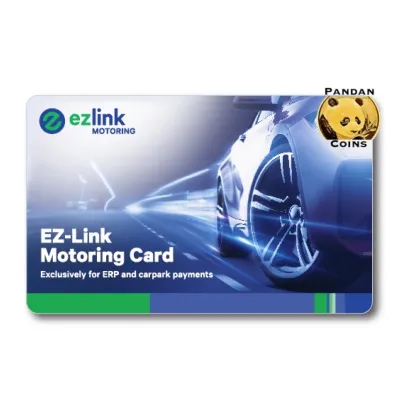
Prices are valid at publication and may change. Please refer to the product page for the latest price.
Inserting the card correctly is crucial for the reader to establish a stable connection. For standard dual-mode IUs, slide the card into the slot with the gold contact chip facing upward and pointing forward into the device. If you are using an older first-generation IU, note that these older units typically require a standard CashCard rather than a CEPAS-compliant card like the motoring card, so verifying your IU type is an essential first step.
Keeping the card permanently inserted in the IU while driving is highly recommended. Removing the card while on the move increases the risk of forgetting to reinsert it before passing a gantry, which leads to non-payment violations. The IU is designed to continuously monitor the card’s presence and balance, ensuring you are always prepared for upcoming toll points.
However, the interior of a parked vehicle can reach extremely high temperatures under the tropical sun. Prolonged exposure to intense heat can warp the plastic card or damage the internal microchip and magnetic components. To prevent degradation, consider parking in shaded areas or using a windscreen sunshade to shield the IU and card from direct sunlight.
Step-by-Step Guide to Using the Card at ERP Gantries
Driving through an Electronic Road Pricing (ERP) gantry requires no manual intervention if your card is prepared. Before you begin your journey, perform a quick visual check of your IU display. The unit should show your current card balance, indicating that the card is properly seated and ready for transaction processing.

As you approach and pass under an active ERP gantry, the overhead antennae communicate with your IU via radio frequency. Keep a steady speed and maintain your lane. You do not need to slow down abruptly, as the system is designed to read the card at standard highway speeds.
Observe the visual and audio feedback from your IU as you pass beneath the gantry. A successful transaction is indicated by a single, clear beep from the unit, accompanied by a green indicator light. The liquid crystal display (LCD) on the IU will briefly show the deducted amount followed by your remaining card balance.
If the IU emits a rapid double beep or displays a red light, this indicates a transaction failure. Common causes include an improperly inserted card, an expired card, or insufficient balance. In such events, do not stop, reverse, or hesitate under the gantry, as doing so poses a severe safety hazard to other road users.
Instead, continue driving safely to your destination. The system will log the missed transaction, and the vehicle owner will receive an official notification detailing the outstanding amount and any applicable administrative fees. You can resolve this payment online through the official land transport portal or designated self-service kiosks.
Paying for Parking with the EZ-Link Motoring Card
The Electronic Parking System (EPS) used in most carparks across Singapore operates on a similar wireless mechanism. When you approach the entry barrier of an EPS-equipped carpark, the overhead reader scans your IU to register your vehicle’s entry. There is no need to wind down your window, tap your card, or press for a physical ticket.
The barrier arm will lift automatically once the system registers your vehicle details. As you drive in, your card remains untouched in the IU. The system records the entry time electronically, preparing to calculate the final fee upon your departure.
When exiting the carpark, the exit reader scans your IU once more, calculates the parking duration, and automatically deducts the corresponding fee from your card. The IU will beep, and the display screen will show the exact amount deducted alongside your updated balance. The exit barrier will then rise to allow your departure.
If you encounter an error or have an insufficient balance at the exit barrier, the gate will remain down. Avoid reversing out of the lane if there are vehicles behind you. Press the physical intercom button located on the exit terminal to contact the carpark operator for assistance.
The operator may instruct you to insert a backup card into the manual reader on the terminal or provide alternative payment instructions. Keeping a spare, topped-up card in your glove compartment is an excellent precautionary measure to resolve exit issues quickly without causing traffic congestion.
How to Check Your Card Balance and Top Up
Monitoring your card balance regularly is the best way to prevent payment failures. The most immediate way to check your balance is by looking at the IU display screen right after passing a gantry or exiting a carpark. The screen displays the remaining value for several seconds before turning off or returning to a standby state.
For a more detailed check, you can use your NFC-enabled smartphone. Download the official EZ-Link mobile application, enable your phone’s NFC function, and place your motoring card against the back of your phone. The app will instantly read the card, displaying the exact balance, card expiry date, and a detailed transaction history.
When it comes to topping up your card, several convenient physical and digital options are available. You can visit local automated teller machines (ATMs) from major banks, AXS stations, or self-service lobbies across the island. Insert your card into the designated reader, select the top-up option, and follow the on-screen prompts to transfer funds from your bank account.
Convenience stores such as 7-Eleven and Cheers also offer manual top-up services at their cash counters, though a small service fee may apply. For a completely hands-free experience, you can register your card for the auto-top-up service (EZ-Reload) via the mobile app. This service automatically reloads your card with a pre-selected amount whenever the balance falls below a certain threshold, ensuring you never run out of funds on the road.
Troubleshooting Common Issues and Error Codes
Even with regular maintenance, you may occasionally encounter issues where the IU fails to read your motoring card. If the display shows “Card Error” or “Insert Card” despite the card being inside, the first step is to remove the card and inspect the gold contact chip. Dust, oil, or pocket lint can block the connection.
Gently wipe the gold chip with a clean, dry microfiber cloth or a soft pencil eraser to remove any residue. Reinsert the card firmly into the slot and check if the IU display lights up with your balance. If the error persists, try inserting the card into another compatible reader, such as a top-up machine, to determine if the issue lies with the card or the IU itself.
Physical damage can also render the card unusable. If the card is cracked, severely bent, or demagnetized, it will fail to communicate with the IU. Additionally, all contactless cards have a fixed lifespan; you can verify the expiry date of your card via the mobile app or at any self-service ticketing machine.
If your card has expired or is physically damaged, you can visit an official customer service center or a SimplyGo Ticket Office to arrange for a replacement and transfer any remaining balance to a new card. If the card works in other readers but your vehicle’s IU consistently fails to read any card, you should visit an authorized vehicle workshop to have the IU inspected or replaced.
Frequently Asked Questions (FAQ)
Can I use a standard EZ-Link card instead of the Motoring Card for my car?
Yes, you can use a standard adult EZ-Link card in your vehicle’s dual-mode IU for ERP and parking payments. Both cards utilize the same CEPAS technology standard, allowing them to interface seamlessly with modern in-vehicle units. However, the dedicated motoring card is specifically designed for vehicular use, making it easier to manage motoring-related expenses separately from your daily public transit fares. Note that older first-generation IUs do not support CEPAS cards and require a standard CashCard instead.
What happens if I drive through an ERP gantry with insufficient balance?
If you pass through an active ERP gantry with an insufficient card balance, the transaction will fail, and the IU will emit a warning sound. The gantry cameras will capture your vehicle’s license plate, and the Land Transport Authority will issue a payment notice to the registered vehicle owner. You will be required to pay the missed ERP charge plus an administrative fee. To avoid additional penalties, ensure you settle this outstanding amount within the timeframe specified in the notice.
Community discussion
Share your experience or ask a question. Comments are reviewed before publication.