
Navigating public transport in Singapore is highly efficient, but getting the most out of your commute requires a clear understanding of your fare payment options. The transit network relies heavily on the SimplyGo system, which integrates traditional physical cards with digital account-based ticketing. Whether you are holding a classic stored-value card or an account-based card, knowing how to manage your funds, link your digital accounts, and tap correctly at fare gates is essential for a smooth journey.
By mastering these simple operational steps, you can avoid common gate errors, prevent unnecessary maximum-fare penalties, and keep your daily travel completely seamless. This guide provides step-by-step instructions for identifying your card type, topping up or linking your payment methods, and troubleshooting common transit card issues on MRT trains and buses.
Identify Your Card: Standard EZ-Link vs. SimplyGo EZ-Link
Before heading to the nearest MRT station or bus stop, you must identify which type of transit card you own. Singapore’s public transport system utilizes two distinct card types that look visually similar but operate on entirely different financial models: standard stored-value cards and account-based SimplyGo cards.
Products mentioned in this guide
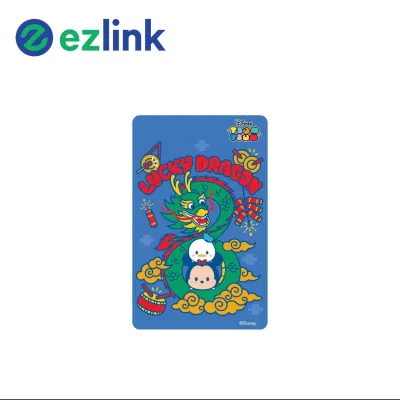

![[🇸🇬 SG SELLER]EZLINK CHARM/Personalised NETS Charm/EZ LINK Card customise/Bus MRT Card/Perfect Gift/KeyChain/phone charm](https://img.lazcdn.com/g/ff/kf/Sb3c8a03ef2524877bc0071d549867bd50.jpg_400x400q80.jpg_.webp)
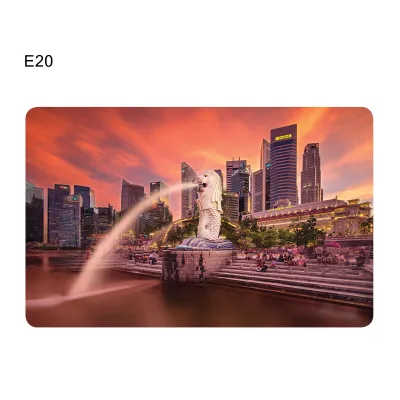
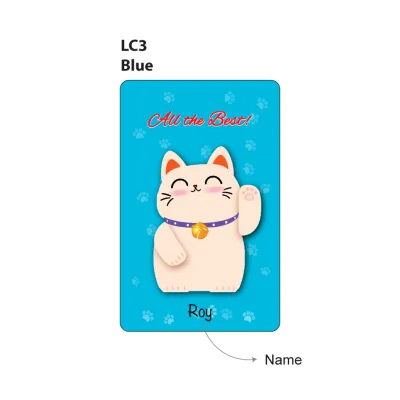

Prices are valid at publication and may change. Please refer to the product page for the latest price.
To determine your card type, inspect the physical card face for visual cues. SimplyGo-compatible cards prominently display the “SimplyGo” logo or text on either the front or the back. If your card does not feature this branding, it is likely a traditional stored-value EZ-Link card. You can also verify the card type by placing it on a SimplyGo Kiosk at any MRT station; the screen will explicitly state whether the card is account-based or a classic stored-value card.
A dedicated SimplyGo EZ-Link card operates on an account-based ticketing system. This means the physical card chip does not hold any monetary balance. Instead, the card acts as a secure identifier linked to a digital account on a backend server. Because there is no balance stored directly on the card, you cannot top up a post-paid SimplyGo card with physical cash at a ticketing machine; instead, fare deductions are processed automatically through your linked bank card or digital wallet.
In contrast, a standard EZ-Link card is a traditional stored-value card. The monetary balance is written directly onto the physical chip of the card. Every time you tap through a transit reader, the fare is immediately calculated and deducted from this physical balance. Because of this localized storage, standard cards require regular manual top-ups or a pre-configured auto-load arrangement to ensure you maintain a positive balance for your journeys.
How to Top Up a Standard Stored-Value EZ-Link Card
Maintaining a sufficient balance on your standard stored-value EZ-Link card is crucial for uninterrupted travel. If your card balance falls below the minimum required entry fare (typically S$3.00 for MRT rides), the fare gates will not open. You can reload your card using several convenient methods across Singapore.

Self-service SimplyGo Kiosks are located at every MRT station and offer a quick way to add value to your card. To top up at a kiosk, follow these steps:
- Place your physical card onto the designated card reader slot.
- Select the "Top-Up" option on the touch screen.
- Choose your preferred payment method, such as NETS, a credit card, or a debit card.
- Select or enter the amount you wish to add. Note that the minimum top-up amount at these kiosks is S$2.00.
- Follow the on-screen prompts to complete the payment transaction, and do not remove your card until the screen confirms the top-up is successful.
If you prefer face-to-face assistance, you can top up your card at MRT Passenger Service Centres. However, keep in mind that cash top-ups at these counters may not always be available or may incur additional administrative steps, as transit operators encourage the use of self-service digital kiosks. It is best to use a debit card, credit card, or NETS when topping up at the counter.
You can also top up your standard card at various authorized retail outlets across Singapore, including convenience stores like 7-Eleven and Cheers, as well as selected supermarkets. You can use cash or NETS at these locations. Note that topping up at retail outlets typically incurs a small convenience fee (usually around S$0.50 per transaction), which is added to your total bill.
If you have an NFC-enabled smartphone, you can top up your physical card anytime using the official SimplyGo mobile application. Open the app and ensure your phone’s NFC function is turned on, then select the option to top up a physical card. Place and hold your physical card against the NFC antenna on the back of your phone, choose your payment method (such as a saved credit card, debit card, or digital wallet), and enter the top-up amount. Keep the card held firmly against the phone until the app confirms that the value has been successfully written to the card.
To eliminate the hassle of manual reloads, you can apply for the GIRO or credit card Auto Top-Up service via the SimplyGo app. Once activated, your card will automatically reload with a pre-selected amount (such as S$20.00) whenever the balance falls below a specific threshold during a tap-out. Always verify that your transaction was successful by checking your updated balance immediately on the kiosk screen, on the reader screen as you tap through the fare gates, or by scanning the card again using your phone’s NFC reader via the app.
How to Link and Manage a Post-Paid SimplyGo EZ-Link Card
A post-paid SimplyGo EZ-Link card shifts the focus from managing a physical balance to managing a digital account. Because the card does not display a balance at MRT gantries or bus readers, linking it to the official app is highly recommended to track your spending and manage your linked payment methods.
To begin, download the official SimplyGo mobile application from the Apple App Store or Google Play Store. Open the app and follow the prompts to register for a new account. You will need to provide a valid email address, a mobile number for verification, and set up a secure password.
Once your account is active, you can add your physical card to your digital profile by navigating to the “Cards” section within the app. Enter the 16-digit Card Identification Number (CAN) printed on the back of your physical card, and assign a nickname to the card to help you easily identify it, which is especially useful if you are managing multiple cards for family members.
To enable automatic fare deduction, you must link a valid payment source to your account. The system supports major credit and debit cards, including Mastercard, Visa, and NETS. Select your registered card in the app, choose “Link Payment Method,” enter your credit or debit card details securely, and complete any required bank verification steps, such as entering a One-Time Password (OTP) sent to your phone. Once linked, your transit fares will be accumulated and billed directly to your bank card on a regular schedule.
Because MRT gantries and bus readers will only display “SimplyGo” instead of a fare amount when you tap, the app is your primary window into your travel expenses. Within the app, you can view your detailed trip history, see the exact fare charged for each journey, and track your progress toward any daily or monthly fare capping limits.
If your linked credit or debit card is lost, cancelled, or expires, you must update your payment details immediately to avoid card suspension. To unlink a payment method, select the card in the app, go to payment settings, and choose “Unlink.” To replace a payment method, add your new credit or debit card details first, then set it as the primary payment method for your SimplyGo card before deleting the old one.
The Correct Way to Tap In and Out on MRT and Buses
Using your transit card correctly at fare gates and bus readers is vital. Incorrect tapping habits can lead to incomplete journey records, which result in maximum fare penalties being charged to your account.
When traveling by train, you must tap your card at the entry gantry when entering the station, and tap the exact same card at the exit gantry when leaving your destination station. Never switch cards mid-journey; if you tap in with your physical SimplyGo card and attempt to tap out with your smartphone (even if both are linked to the same account), the system will register two separate, incomplete journeys, resulting in maximum fare charges on both devices.
Similarly, when boarding a bus, you must tap your card at the reader located near the front entrance. When alighting, you must tap your card again at the reader near the exit doors. Failing to tap out before stepping off the bus will cause the system to assume you traveled to the very end of the bus route, automatically charging you the maximum possible fare for that service.
To ensure the card readers register your card accurately on the first attempt, hold your card flat against the center of the reader. Do not wave, swipe, or flick the card quickly. Hold the card in place for a brief second until you see the green light illuminate and hear a clear, single beep.
Do not tap your entire wallet or cardholder if it contains multiple contactless cards, such as credit cards, office access passes, or other transit cards. The reader may detect multiple signals simultaneously, leading to a “Card Clash” error, or it may accidentally charge the wrong card. Keep your primary transit card in an easily accessible slot or take it out of your wallet before tapping.
Each transit card is coded to track a single passenger’s journey. You must never pass your card back to another person behind you so they can tap in. The system will detect the double tap as an error, or block the card from entry because it is already registered as being “inside” the transit network.
Troubleshooting Common Transit Card Errors
Even with careful use, you may occasionally encounter errors at fare gates or bus readers. Knowing how to handle these situations quickly will keep your commute stress-free.
If a reader flashes a red light and displays an error message, step aside to avoid blocking other commuters. If you are using a standard card, “Insufficient Value” indicates your balance has fallen below the minimum entry threshold, and you should proceed to the nearest SimplyGo Kiosk to top up. If you are using a SimplyGo card, a “Card Blocked” or “Invalid Card” message usually means there is an issue with your linked payment method, such as an expired credit card or insufficient funds in your bank account; open your SimplyGo app to check for alerts and update your payment details.
If you realize you forgot to tap out on a bus or at an MRT station, you must resolve the error to avoid paying maximum fare penalties. Open the SimplyGo mobile app, navigate to your trip history, locate the incomplete journey, and file a claim or fare dispute within 14 days of the incident, providing the correct boarding and alighting locations. Alternatively, you can visit a SimplyGo Ticket Office or an MRT Passenger Service Centre, where staff can manually adjust your card’s journey history.
If your card is severely bent, cracked, or simply refuses to register on any reader despite having sufficient funds or a valid linked payment method, it may have suffered internal antenna damage. Visit a SimplyGo Ticket Office (located at selected MRT stations) to get the card assessed. The customer service officer can help transfer any remaining stored value to a new card or initiate a refund process for the balance; note that a replacement fee may apply if the damage is due to user neglect.
Frequently Asked Questions (FAQ)
Can I use my standard EZ-Link card for SimplyGo without buying a new card?
Yes, you can transition your existing standard stored-value EZ-Link card to the SimplyGo system without purchasing a new card. You can perform this upgrade at any SimplyGo Kiosk located at MRT stations. Place your standard card on the reader, select the option to upgrade to SimplyGo, and follow the on-screen prompts. Once upgraded, your card will function as an account-based card, allowing you to link it to the SimplyGo app and manage it digitally. Please note that this upgrade is irreversible; once a card is converted to SimplyGo, it cannot be reverted back to a traditional stored-value card.
What happens if my linked credit card expires or lacks sufficient funds?
If your linked credit or debit card expires, is cancelled, or has insufficient funds when a fare deduction is attempted, your SimplyGo account will be temporarily suspended. When this happens, your physical SimplyGo card will be blacklisted, and you will see a red light or an error message at the fare gates or bus readers. To resolve this, you must open the SimplyGo app, clear any outstanding unpaid fares, and update your account with a valid, active payment card. Once the outstanding balance is settled and a valid card is linked, the system will automatically lift the suspension, though it may take up to 15 minutes for the card to be active for transit use again.
Community discussion
Share your experience or ask a question. Comments are reviewed before publication.