
To set up a print-ready book cover file, you must design the front cover, spine, and back cover as a single, continuous spread. This layout must incorporate the final trim size of the book, a calculated spine width based on your exact page count and paper thickness, and bleed margins on all outer edges to prevent white borders after trimming. Designing these elements as separate files or ignoring the physical realities of the printing process often leads to misaligned text, cut-off graphics, and costly printing errors.
By understanding how to gather specifications, calculate dimensions, and configure your design workspace, you can create a flawless file that translates perfectly from screen to physical page. Whether you are working with a local printing service in Singapore or an online commercial printer, the setup process follows the same fundamental principles of geometry and paper mechanics.
Gather Core Measurements and Printer Specifications
Before opening your design software, you must obtain a precise set of specifications from your printing service. Every printer utilizes different machinery, paper stocks, and binding methods, meaning there is no universal template that fits every project. Attempting to guess these measurements beforehand almost always results in having to redesign the cover later.
Products mentioned in this guide
4 Lazada user ratings
Great cover for book, it is not the usual plastic kind. Exactly what I am looking for. The yellow colour makes a fabulous book cover 👍🏻
237 Lazada user ratings
Cat Prince's 2025 new self-adhesive book cover turns anyone into a book-wrapping expert! With school just around the corner, are you worried…Read full reviewShow less
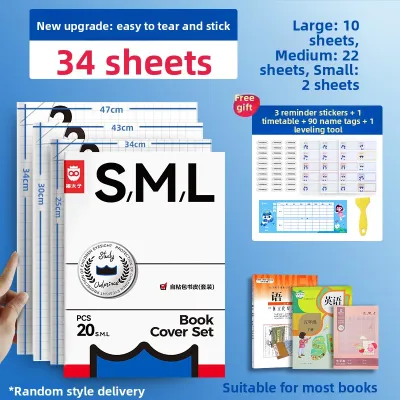
Cat Prince's 2025 new self-adhesive book cover turns anyone into a book-wrapping expert! With school just around the corner, are you worried about book covers again? Every year feels like a battle with scissors and tape all over the place, and if the kids mess around, it can be frustrating! But don't worry! This year I found a gem - the Cat Prince 2025 new self-adhesive book cover! It's a lifesaver for those not so good at wrapping! It's super easy to use, even the kids can do it themselves! Say goodbye to scissors and glue! Just peel and stick, aligning with the book edge is a breeze! It's like applying a phone screen protector! In the morning rush, you can cover a book in just a few minutes, it's such a relief! The transparent matte texture is both stylish and practical! It's high transparency so you can clearly see the book cover, and writing the book's title or sticking labels is no issue. The delicate matte finish feels great, it has a premium non-glare look, writing is smooth, and it's very dirt and wear-resistant! No more worries about bent edges or dirty covers! It's durable and will last a semester with ease! Plus, the material is reliable and thoughtful! It's thick and tough, not the flimsy kind that tears easily. The best part is it's non-toxic and odorless, perfect for kids! Cat Prince is a trusted brand, so it's very dependable!
The material design is great; it's a clear frosted texture that's waterproof, dirt-resistant, and even comes with a smoothing tool so kids c…Read full reviewShow less
The material design is great; it's a clear frosted texture that's waterproof, dirt-resistant, and even comes with a smoothing tool so kids can handle it themselves. This set definitely offers great value. Thumbs up! 👍
School is starting soon, so I'm stocking up and waiting for the books to arrive. As a new parent, I haven't wrapped them yet, but I'm lookin…Read full reviewShow less
School is starting soon, so I'm stocking up and waiting for the books to arrive. As a new parent, I haven't wrapped them yet, but I'm looking forward to it!
My child is starting first grade soon, and the quality of the product is pretty good. I've bought from this store many times, and I'll buy a…Read full reviewShow less
My child is starting first grade soon, and the quality of the product is pretty good. I've bought from this store many times, and I'll buy again next time.
First time using it, and it's easy to apply. If you make a mistake, you can peel it off and try again. It's also non-slip.
Prices are valid at publication and may change. Please refer to the product page for the latest price.
First, define the final trim size of your book. This is the exact physical dimension of the finished, closed book, such as A5, B6, or a custom size. Your front and back cover panels will match this trim size exactly, while the overall canvas will expand to accommodate the spine and bleed.
Next, request the printer’s specific bleed allowance and safe zone margins. The bleed is the extra area around the outer perimeter of the design that is trimmed off during the binding process, while the safe zone is the inner margin where all critical text and images must remain to avoid being cut.
Finally, confirm the exact paper stock and its caliper for the interior pages. The caliper refers to the thickness of a single sheet of paper, usually measured in microns or pages per inch (PPI). You must also verify the final, locked page count of the interior block, as even a minor change in page count will alter the thickness of the book and change your spine width.
Calculate the Spine Width Based on Page Count and Paper
The spine is the bridge between your front and back covers, and its width is entirely dependent on the thickness of the interior page block. To calculate the spine width, you multiply the total page count by the thickness of the paper stock, then add a small allowance for the cover material and binding adhesive.

It is crucial to remember that page count refers to the number of page sides, not the physical sheets of paper. A book with 100 physical sheets of paper actually has a 200-page count. Using the wrong number in your calculation will result in a spine that is either twice as wide or half as wide as it needs to be.
Different paper types have vastly different thicknesses, even if they share the same weight. For example, an uncoated 100 gsm paper is typically bulkier and thicker than a coated 100 gsm glossy paper. Additionally, the binding method itself influences the spine; perfect binding (using glue for paperbacks) requires a flat, defined spine, whereas case binding (for hardcovers) requires extra space for the wrap-around cover board and hinges.
Because of these variables, you should always request a precise spine calculation or a custom template directly from your printer once your interior layout is completely finalized. Do not rely on generic online calculators, as they cannot account for the specific paper brands and binding equipment your chosen printer uses.
Configure the Document Canvas and Bleed Margins
Once you have the exact trim size, spine width, and bleed measurements, you can calculate the total dimensions of your digital canvas. You will set up your design software to display a single, wide canvas that represents the entire unfolded cover spread.
To find the total canvas width, use the following formula: Left Bleed + Back Cover Width + Spine Width + Front Cover Width + Right Bleed. For example, if your trim width is 148 mm, your spine is 10 mm, and your bleed is 3 mm, your total canvas width will be 3 + 148 + 10 + 148 + 3, which equals 312 mm.
To find the total canvas height, use this formula: Top Bleed + Trim Height + Bottom Bleed. Using the same 3 mm bleed and an A5 height of 210 mm, your total canvas height will be 3 + 210 + 3, which equals 216 mm.
After creating your document with these total dimensions, place vertical guides to mark the boundaries of the spine. If your canvas is centered, your first spine guide will be placed at the width of the bleed plus the back cover width, and the second spine guide will be placed exactly one spine-width to the right of the first.
Finally, ensure that all background colors, patterns, and images extend all the way to the outer edges of the bleed area. This guarantees that when the physical paper shifts slightly on the cutting machine, the blade will only cut through your background design, leaving no unsightly white paper edges visible on the finished book.
Layout Content Within Safe Zones and Spine Boundaries
With your canvas and guides properly configured, you can begin placing your design elements. The key to a professional layout is respecting the safe zones, which protect your text and critical graphics from being cut off during trimming or swallowed by the binding fold.
Keep all important text, logos, author names, and barcodes at least 6 mm to 10 mm away from the trim lines. This safe zone acts as a buffer against the natural mechanical tolerances of commercial cutting machines, which can shift by a millimeter or two during high-speed runs.
Be especially careful around the spine fold lines. Avoid placing critical visual elements, such as faces or text, directly across the fold where the front or back cover meets the spine. The physical bending of the cover stock can cause these elements to distort, and the creasing process can crack the ink if the paper is not laminated.
When placing text on the spine itself, ensure there is plenty of breathing room on either side. If your spine is 10 mm wide, keep your text size small enough to leave at least 2 mm of clear space on both the left and right sides of the text. If your book is very thin and has a spine width of less than 6 mm, it is generally best to leave the spine blank, as even a tiny alignment shift during binding will cause the text to spill over onto the front or back cover.
Export and Verify the Print-Ready PDF
The final step in the process is exporting your design into a format that commercial printing presses can read accurately. A high-quality export prevents color shifts, blurry images, and missing fonts when your file goes to print.
Export your cover file as a print-optimized PDF, preferably using a standard format such as PDF/X-1a or PDF/X-4. These standards restrict settings that can cause printing errors, such as RGB color spaces or uncompressed images, and ensure that your transparencies are flattened correctly.
During the export process, make sure to enable crop marks and bleed marks. These marks sit outside the bleed area and show the printer’s cutting machines exactly where to trim the paper. Double-check that your export settings are set to use the document’s bleed settings rather than resetting them to zero.
Before sending the file to the printer, open the PDF in a professional viewer and perform a pre-flight check. Verify that all images are high-resolution (at least 300 PPI at their physical print size) and that all fonts are fully embedded or converted to outlines. Zoom in on the spine area to ensure your text is perfectly centered between the fold lines.
Always request a digital or physical proof from your printing service before authorizing the full print run. A physical proof is the ultimate verification tool, allowing you to check the alignment of the spine, the accuracy of the colors, and the overall feel of the paper stock in your hands.
Frequently Asked Questions (FAQ)
What is the standard bleed size for book covers?
The most common industry standard for bleed is 3 mm (or 0.125 inches) on all outer edges. However, this is not a universal rule, as some specialized printers or hardcover binding methods require larger bleeds of 5 mm or more to wrap around the heavy cardboard covers. You should always verify the exact bleed requirement with your specific printing service before finalizing your canvas size.
Why does my spine text look off-center after printing?
Spine text often appears off-center due to minor mechanical shifts during the folding and binding process, or because the final page count changed slightly after the cover was designed. If the interior paper stock is slightly thicker or thinner than originally calculated, the spine width will change, shifting the fold lines. To minimize this effect, always keep your spine text well-centered with generous margins on both sides, and lock in your final page count before designing the cover.
Community discussion
Share your experience or ask a question. Comments are reviewed before publication.