
To find the right Niimbot label sticker size and shape for your printer, you must match the label roll’s physical width, sensor markings, and spool design with your specific printer model’s hardware specifications. Niimbot label makers use thermal printing technology, which means they do not use ink but require compatible thermal paper rolls that fit within the physical boundaries of the printer’s feed chamber and align with its internal sensors. Selecting the correct size and shape prevents paper jams, ensures proper alignment, and protects the thermal print head from damage.
Decoding Niimbot Label Formats: Continuous vs. Die-Cut
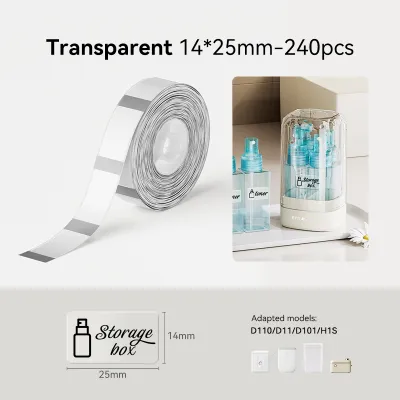
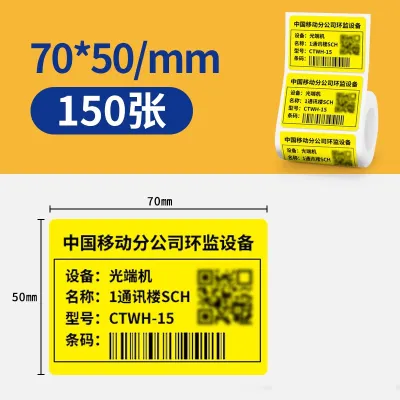
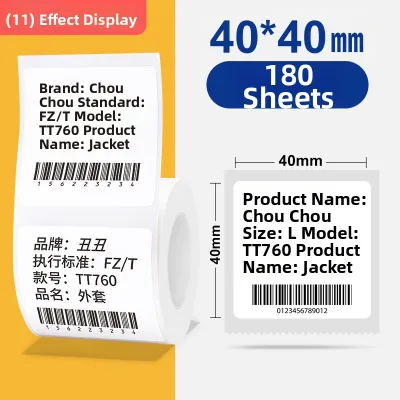
Understanding the difference between continuous rolls and die-cut labels is the first step in ensuring compatibility. Continuous rolls are gapless, allowing you to print labels of varying lengths. The printer or the user cuts the paper after printing. Die-cut labels, on the other hand, are pre-cut into specific shapes—such as rectangles, circles, or cable tags—and are separated by small gaps or marked with black lines on the backing paper.
These physical differences correspond directly to how your printer’s internal sensors operate. Niimbot printers use optical or reflective sensors to detect where a label begins and ends. An optical sensor looks for the gap between die-cut labels, while a reflective sensor detects a black mark printed on the back of the liner. If you load a continuous roll into a printer that only supports die-cut labels, the sensor will continuously search for a gap, leading to feeding errors, blank pages, or flashing error lights on your device.
Products mentioned in this guide
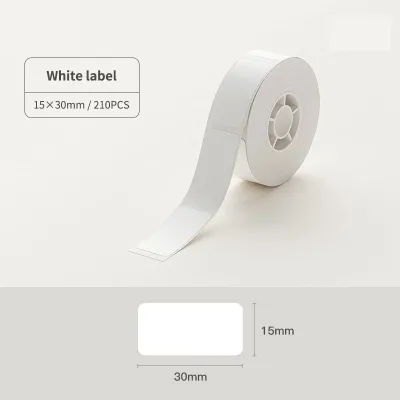
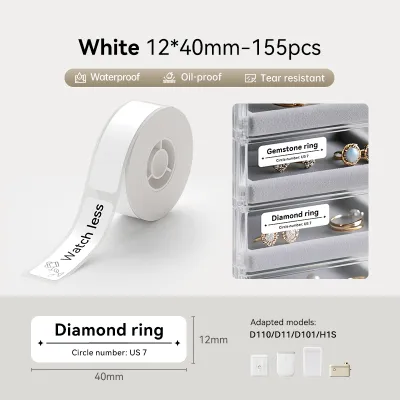
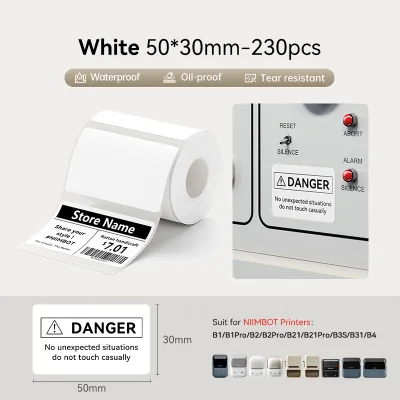
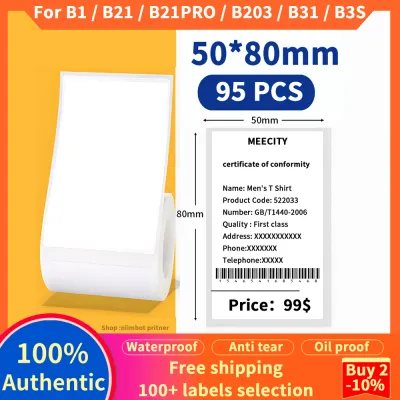
Prices are valid at publication and may change. Please refer to the product page for the latest price.
Before purchasing new rolls, always check your printer’s user manual or the companion mobile app settings. The app typically displays the supported feed types for your connected model, helping you confirm whether your hardware can handle continuous paper, gap-based die-cut labels, or black-mark rolls.
Print Width and Length: Matching Dimensions to Your Hardware
Every label printer has physical limitations dictated by its print head size and paper chamber dimensions. Portable mini printers, designed for quick home organization or labeling personal items, typically support narrower label widths, often ranging from 12mm to 15mm. In contrast, larger desktop or semi-portable models are built to accommodate wider labels, sometimes up to 50mm or more, making them suitable for shipping labels, product packaging, or detailed price tags.

Using a label roll that is wider than your printer’s maximum supported width will cause immediate issues. Physically, the roll may not fit inside the paper compartment, or it will rub against the inner walls, creating friction that leads to paper jams. Even if you manage to force a wider roll into the chamber, the thermal print head cannot heat the paper beyond its physical heating element width. This results in edge cutoff, where the outer portions of your design remain entirely blank, and can place uneven mechanical strain on the platen roller and print head.
To avoid these issues, measure your existing label rolls or carefully read the packaging specifications of new rolls. Pay close attention to the exact millimeter dimensions of both the label itself and the backing paper. The backing paper is always slightly wider than the sticker, and this total width must fall within your printer’s specified range. You can find these specifications on the underside of your printer or within the device settings in the companion app.
Shape and Material Specs: What Actually Affects Print Quality
While rectangular labels are the most common, Niimbot offers a variety of shapes, including circles, squares, and specialized cable tags. It is important to understand that physical shape compatibility is closely tied to the companion app’s template library. The printer’s hardware simply feeds the paper and applies heat; it is the app that aligns your text and graphics within the boundaries of the shape. If you purchase a specialty shape, such as a round label, but your specific printer model does not have a corresponding template in the app, achieving proper alignment will be incredibly difficult.
Material specifications also play a critical role in print quality and durability. Standard thermal paper is highly sensitive to heat and light. In Singapore’s warm and humid climate, standard labels exposed to direct sunlight or moisture can fade or discolor quickly. For items in the kitchen, bathroom, or outdoor environments, opting for waterproof, oil-resistant, and tear-resistant synthetic thermal labels is highly recommended. These materials require different heat levels from the print head to produce a crisp, smudge-free image.
Before buying specialty rolls, open the official companion app on your mobile device. Select your printer model and browse the available template library. This allows you to preview custom shapes and verify that the exact dimensions and layout of the roll you want to buy are fully supported by the software.
Your Pre-Purchase Compatibility Checklist
To ensure a seamless printing experience, follow this step-by-step checklist before purchasing new label rolls:
First, locate the exact model number of your printer. This is typically found on a sticker on the base of the device, inside the battery compartment, or on the original packaging. Do not rely solely on the general product line name, as different sub-models may have different width capacities.
Second, cross-reference this model number with the compatibility list on the label packaging or the online marketplace listing. Reputable sellers will explicitly state which printer models are compatible with each roll size.
Third, verify the spool design. Some printer models require rolls with a specific core diameter or built-in spool adapters to feed correctly.
If you accidentally purchase an unsupported label format, do not open the protective plastic wrap. Most online marketplaces allow returns or exchanges only for unopened, resalable items. If the roll physically fits but prints slightly off-center, you can attempt to adjust the print offset or run a manual calibration sequence within the companion app to correct the alignment.
Frequently Asked Questions (FAQ)
Can I use third-party label stickers in my Niimbot printer?
Using third-party label stickers in your Niimbot printer is technically possible in some older models, but newer models often feature smart RFID technology. These printers have an internal reader that scans an RFID chip embedded in the official label roll core. This chip automatically identifies the label size, shape, and material type for the companion app. If you use a third-party roll without this chip, the printer may refuse to print, or the app may limit your design options. Additionally, third-party backing paper may have inconsistent transparency or spacing, leading to sensor calibration issues and misaligned prints. If a non-official roll causes adhesive buildup or jams that damage the thermal print head, it may also void your manufacturer’s warranty.
Why is my printer feeding blank or misaligned labels?
If your printer is feeding blank labels or the text is misaligned, the optical sensor inside the paper compartment may be dirty. Over time, paper dust, lint, or adhesive residue can accumulate on the sensor, blocking its ability to detect label gaps. Gently clean the sensor using a dry, lint-free microfiber cloth or a cotton swab lightly moistened with isopropyl alcohol. Another common cause is a lack of calibration. You can trigger automatic calibration by pressing the power button once quickly while the printer is on, or by selecting the calibration option in the companion app. Finally, ensure the label roll is loaded correctly, wound tightly, and centered on the spool holder without any curled edges that could disrupt the feed path.

Community discussion
Share your experience or ask a question. Comments are reviewed before publication.