
Selecting a note-taking tablet for architectural sketching and drafting requires looking beyond basic digital handwriting. For architects, designers, and draftspersons, a tablet is not just a digital notepad; it is a portable drawing board, a tracing paper overlay, and a mobile blueprint viewer rolled into one. To find a device that fits seamlessly into your professional workflow, you must evaluate how hardware precision, display characteristics, and software ecosystems interact under demanding technical conditions.
Unlike general note-taking, architectural drafting demands extreme accuracy, high-resolution rendering, and the ability to handle complex vector files. A tablet that lag behind your hand movements or distorts your line weights will quickly become a source of frustration rather than a productivity tool. By focusing on key performance metrics and physical specifications, you can select a device that enhances your creative process from initial concept to final site inspection.
Core Requirements for Architectural Drafting on a Tablet
To establish a reliable digital drafting setup, you must first assess the physical dimensions and aspect ratio of the tablet screen. Standard architectural blueprints are typically drawn in landscape formats with specific proportions. A tablet with a 4:3 or 3:2 aspect ratio offers a more balanced canvas for viewing these proportions compared to a narrow 16:9 widescreen display, which leaves excessive unused space on the sides. A wider, taller screen allows you to view entire floor plans or elevation drawings with minimal panning.
Products mentioned in this guide

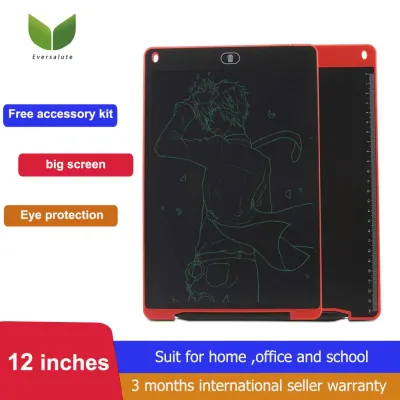
![[✅SG Ready Stock] 8.5 inch / 12 inch LCD Pad Writing Tablet For kidsKids Drawing Pad Portable Electronic Tablet Board](https://img.lazcdn.com/g/p/fee43f1d7f9017a12c1bc992432adbda.jpg_400x400q80.jpg_.webp)
Prices are valid at publication and may change. Please refer to the product page for the latest price.
Stylus precision is the foundation of any digital drafting workflow. You must verify that the stylus supports fine pressure sensitivity and advanced tilt recognition. High pressure sensitivity allows you to control line weights dynamically, mimicking the behavior of technical pens and graphite pencils. Tilt recognition is equally crucial, as it enables realistic shading and variable-width strokes when rendering conceptual elevations or landscape elements.
Software capabilities must align with professional drafting standards. A suitable tablet must support applications that offer non-destructive layer management, allowing you to separate structural grids, dimensions, and annotations. Furthermore, the software must provide precise grid snapping, including isometric and perspective grids, to ensure your technical drawings remain geometrically accurate. Without these digital drafting aids, a tablet remains a simple sketching pad rather than a professional tool.
Evaluating Stylus Precision for Technical Drafting
When verifying if a stylus meets the strict accuracy standards required for technical drafting, you should first test the initial activation force. This metric refers to the minimum pressure required for the tablet to register a stroke. For technical drafting, you want an extremely low initial activation force so that the lightest touch of the pen produces a faint, clean line. If the activation force is too high, you will find yourself pressing down uncomfortably hard, which compromises your control over fine details.

Latency is another critical factor to observe during your evaluation. Latency is the delay between your physical hand movement and the appearance of the digital ink on the screen. High latency causes a distracting disconnect, making it difficult to close corners precisely or trace over existing lines. To test this, draw rapid zig-zag patterns or tight circles on the screen; the digital line should follow the physical pen tip almost instantaneously without any visible gap.
Friction and nib wear are critical tactile considerations that depend on the exact material combination of your stylus and screen. A glossy glass screen offers very little resistance, which can cause your stylus to slip during precise straight-line work. Many architects prefer a matte screen protector or a textured display that mimics the tooth of physical paper. However, this added friction accelerates stylus nib wear. You should check the availability and cost of replacement nibs, verifying whether the manufacturer offers different hardness levels, such as soft felt nibs for a paper-like glide or hard plastic nibs for durability.
Palm rejection and hover features are essential for uninterrupted drafting. Since your hand must rest on the screen to stabilize your drawing, the tablet must reliably ignore your palm while registering the stylus. A hover feature, which projects a small cursor on the screen when the stylus is held a few millimeters above it, helps you align your pen precisely before making contact. This prevents accidental marks and ensures your lines start exactly where you intend.
Choosing the Right Screen Size and Display Technology
Screen size directly dictates your drafting comfort and efficiency. While an 8-inch tablet is highly portable, it is impractical for viewing complex floor plans, forcing you into a frustrating cycle of constant zooming and panning. A screen size of 10.3 inches is the absolute minimum for basic markups, while a 12.9-inch or larger display is highly recommended for serious drafting, as it closely approximates the active drawing area of an A4 sheet of paper.
Refresh rates, measured in Hertz (Hz), play a major role in visual feedback. A standard 60Hz display is sufficient for writing, but a high-refresh-rate display, such as 120Hz, makes a noticeable difference when sketching rapidly. The faster refresh rate reduces visual stutter, making the digital ink appear to flow directly from the pen tip. This immediate feedback is essential for maintaining a natural drawing rhythm and achieving clean, continuous lines.
The choice between display technologies depends heavily on your primary working environment. If you spend most of your time in a bright, air-conditioned office or conducting outdoor site inspections under direct sunlight, an E-ink (e-paper) screen offers exceptional glare resistance and remains perfectly readable in bright conditions. E-ink displays also consume very little power, often lasting weeks on a single charge. However, they are typically limited to monochrome or muted color palettes and have slower refresh rates.
For detailed color rendering, 3D model viewing, and complex layer blending, a high-resolution LCD or OLED display is indispensable. These screens offer vibrant colors and deep contrast, which are essential for presenting polished design concepts to clients. The trade-off is a shorter battery life and potential screen glare when used outdoors. If you opt for a color display, consider applying a high-quality anti-glare screen protector to mitigate reflections during site visits.
Navigating App Ecosystems and File Compatibility
Your tablet must integrate seamlessly into your existing CAD (Computer-Aided Design) and BIM (Building Information Modeling) workflows. Before purchasing a device, verify which professional drawing applications are supported by its operating system. Look for apps that offer advanced drafting tools, such as digital rulers, French curves, perspective guides, and customizable grid systems that allow you to maintain scale and proportion.
File compatibility is the bridge between your mobile tablet and your desktop workstation. For technical drafting, the ability to import and export vector formats like PDF, SVG, or even native DWG and DXF files is crucial. Vector files retain their mathematical precision, allowing you to scale drawings infinitely without losing quality. If a tablet only supports raster exports, such as JPEG or PNG, your sketches will become pixelated when imported into desktop CAD software, limiting their usefulness to basic reference images.
Evaluate the synchronization mechanisms available on the device. Cloud storage integration allows for automatic syncing, ensuring that a sketch you make on-site is immediately accessible to your team back at the office. Check if the tablet supports local file transfers via USB-C, which is highly useful when working in areas with poor network connectivity. A reliable file management system on the tablet itself is essential for organizing project folders and keeping track of drawing revisions.
Building Your Shortlist: Matching Device Types to Workflows
To narrow down your choices, categorize tablets into two main types based on your daily architectural tasks. Full-featured multimedia tablets are the powerhouse option. Equipped with high-performance processors, vibrant color displays, and robust operating systems, these devices can run full-scale drawing apps, render 3D models, and handle multi-layered digital paintings. They are ideal for architects who need to present color-accurate concepts to clients, annotate 3D BIM models, or perform heavy drafting tasks.
Dedicated e-paper tablets focus entirely on the writing and sketching experience. Their monochrome displays are incredibly easy on the eyes, mimicking the look of real paper, and their battery life is measured in weeks rather than hours. These devices are perfect for conceptual sketching, schematic design, and marking up PDF blueprints during site visits. However, they lack the processing power for 3D rendering and do not support advanced color-blending applications.
Do not forget to calculate the total cost of ownership. The tablet itself is only part of the investment. You will need to budget for essential accessories, including a high-quality stylus (if not bundled), replacement nibs, a protective case that can withstand the dust of a construction site, and a multi-angle stand to position the tablet comfortably on your drafting desk. In Singapore, high-quality protective cases and ergonomic stands can range from S$50 to over S$150, so factor these into your initial budget.
Frequently Asked Questions (FAQ)
Can a note taking tablet completely replace traditional tracing paper and drafting boards?
While digital tablets offer incredible advantages, such as instant duplication, non-destructive editing, and perfect scaling, they do not completely replace traditional tools for every scenario. Physical tracing paper allows for rapid, tactile layering and a level of spatial awareness that a smaller digital screen cannot fully replicate. Many architects find that a hybrid workflow works best: using physical paper for large-scale brainstorming and digital tablets for refining concepts, detailed drafting, and mobile presentations.
Do I need a tablet with cellular connectivity for on-site architectural inspections?
Cellular connectivity is highly convenient but not strictly necessary. Most modern construction sites in Singapore have accessible Wi-Fi or allow you to easily tether your tablet to your smartphone’s mobile hotspot. If you choose a Wi-Fi-only model to save on hardware costs and monthly subscription fees, ensure your drafting software supports offline editing and local file storage. This allows you to mark up blueprints on-site and sync them automatically once you return to a Wi-Fi network.
Community discussion
Share your experience or ask a question. Comments are reviewed before publication.