
Choosing the right Epson LabelWorks model for your office requires matching the machine’s capabilities with your team’s daily workflow, physical workspace, and specific labeling materials. Rather than searching for a single universal model, the key to a successful purchase lies in evaluating your actual print volume, connectivity requirements, and the physical environments where labels will be applied. By focusing on these core operational factors, you can select a device that streamlines organization without overpaying for unused features.
Identify Your Office Labeling Volume and Workflow
To find the right equipment tier, start by auditing your office’s daily and weekly label output. A small office or creative studio might only print five to ten labels a week for organizing files, storage boxes, or personal desk spaces. For this light usage pattern, a basic, portable device is usually sufficient, as speed and continuous power are secondary to convenience and ease of storage.
In contrast, a moderate usage pattern involves printing dozens of labels weekly for asset tracking, mailrooms, or shared supply cabinets. Offices with multiple departments often require a more robust system that can handle frequent, short print runs throughout the day without overheating or requiring constant battery replacements.
Products mentioned in this guide
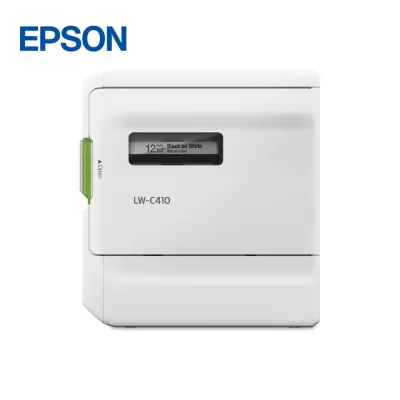
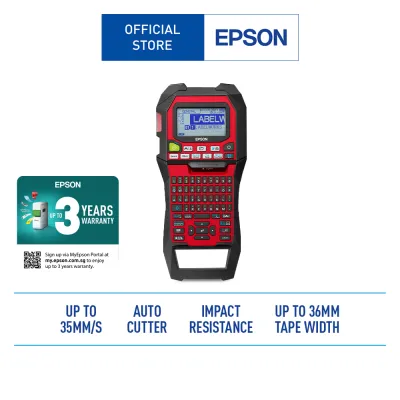
Prices are valid at publication and may change. Please refer to the product page for the latest price.
Heavy usage patterns are common in logistics, IT departments, and large corporate facilities where hundreds of labels are printed in a single session. If your workflow involves batch printing, sequential numbering, or merging data from inventory spreadsheets, you will need a high-throughput desktop model. These systems are designed to handle continuous printing and often feature automatic cutters to speed up the application process.
The physical environment also dictates the ideal workflow design. If your team needs to label network cables in server rooms, inspect facility equipment, or tag assets across multiple floors, a handheld, battery-operated model is essential. However, if the labeling tasks are concentrated at a single shipping desk or administrative workstation, a stationary, AC-powered desktop unit is far more practical and reliable.
Key Feature Dimensions to Compare
When comparing different models on a product specification sheet, several technical dimensions will determine how well the machine performs in your office. Print resolution, measured in dots per inch (dpi), directly affects the legibility of small text and complex barcodes. While standard resolution is perfectly adequate for basic text labels, high-resolution printing is necessary if you need to fit detailed asset codes or company logos onto narrow tape widths.

Print speed is another critical factor for high-volume environments. A faster print speed reduces waiting times during large batch jobs, allowing employees to remain productive. However, for occasional labeling, a slower, more deliberate print speed is rarely a bottleneck and can save on initial hardware costs.
Power options also influence usability and long-term operating costs. Handheld models typically run on standard AA batteries or rechargeable battery packs, offering excellent mobility but requiring ongoing battery management. Desktop models usually rely on AC adapters, providing consistent power for uninterrupted printing sessions at a fixed workstation. Some versatile models offer both options, giving you the flexibility to transition between desk work and mobile tasks.
The user interface is the final major hardware consideration. Standalone models feature built-in keyboards (often in a QWERTY layout) and small LCD screens, allowing users to design and print labels directly from the device. Other models lack physical keyboards entirely, relying instead on a connection to a computer or mobile device where labels are designed using dedicated software.
Connectivity and Integration
The way a label maker connects to your office technology ecosystem determines who can use it and how easily they can access its features. A simple USB connection is ideal for single-user workstations, such as a reception desk or a dedicated shipping station. This direct link ensures a stable connection and fast data transfer, but it limits the printer’s utility to the specific computer to which it is physically attached.
For shared office environments, wireless connectivity options like Bluetooth or Wi-Fi are highly beneficial. A Bluetooth-enabled label maker allows employees to design and print labels directly from their smartphones or tablets using mobile applications, which is particularly useful for on-the-go labeling in warehouses or retail spaces. Wi-Fi connectivity, on the other hand, allows the printer to join the local office network, enabling multiple computers and mobile devices across different departments to share a single centralized machine.
Before choosing a wireless model, it is crucial to verify compatibility with your office’s IT infrastructure. Some corporate networks have strict security protocols that prevent unauthorized wireless devices from connecting to the local area network. In such cases, a USB-only model or a printer with enterprise-grade security features may be required to comply with internal IT policies.
Label Size and Material Compatibility
The utility of any label maker is ultimately defined by the physical tapes it can accept. Epson LabelWorks models support various maximum tape widths, typically ranging from narrow 4mm or 6mm tapes for labeling slim cables and files, up to wider 24mm or 36mm tapes for large signage, shipping labels, and safety warnings. Choosing a model that supports a wide range of tape widths ensures your office can handle diverse labeling tasks as they arise.
Material compatibility is equally important for ensuring labels remain legible and adhered to their surfaces over time. Standard paper and plastic tapes are excellent for general office files, storage bins, and indoor shelving. However, specialized environments require specific tape formulations to withstand physical wear, temperature fluctuations, or chemical exposure.
For example, IT departments managing network infrastructure often require flexible cable wraps or heat-shrink tubes that conform tightly to round wires. Facilities teams may need heavy-duty adhesive tapes for rough or textured surfaces, or tamper-evident security tapes that leave a visible pattern if someone attempts to remove them. Always check the manufacturer’s specifications to confirm that your chosen model is compatible with the specific specialty tapes required for your office environment.
Matching Equipment Categories to Office Roles
To simplify your purchasing decision, it helps to categorize Epson LabelWorks models into distinct equipment classes and match them to specific roles within your organization. This approach prevents the common mistake of buying an over-engineered machine for simple tasks, or conversely, choosing an underpowered portable unit for heavy-duty administrative work.
The first category consists of handheld, battery-powered label makers. These devices are designed for maximum portability and are best suited for IT technicians, facility managers, and field staff. If your primary tasks involve labeling patch panels, network switches, electrical boxes, or physical assets scattered across a large building, a handheld model with a built-in keyboard and a ruggedized exterior is the most practical choice. These units allow users to generate labels on the spot without needing a computer or network connection.
The second category comprises desktop, AC-powered label printers. These machines are built for stationary use at a dedicated workstation, such as an administrative desk, mailroom, or supply center. They typically support wider tape formats, offer higher print resolutions, and print at faster speeds than their handheld counterparts. If your office workflow involves printing high-volume shipping labels, organizing large filing archives, or creating detailed inventory tags from a fixed location, a desktop model connected to a PC or Mac is the most efficient option.
The third category is network-enabled label printers, which are designed for multi-user collaboration. These models connect directly to your office network via Wi-Fi or Ethernet, allowing any authorized employee to send print jobs to a centralized machine. This setup is highly efficient for medium to large offices where multiple departments need occasional access to high-quality labeling but do not require individual printers at every desk. It centralizes consumable management and reduces the total number of hardware assets your IT department needs to maintain.
However, it is important to recognize the limits of these office-grade categories. If your business operates a high-volume manufacturing line, a large-scale distribution center, or a commercial laboratory requiring thousands of labels daily, standard office label makers may not offer the necessary throughput or duty cycle. In these scenarios, you should evaluate industrial-grade thermal transfer printers designed for continuous, heavy-duty operation, rather than standard office equipment.
Verification Checklist Before You Buy
Before finalizing your purchase of an Epson LabelWorks model, running through a practical verification checklist will help you avoid compatibility issues and ensure long-term satisfaction with your investment. Taking the time to verify these details now can prevent costly downtime and administrative frustration later.
First, confirm the local availability and ongoing cost of compatible replacement tape cartridges. While the initial cost of the label maker is a one-time expense, the ongoing cost of consumables will make up the bulk of your long-term operating budget. Check if the specific tape widths, colors, and materials your office requires are readily available from your preferred stationery suppliers or local office equipment distributors in Singapore.
Second, verify software compatibility with your existing office technology. If you plan to connect the label maker to a computer or mobile device, ensure the manufacturer’s design software is fully compatible with your current operating systems, whether you use Windows, macOS, iOS, or Android. This is especially important if your office relies on older legacy systems or highly customized enterprise software that may not support modern printer drivers.
Third, review the manufacturer’s warranty terms and the availability of local technical support. For business-critical operations, having access to prompt local servicing or replacement parts is essential. Confirm whether the printer comes with a local warranty in Singapore and check where the nearest authorized service center is located. This ensures that if the device experiences a hardware fault, your office workflow will not be disrupted for an extended period.
Frequently Asked Questions (FAQ)
Can I use third-party label tapes with Epson LabelWorks printers?
To ensure optimal performance and protect your equipment, you should always consult the printer’s user manual for approved tape specifications and cartridge types. While third-party or generic tape cartridges may appear to be a cost-effective alternative, they can introduce several operational risks. Non-OEM cartridges may not fit perfectly within the printer’s tape bay, leading to frequent jams, uneven feeding, or physical damage to the delicate print head. Additionally, unverified adhesives can leave sticky residue inside the cutter mechanism, which can degrade cutting performance over time and potentially void your manufacturer’s warranty.
Do I need special software to print barcodes with these label makers?
The requirement for special software depends entirely on how you plan to generate and print your barcodes. Many standalone Epson LabelWorks models with built-in keyboards feature integrated barcode generation tools, allowing you to type in alphanumeric data and print standard barcode formats directly from the device without a computer. However, if you need to print complex 2D barcodes, QR codes, or merge barcodes with an existing database, you will need to connect the printer to a PC or Mac. In this scenario, you must use the manufacturer’s official label design software or compatible third-party asset management software, making sure to verify that the software supports the specific barcode symbologies used by your inventory system.

Community discussion
Share your experience or ask a question. Comments are reviewed before publication.