
Choosing between the Cricut Maker 3 and the Cricut Explore 3 comes down to the specific materials you plan to cut and the level of creative flexibility your projects demand. While both electronic cutting machines share the same core speed, software interface, and matless cutting capabilities, they cater to fundamentally different crafting profiles. If your work focuses primarily on paper, cardstock, iron-on, and adhesive vinyl, the Cricut Explore 3 offers an exceptionally capable and cost-effective entry point. However, if you intend to cut dense materials like balsa wood, genuine leather, heavy chipboard, or unbacked fabrics, the Cricut Maker 3 is the necessary choice due to its advanced drive system and specialized tool compatibility.
Understanding these distinctions before making an investment prevents the frustration of purchasing a machine that cannot handle your preferred mediums. Both models represent significant upgrades over their predecessors, particularly in their ability to process materials without a cutting mat. By evaluating your primary crafting goals, physical workspace, and long-term budget, you can confidently select the model that aligns with your creative workflow.
Cutting Force and Material Compatibility: What Can Each Machine Handle?
The primary engineering difference between these two machines lies in their internal drive systems and the resulting cutting force they can apply. The Cricut Maker 3 features an Adaptive Tool System, which controls the direction of the blade and cuts with up to ten times the cutting force of the Explore series. This system allows the machine to use gears to actively rotate the blade as it cuts, enabling precise steering through dense or intricate materials.
Products mentioned in this guide
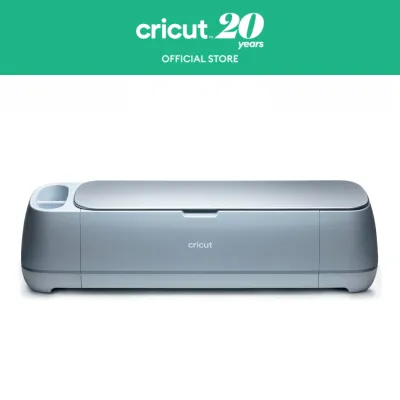
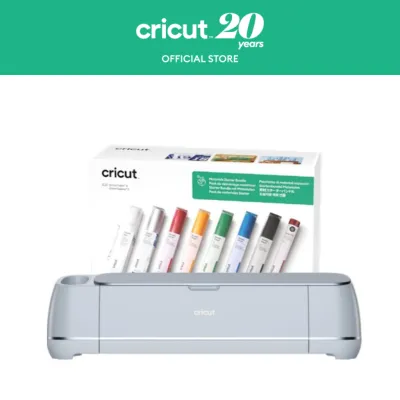
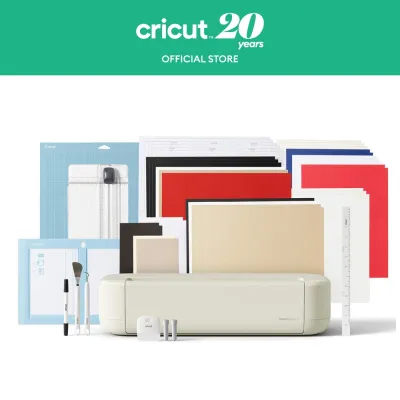
Prices are valid at publication and may change. Please refer to the product page for the latest price.
In contrast, the Cricut Explore 3 utilizes a drag-blade system, where the blade pivots passively in its housing as the machine moves. While this is highly efficient for thinner materials like paper, cardstock, and standard vinyl, it lacks the mechanical power and directional control required for thicker, tougher mediums.
Because of these mechanical differences, the Cricut Maker 3 is compatible with a much wider array of specialized tools. It supports the Rotary Blade for delicate fabrics without backing, the Knife Blade for thick materials up to 2.4mm (such as balsa wood and heavy chipboard), and the Engraving and Debossing tools. The Cricut Explore 3 is limited to standard fine-point blades, deep-point blades, foil transfer tools, and scoring styluses.
Before purchasing any specialized blades, you must verify the tool housing requirements. The Maker 3’s advanced tools require the QuickSwap Housing or specific drive housings that physically will not fit into the Explore 3’s clamp system. Attempting to use incompatible tools can damage the machine or the material.
To determine which machine fits your needs, review the official material compatibility lists provided by the manufacturer. If your projects involve raw leather, balsa wood, basswood, heavy chipboard, or delicate fabrics like silk and denim without a stabilizer backing, the Maker 3 is the only model engineered to handle them safely and effectively. If your portfolio consists of custom stickers, heat transfer vinyl for apparel, cardstock banners, and stencils, the Explore 3 provides identical cutting precision for these standard materials.
Workflow Efficiency: Matless Cutting, Speed, and Smart Features
Both the Cricut Maker 3 and Cricut Explore 3 are engineered to optimize workflow efficiency, particularly through their compatibility with Smart Materials. This feature allows for matless cutting, meaning you can load rolls of vinyl or cardstock directly into the machine without adhering them to a sticky cutting mat first.

When utilizing matless cutting, both machines can handle continuous cuts up to 3.6 meters (12 feet) in length on a single sheet, with a maximum material width of 33 centimeters (13 inches). This capability dramatically speeds up large-scale projects, such as wall decals, long banners, or batch production of apparel graphics.
In terms of raw cutting speed, both models perform at the same accelerated rate when using Smart Materials in “Fast Mode,” making them significantly faster than older generations. However, the actual time saved depends heavily on your design complexity and material preparation.
Both machines feature built-in sensors to facilitate the “Print Then Cut” feature, which allows you to print a design on a home printer and then use the Cricut to cut precisely around the printed image. While both models support this, the Maker 3 features a more advanced optical sensor that can detect registration marks on colored and patterned papers, whereas the Explore 3 is generally optimized for white paper backgrounds. You should verify the software requirements for these advanced design functions on your specific computer or mobile device to ensure smooth operation.
When planning your crafting space, consider the physical footprint and weight of each unit. Both machines share similar dimensions, measuring approximately 56 centimeters in length, but the Maker 3 is noticeably heavier due to its robust internal metal components and dual carriage system. Ensure your worktable is sturdy enough to support the machine during high-speed cutting, and allow at least 25 centimeters of clearance both in front of and behind the machine for material movement. Noise levels during operation are comparable, though the Maker 3 may produce different mechanical sounds when engaging its high-force gear systems.
Price and Value: Is the Upgrade Worth Your Budget?
Evaluating the financial investment of these machines requires looking beyond the initial retail price. In Singapore, you should compare current retail prices in S$ across authorized craft retailers and the official brand store, as promotional bundles and seasonal discounts can vary.
The initial price gap between the two models is substantial, with the Maker 3 commanding a premium. To determine if this upgrade is worth your budget, you must factor in the hidden long-term costs of accessories and consumables.
While the Maker 3 offers immense versatility, none of its specialized high-force tools (like the Knife Blade or Rotary Blade) are included in the base box; they must be purchased separately. If you plan to cut fabric or wood, you will need to budget for these individual blades and their corresponding housings, which can quickly add up.
Additionally, both machines require ongoing purchases of replacement cutting mats (for non-smart materials), replacement blades, and materials. If you choose to subscribe to the premium design software, Cricut Access, this introduces a recurring monthly or annual fee that is identical for both machines.
The higher initial cost of the Cricut Maker 3 is fully justified if you run a small craft business or frequently work with diverse, non-standard materials. The time saved by cutting fabric without backing or processing wood automatically—rather than cutting by hand—directly translates to production value. However, if you are a hobbyist focusing on paper crafts and vinyl decals, paying the premium for the Maker 3’s unused cutting force and tool compatibility may not yield a practical return on investment.
Final Verdict: Which Cricut Machine Should You Buy?
To make your final decision, evaluate your crafting goals against the specific capabilities of each machine.
Choose the advanced Cricut Maker 3 if you require maximum material versatility. This model is the ideal choice if you plan to cut unbacked fabrics for sewing projects, dense materials like balsa wood and chipboard for 3D models, or heavy leather for accessories. It is also the superior option if you want to expand your crafting capabilities in the future with engraving, debossing, and perforation tools.
Choose the standard Cricut Explore 3 if your primary focus is on everyday crafting materials. This machine is highly capable, efficient, and cost-effective for projects utilizing adhesive vinyl, iron-on (HTV), cardstock, poster board, and sticker paper. It delivers the same speed and matless cutting convenience as the Maker 3 without the added cost of heavy-duty mechanical systems you may never use.
Verify first before finalizing your purchase. Check your existing tool collections, as some older mats and basic hand tools are cross-compatible, while specialized blades are not. Ensure your physical workspace has adequate clearance for long matless cuts, and confirm that your computer or mobile device meets the minimum system requirements for the design software to avoid connectivity or processing delays.
Frequently Asked Questions (FAQ)
Can I use my existing Cricut tools and mats with these new models?
Yes, many standard accessories are cross-compatible, but you must verify specific items against the official adaptive tool system compatibility chart. Standard 30.5 x 30.5 centimeter (12 x 12 inch) cutting mats, fine-point blades, and scoring styluses from older Explore or Maker models can be used with both the Maker 3 and Explore 3. However, specialized tools designed for the original Maker’s Adaptive Tool System—such as the Rotary Blade, Knife Blade, and QuickSwap tools—will only work with the Maker 3. These advanced tools cannot be used with the Explore 3, as its clamp system lacks the gear mechanism required to drive them.
Do I need a premium software subscription to use the Cricut Maker 3 or Explore 3?
No, a premium subscription is not required to operate either machine. Both models use the free Design Space software, which allows you to upload your own custom designs (in SVG, PNG, or JPG formats), use basic shapes, and cut your projects without any ongoing fees. The premium subscription, Cricut Access, is an optional monthly or annual service that provides unlimited access to a vast library of fonts, images, and pre-made project templates. You should check the current subscription terms and free trial conditions on the official brand website to decide if the added design assets fit your workflow.
Community discussion
Share your experience or ask a question. Comments are reviewed before publication.