
Selecting the right digital canvas is a critical decision for architects, structural engineers, and design professionals who are transitioning from traditional drafting tables to digital workflows. A 20-inch writing tablet—specifically a professional-grade pen display—offers a spacious workspace that closely mimics the physical scale of standard architectural blueprints. However, navigating the technical specifications of these large-format devices requires a clear understanding of how digital hardware interacts with complex computer-aided design (CAD) software.
To achieve the precision required for detailed floor plans, elevations, and 3D models, a drafting tablet must deliver more than just a large screen. It must provide high-resolution visual clarity, exceptional stylus responsiveness, and seamless software integration. This guide outlines the essential technical parameters, ergonomic considerations, and verification steps to help you select the ideal 20-inch drawing companion for your architectural studio.
Quick Answer: Core Requirements for 20-Inch Drafting Tablets
When evaluating a 20-inch writing tablet for professional architectural drafting, the most critical factor is distinguishing between the physical diagonal screen size and the actual active drawing area. The active area is the digitized portion of the screen that responds to stylus input, and it must offer a high aspect ratio that matches your primary workstation monitor to prevent line distortion.
Products mentioned in this guide
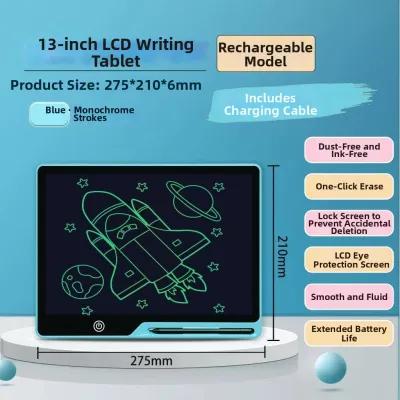
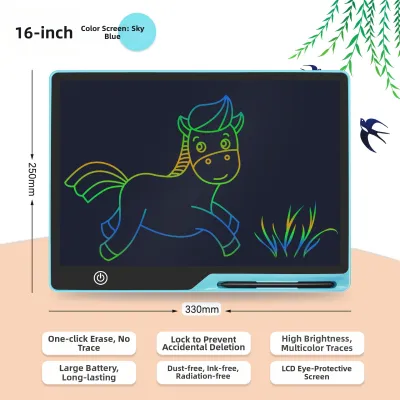
Prices are valid at publication and may change. Please refer to the product page for the latest price.
For professional technical drawing, the baseline requirements include a minimum of 8,192 levels of pressure sensitivity, active tilt support of at least 60 degrees, and a fully laminated screen to minimize parallax. Furthermore, the device must feature robust, low-latency connectivity—such as USB-C with DisplayPort Alternate Mode—to ensure stable communication with demanding CAD and BIM applications. Without these core specifications, a large tablet will function as little more than an oversized sketching pad rather than a precise drafting instrument.
Essential Display and Surface Specifications
Architectural drafting demands extreme visual precision, making screen resolution and color accuracy paramount. A 20-inch display should feature at least a QHD (2560 x 1440) resolution, though a 4K (3840 x 2160) display is highly recommended for rendering intricate vector lines and small text annotations without pixelation. Color performance is equally vital for material rendering and presentation work; look for displays that cover at least 90% of the Adobe RGB or DCI-P3 color spaces to ensure that your digital material palettes translate accurately to physical print.

The physical texture of the screen surface directly influences your drawing accuracy and hand comfort. Standard glossy glass screens offer very little resistance, causing the stylus to slip and slide, which leads to hand fatigue and erratic line work. To counteract this, professional pen displays utilize chemically etched glass or specialized anti-glare matte films. This textured surface introduces a subtle friction that closely mimics the tactile feel of drawing on high-quality drafting paper or vellum, giving you the control needed to pull clean, straight lines.
In a typical Singapore design studio, bright overhead lighting and natural light from large windows can cause distracting reflections on a large glass screen. A display with an anti-glare coating and a brightness rating of at least 250 to 300 nits is essential to maintain clear visibility. High contrast ratios, ideally 1000:1 or greater, ensure that fine gray construction lines and colored layers remain distinct and legible even in brightly lit working environments.
Finally, the physical construction of the display panel plays a massive role in drafting accuracy. Fully laminated displays bond the protective cover glass directly to the underlying LCD panel, eliminating the air gap between them. This lamination process dramatically reduces parallax—the visual offset between the physical tip of your stylus and the digital cursor on the screen. Minimizing parallax is crucial when executing precise snap-to-grid commands, aligning structural columns, or tracing detailed joinery profiles.
Stylus Performance and Precision Metrics
The stylus is the direct extension of an architect’s hand, and its performance metrics dictate the fluidity of your digital drafting workflow. Modern professional tablets offer up to 8,192 levels of pressure sensitivity, which allows you to control line weight dynamically based on how hard you press. However, the initial activation force (IAF) is an equally critical, yet often overlooked, metric. A low IAF means the tablet registers a stroke with the slightest touch of the pen, allowing you to sketch light, exploratory construction lines without applying physical pressure.
Tilt recognition is another essential feature for architectural sketching and rendering. A stylus that supports at least 60 degrees of tilt allows you to change the character of your digital brush or pencil stroke by angling the pen. This capability is invaluable when applying digital washes, shading elevations, or rendering landscape elements in site plans, providing a natural transition from traditional hand-sketching techniques.
When comparing stylus technologies, Electromagnetic Resonance (EMR) is highly superior to active, battery-powered alternatives. EMR pens draw power wirelessly from the tablet’s electromagnetic field, eliminating the need for internal batteries or charging cables. This results in a lighter, more balanced pen that reduces hand fatigue during long drafting sessions. It also ensures that your stylus is always operational, removing the risk of a dead battery interrupting a critical project deadline.
The material and design of the stylus nib also affect the drawing experience. Hard plastic nibs (often made of POM) are highly durable and slide smoothly over the screen, making them ideal for rapid vector drafting. Felt nibs, on the other hand, offer greater friction and a more organic, paper-like feel, though they wear down much faster on textured glass surfaces. When selecting a tablet, verify the availability and cost of replacement nibs, and ensure the manufacturer includes a variety of nib types in the box so you can test which material suits your drawing style.
Software Compatibility and Workflow Integration
A high-performance pen display is only as effective as its software integration. Before investing in a 20-inch tablet, it is crucial to verify that the manufacturer provides stable, frequently updated drivers for your specific operating system, whether you run Windows or macOS. These drivers must support precise coordinate mapping and pen input within industry-standard architectural applications, including AutoCAD, SketchUp, Revit, Rhino, and ArchiCAD.
To streamline your drafting workflow, look for tablets that feature customizable express keys, dial controllers, or touch rings built into the bezel. Architectural drafting relies heavily on keyboard shortcuts for commands such as pan, zoom, undo, and tool selection. Mapping these frequent commands directly to the physical buttons on your tablet allows you to work efficiently with one hand on the stylus and the other on the express keys, minimizing the need to constantly reach for your keyboard and maintaining a more ergonomic posture.
Integrating a large 20-inch tablet into your existing workstation requires careful planning. These devices typically require multiple connections for power, video input, and data transfer. A single-cable USB-C connection (supporting DisplayPort Alternate Mode and Power Delivery) is the cleanest solution, reducing cable clutter on your desk. If your workstation relies on older ports, ensure the tablet supports HDMI or DisplayPort connections alongside a standard USB-A data cable, and verify that your graphics card can support the additional display without performance lag.
Building Your Shortlist: Pre-Purchase Verification Checklist
Before purchasing a 20-inch writing tablet, take the time to measure your physical desk space. A 20-inch display has a substantial footprint, often measuring over 50 centimeters in width. Ensure your desk is deep enough to accommodate the tablet at a comfortable drawing angle while still leaving room for your keyboard, mouse, and primary monitor. Because drafting at a flat angle can cause neck and back strain, check if the tablet features a built-in adjustable stand or VESA mount compatibility (75x75mm or 100x100mm) so you can mount it on an ergonomic monitor arm.
Always cross-reference the manufacturer’s specification sheets to verify the exact active drawing area dimensions rather than relying on the advertised diagonal screen size. Some tablets have exceptionally wide bezels, which increases the overall physical size of the device without providing additional drawing space. Knowing the precise active area helps you determine if the physical scale of your hand movements matches your digital drafting style.
Finally, consider the long-term support and warranty options available in your region. Professional-grade pen displays represent a significant financial investment, often ranging from S$800 to over S$2,500 in Singapore. Prioritize brands that offer local customer support, official distributors, and a comprehensive warranty of at least one to two years. Having access to local repair centers or quick replacement services ensures that any hardware issues can be resolved promptly, minimizing downtime for your architectural practice.
Frequently Asked Questions (FAQ)
Can I use a 20-inch drawing tablet as a standalone device for site visits?
No, standard 20-inch drawing tablets are pen displays, which function as external monitors and require a continuous connection to a host computer and a dedicated power source. They do not have internal processors, operating systems, or batteries. Furthermore, a 20-inch glass-faced device is highly fragile and cumbersome to transport. For site visits and field markups in Singapore’s humid tropical climate, a smaller, standalone tablet (such as a 10- to 12-inch pen computer or mobile tablet) is a much more practical and portable solution.
Does a larger 20-inch screen improve drawing accuracy compared to 15-inch models?
Yes, a larger 20-inch screen improves drafting efficiency and accuracy by allowing you to view expansive floor plans and site layouts at a workable scale without constant zooming and panning. It provides ample space to keep your CAD toolbars and menus open on the screen perimeter while maintaining a large, unobstructed drawing canvas. However, transitioning to a 20-inch display shifts your drawing style from fine wrist movements to broader arm movements. While this can reduce repetitive strain on your wrist, it requires a larger physical desk footprint and an optimal viewing distance to prevent eye strain.

Community discussion
Share your experience or ask a question. Comments are reviewed before publication.