
Selecting the right digital drawing tool is a critical decision for modern architects, urban designers, and structural planners. In an industry where a single millimeter of misalignment can disrupt an entire structural plan, precision is paramount. While searching for a “rechargeable writing pad,” you will likely encounter a wide range of basic consumer electronics. However, standard, low-cost rechargeable LCD writing pads are entirely inadequate for professional architectural workflows. To successfully execute technical drawings, markup construction plans, and sketch initial design concepts, architects must turn to professional-grade wireless pen tablets, portable pen displays, or E-ink smart notebooks. These devices provide the high-resolution input, precise pressure sensitivity, and robust software integration necessary to interface with desktop computer-aided design (CAD) and building information modeling (BIM) programs.
Integrating a professional digital drawing device into your workflow bridges the gap between physical intuition and digital accuracy. Architects have long relied on the tactile feedback of tracing paper and technical pens to iterate designs quickly. Modern rechargeable drafting tablets preserve this intuitive hand-to-eye connection while instantly digitizing your work, eliminating the need to manually scan paper drawings or trace sketches from scratch. Whether you are working in a design studio, presenting to clients in a boardroom, or conducting structural inspections on an active construction site, choosing the right digital drawing interface can significantly streamline your design development and construction documentation phases.
Clarifying "Rechargeable Writing Pads" for Professional Use
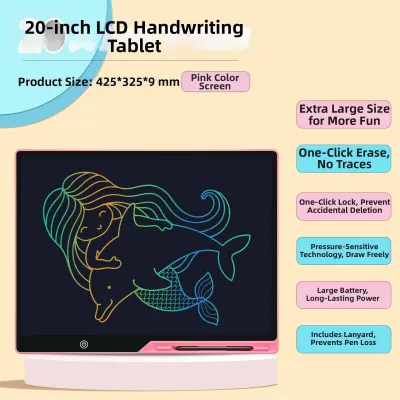
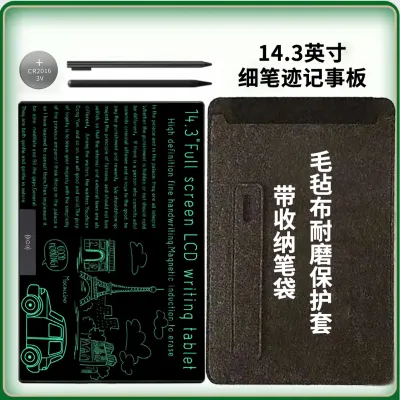
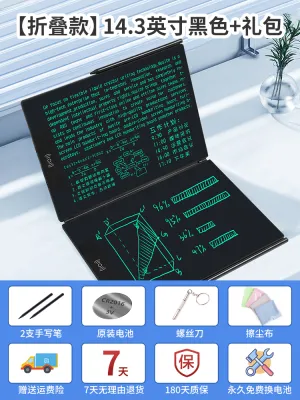
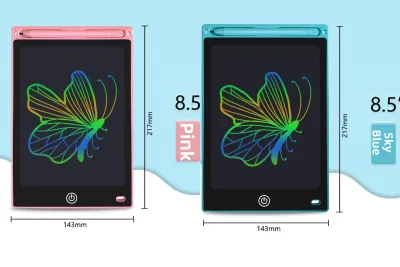
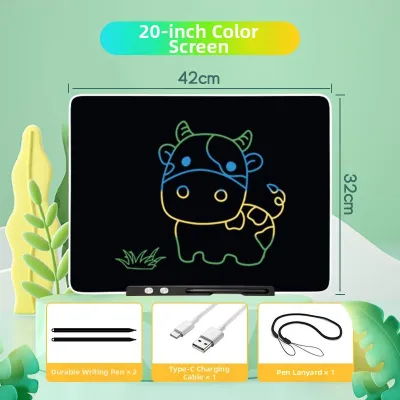
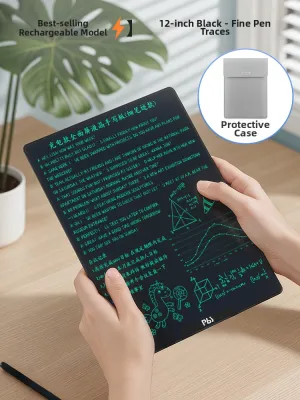
To make an informed purchasing decision, you must first understand the fundamental technology differences between basic consumer writing pads and professional drafting tools. Many entry-level devices marketed as “rechargeable LCD writing pads” or “digital memo pads” utilize simple, passive liquid crystal technology. These devices are designed primarily for temporary notes, grocery lists, or children’s doodles. They operate by using pressure to temporarily realign liquid crystals on a screen, which is then cleared entirely with the press of a single button. They do not possess a digital digitizer, meaning they cannot save individual strokes, do not support vector scaling, and cannot export files to a computer. For professional architectural drafting, these basic consumer pads are functionally useless.
Products mentioned in this guide
Prices are valid at publication and may change. Please refer to the product page for the latest price.
Professional-grade drafting devices, by contrast, utilize advanced active digitizer technologies—most commonly electromagnetic resonance (EMR) or active electrostatic systems. These systems involve an array of sensors embedded beneath the drawing surface that continuously track the exact coordinates, pressure, and angle of a specialized stylus. This high-resolution coordinate data is transmitted in real-time to a host computer or processed by an onboard operating system. This allows you to create highly detailed, scale-accurate drawings that can be saved, edited, and scaled infinitely without losing image quality.
When evaluating rechargeable options for architectural work, the market divides into three viable professional categories. The first is the wireless pen tablet, which is a screenless, highly durable digitizing surface that maps your pen strokes directly to an external computer monitor. The second is the portable pen display, which features a built-in high-resolution screen, allowing you to draw directly on your digital canvas. The third is the E-ink smart notebook, which uses electronic paper display technology to provide a highly focused, distraction-free sketching and notation environment. Each of these categories offers unique advantages depending on your specific architectural workflow, and all of them provide the professional-grade precision that basic LCD writing pads lack.
Must-Have Features for Architectural Drafting
Selecting a professional digital drafting device requires a close examination of technical specifications to ensure it can handle the demands of architectural drawing. The first critical specification to verify is the active area size. Many manufacturers emphasize the overall physical footprint of the device, which includes thick bezels, express keys, and battery compartments. However, you must look specifically for the stated active area dimensions. For technical drafting, a small drawing surface forces you to make tight, cramped wrist movements, which reduces line precision and increases ergonomic strain. An active area of at least 8 by 5 inches is recommended, though a larger surface of 10 by 6 inches or more is ideal for broad, sweeping arm gestures and large-scale site plans.

Pressure sensitivity is another non-negotiable feature for architectural sketching. Professional styluses typically offer between 2,048 and 8,192 levels of pressure sensitivity. This feature allows you to control line weights dynamically based on how hard you press the pen against the surface. In architectural drafting, line weight hierarchy is essential for readability; a light touch should produce a thin, delicate hatch pattern or dimension line, while firmer pressure should yield a bold, structural wall outline. Ensure that the stylus itself does not require constant recharging; many professional tablets use passive EMR styluses that draw power wirelessly from the tablet’s magnetic field, eliminating the risk of a dead pen mid-session.
Tilt recognition is equally important for conceptual sketching and rendering. Most professional tablets support up to 60 degrees of tilt detection, allowing the device to calculate the angle of the pen relative to the drawing surface. This allows you to transition smoothly from a sharp, precise technical line to a broad, soft charcoal-like stroke for shading elevations or rendering textures. Additionally, verify the physical properties of the drawing surface. Smooth glass can feel slippery and decrease your control. Many architects prefer textured screen protectors or specialized felt nibs that introduce a subtle, paper-like friction, closely replicating the feel of a technical pencil on drafting film.
Finally, wireless and battery reliability are crucial for architects who divide their time between the studio and active construction sites. A professional wireless drafting tablet should feature a rechargeable battery capable of providing at least 10 to 15 hours of continuous use. Look for stable wireless protocols, such as Bluetooth 5.0 or dedicated 2.4 GHz RF USB receivers, to minimize connection dropouts and input lag. USB-C charging is the industry standard, allowing you to quickly top up your tablet’s battery using the same charger as your laptop or mobile phone.
Recommended Device Categories for Architects
To choose the best rechargeable drafting tool, you must evaluate how each device category fits into your daily architectural tasks. The three primary professional categories—wireless pen tablets, portable pen displays, and E-ink smart notebooks—each offer a distinct balance of portability, precision, and software compatibility.
Wireless Pen Tablets (Screenless Drafting)
Screenless wireless pen tablets are the workhorses of professional design studios. These devices sit flat on your desk and act as highly advanced, pressure-sensitive input surfaces that map your physical hand movements directly to your primary computer monitor. Because they do not contain an integrated display, screenless tablets are exceptionally durable and lightweight, making them easy to pack into a briefcase for travel. Furthermore, they are highly cost-effective compared to screen-integrated alternatives.
From an ergonomic perspective, screenless tablets offer a significant advantage over screen-integrated displays. Because you look straight ahead at your main workstation monitor rather than looking down at your hands, these devices promote excellent posture and drastically reduce neck and back strain during long drafting sessions. They also boast incredible battery life; without a power-hungry display panel to illuminate, a screenless tablet’s rechargeable battery can easily last for several days or even weeks of intermittent wireless use on a single charge.
The primary limitation of this category is the cognitive learning curve. Drawing on a surface on your desk while watching your cursor move on a separate vertical monitor requires a high level of hand-eye coordination that can take several days or weeks of consistent practice to master. Consequently, screenless wireless tablets are best suited for architects who spend the majority of their time at a dedicated desk, utilize dual-monitor setups, and primarily work within heavy CAD and BIM software environments where keyboard shortcuts are heavily integrated.
Portable Pen Displays (On-Screen Sketching)
Portable pen displays feature built-in high-resolution screens—often ranging from Full HD to 4K resolution—that allow you to draw directly on your digital canvas. This category offers the most intuitive transition from traditional hand-drafting to a digital medium. Drawing directly on the screen feels identical to sketching on tracing paper, providing immediate visual feedback and eliminating the hand-eye coordination barrier associated with screenless tablets.
This direct interaction is highly beneficial for rapid floor plan markups, perspective sketching, and interactive client presentations. During a design charrette, you can overlay a digital sketch layer directly on top of a 3D model or structural drawing, sketching design modifications in real-time while the client watches. This intuitive workflow makes portable pen displays highly popular among principal architects and designers who focus on conceptual development and client coordination.
However, portable pen displays come with notable trade-offs. High-resolution screens consume a massive amount of power, meaning that even portable, battery-powered displays typically offer only 3 to 5 hours of continuous use before requiring a recharge. They are also significantly heavier, bulkier, and more expensive than screenless tablets. Additionally, they require high-bandwidth cable connections (such as USB-C with DisplayPort Alt Mode) to interface with your workstation, which can limit their portability on active, rugged construction sites.
E-Ink Smart Notebooks (Conceptual Ideation)
E-ink smart notebooks utilize electronic paper display technology to create a highly focused, distraction-free writing and sketching environment. Unlike traditional LCD or OLED screens, E-ink displays reflect ambient light rather than emitting it, resulting in zero eye strain even after hours of use. The matte, textured surface of an E-ink screen, combined with a fine-tip stylus, offers an unparalleled paper-like writing and drawing experience that closely mimics a physical sketchbook.
For architects, the standout feature of E-ink notebooks is their exceptional outdoor readability. In bright, sunny environments—such as outdoor site inspections or structural surveys—traditional laptop and tablet screens become washed out and difficult to read due to intense glare. E-ink screens, however, become clearer and more legible under direct sunlight. Furthermore, because E-ink displays only consume power when the image on the screen changes, their rechargeable batteries can operate for several weeks on a single charge, making them highly reliable field tools.
The primary limitation of E-ink smart notebooks is their specialized, low-power hardware. They generally feature monochromatic displays, have slow screen refresh rates, and cannot run native desktop CAD, BIM, or 3D modeling software. Instead, they serve as digital sketchpads for early-stage conceptualization, spatial brainstorming, and handwritten site notes. To develop these sketches into precise, scale-accurate technical drawings, you must export your work to a primary computer for further vectorization.
Software Compatibility and Workflow Integration
No matter how advanced a rechargeable writing pad’s hardware is, its utility in an architectural workflow is ultimately determined by its software compatibility. Architectural design relies on a complex ecosystem of specialized programs, including Autodesk AutoCAD, Revit, SketchUp, Rhino, and Graphisoft ArchiCAD. Before purchasing any digital drafting device, you must verify that the manufacturer provides robust, frequently updated drivers for your specific operating system, whether you use Windows or macOS.
To ensure seamless integration, check how the device handles custom shortcut mapping. Professional drafting tablets feature physical express keys, dial controllers, or touch rings built directly into the bezel. To maximize your drafting speed, you should program these buttons to execute your most frequently used CAD and BIM keyboard shortcuts. For example, you can map specific express keys to pan across a massive floor plan, zoom in on a structural detail, undo a mistake, or activate common drawing tools like ‘Line’ (L), ‘Trim’ (TR), ‘Offset’ (O), or ‘Erase’ (E). This customization minimizes the need to constantly switch your hand back and forth between the tablet stylus and your physical keyboard.
Additionally, you must verify how the tablet’s pressure sensitivity and tilt recognition integrate with your specific rendering and sketching plugins. While almost all professional tablets will function as a basic mouse pointing device out of the box, advanced features like pressure-sensitive line weights may require manual calibration within your software’s preferences. For instance, if you use digital painting or rendering software like Adobe Photoshop, Corel Painter, or V-Ray to create conceptual elevations, you must ensure the software’s brush engine is configured to recognize the tablet’s pressure data.
Before making a final purchase, always consult the official hardware compatibility lists (HCL) provided by your software developers. Reading professional architecture and design forums can also provide valuable real-world feedback regarding driver stability and known software conflicts. A device with a history of stable, reliable driver updates will save you countless hours of troubleshooting and ensure your digital drafting workflow remains uninterrupted during critical project deadlines.
Frequently Asked Questions (FAQ)
Can I use a standard LCD writing tablet for architectural floor plans?
No, standard consumer LCD writing tablets are entirely unsuitable for professional architectural floor plans. These basic devices are designed for temporary, disposable notes and doodles. They lack a digital digitizer, meaning they cannot save, edit, or export your drawings to a computer. Additionally, they do not offer pressure sensitivity, tilt recognition, or coordinate tracking, making them completely incompatible with professional computer-aided design (CAD) or building information modeling (BIM) software. For professional architectural work, you must use a dedicated wireless pen tablet, portable pen display, or E-ink smart notebook that can interface with professional design software.
Do wireless pen tablets have noticeable latency for technical drawing?
Modern professional wireless pen tablets utilize high-frequency 2.4 GHz RF or Bluetooth 5.0 protocols, reducing input latency to levels that are virtually imperceptible to the human eye. Under normal operating conditions, your digital pen strokes will appear on the screen instantaneously, providing a fluid and natural drafting experience. However, in environments with heavy wireless interference—such as busy open-plan architecture offices with numerous wireless devices—you may occasionally experience minor cursor jitter or lag. To prevent this during critical project deadlines or highly detailed drafting sessions, it is recommended to maintain a clear line of sight between the tablet and its receiver, or simply use the tablet’s wired USB cable fallback option.
How do I transfer sketches from an E-ink notebook to AutoCAD?
To transfer conceptual sketches from an E-ink smart notebook to AutoCAD, you must use a digital bridge workflow. First, export your sketch from the E-ink device using its companion mobile or desktop application. For the best results, export the file as a high-resolution vector format, such as an SVG or PDF, or a high-quality raster image, such as a PNG. Next, open your AutoCAD project and use the ‘Attach’ or ‘PDF Import’ command to insert the exported sketch directly into your workspace as an underlay. Once inserted, use the ‘Scale’ command to calibrate the sketch’s dimensions to match your project’s real-world scale. Finally, create a new layer and use standard CAD drawing tools, such as lines and polylines, to trace over your conceptual sketch, transforming it into precise, scale-accurate vector geometry.
Community discussion
Share your experience or ask a question. Comments are reviewed before publication.