
The best drawing pad for PC depends on your creative goals, workspace, and budget. While a professional animator requires a color-accurate, high-resolution screen display, a student or hobbyist can build excellent digital art skills on a compact, screenless pen tablet. Choosing the right device involves balancing hardware specifications with the physical realities of your desk setup.
What to Look for in a Drawing Pad for PC
Screenless pen tablets and pen displays represent the two primary categories of drawing hardware. Screenless tablets function as precise digitizers, requiring you to look up at your PC monitor while drawing on the desk surface. Pen displays, on the other hand, integrate an LCD screen directly into the tablet surface, mimicking the natural experience of drawing on physical paper.
The active area refers to the portion of the tablet that registers pen input, and it is crucial to match this size to your PC monitor. A small active area (around 6 by 4 inches) is highly portable but requires small, precise wrist movements. A medium active area (around 10 by 6 inches) offers a natural drawing range that aligns well with standard 24-inch or 27-inch desktop monitors. Large areas (13 by 8 inches or larger) are best suited for artists who draw with broad arm movements or use dual-monitor setups.
Products mentioned in this guide
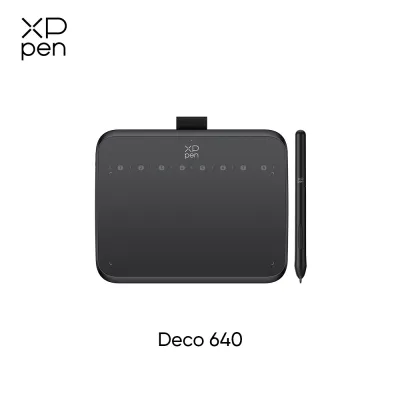
Prices are valid at publication and may change. Please refer to the product page for the latest price.
Modern drawing styluses typically offer 8,192 levels of pressure sensitivity. This specification determines how smoothly the line thickness or opacity transitions as you press harder on the tablet. Tilt recognition, usually measured up to 60 degrees, allows creative software to detect the angle of your pen, enabling realistic shading with digital pencils and charcoal brushes.
Electromagnetic Resonance (EMR) technology powers most modern styluses. This allows the pen to draw power wirelessly from the tablet’s magnetic field, eliminating the need for batteries or charging cables. When evaluating connectivity, look for USB-C compatibility to simplify your cable setup. While wireless Bluetooth models reduce desk clutter, wired connections are still preferred by many digital artists to completely eliminate input latency.
Best Drawing Pads for Beginners (Hobby & Learning)
For those starting out, a small to medium screenless pen tablet is the most practical choice. Popular entry-level options typically fall into a highly accessible price band, often under S$100. These devices are lightweight, incredibly durable, and require minimal desk space, making them ideal for study desks in compact living environments.

The primary challenge of a screenless tablet is learning to draw on your desk while looking up at your computer monitor. While this hand-eye disconnect can feel unnatural for the first few days, most beginners adapt quickly. A major benefit of this setup is ergonomics; keeping your gaze forward at a monitor prevents the neck strain associated with hunching over a screen.
Do not get distracted by premium features like multi-touch gestures or ultra-high resolutions. Instead, focus on a tablet that offers a battery-free stylus, at least 8,192 levels of pressure sensitivity, and a textured surface sheet that provides a comfortable amount of friction. The physical stylus tip, or nib, should slide smoothly without feeling slippery.
When starting out, driver stability is far more important than hardware shortcuts. Ensure the manufacturer provides regularly updated drivers for your operating system. A simple tablet with four to eight customizable express keys is more than enough to map your most frequent shortcuts, such as undo, zoom, and brush resize, without complicating your workflow.
Best Drawing Pads for Intermediate Artists (Freelance & Illustration)
As your skills progress into freelance illustration, graphic design, or webcomic production, your hardware needs to support faster workflows and greater precision. Intermediate artists generally transition to medium-to-large screenless tablets or entry-level pen displays ranging from 12 to 16 inches. These devices typically occupy a price band between S$250 and S$600.
Transitioning to a pen display allows you to draw directly on your digital canvas, drastically speeding up detailed line work, clean-up, and coloring. When choosing a mid-range pen display, look for a laminated screen. Lamination fuses the display glass with the underlying LCD panel, minimizing parallax—the annoying visual gap between where your physical pen tip touches the glass and where the digital cursor actually appears.
Intermediate drawing pads often feature physical dial wheels, scroll rings, or touch strips alongside customizable express keys. These physical controls allow you to adjust brush sizes, rotate the canvas, or zoom in and out with tactile precision. This reduces your reliance on a keyboard, allowing you to maintain focus on your artwork.
If you choose to stick with a screenless pen tablet at this stage, your computer monitor becomes the critical link in your creative pipeline. Verify that your primary monitor has high color accuracy, ideally covering at least 99% of the sRGB color spectrum. If your monitor displays colors inaccurately, your final illustrations may look drastically different when viewed on other devices or sent to print.
Best Drawing Pads for Professionals (Animation & Studio Design)
Professional animators, concept artists, 3D sculptors, and studio designers require heavy-duty hardware built for intensive, daily use. The standard professional setup consists of a large-format pen display, typically ranging from 22 to 32 inches. These premium tools represent a significant investment, with prices starting around S$1,200 and reaching well over S$3,500.
At larger screen sizes, high resolution is essential to prevent pixelation and eye strain. Professional displays should offer at least 2.5K (QHD) or 4K (UHD) resolution. Color accuracy is paramount; look for displays that cover a wide color gamut, such as 99% Adobe RGB or DCI-P3, and come with factory color calibration reports. This ensures that the colors you see on your screen match the final broadcast, print, or game engine output.
High-end displays feature chemically etched anti-glare glass rather than cheap matte screen protectors. Etched glass provides a permanent, paper-like texture that resists scratches and reduces reflections under bright studio lights. Many professional models also support multi-touch gestures, allowing you to pan, zoom, and rotate your canvas with natural hand gestures while simultaneously drawing with your stylus.
These large displays require a powerful PC with a dedicated graphics card (GPU) to render high-resolution strokes without lag, especially when working on complex, multi-layered files. They also generate moderate heat during long sessions and take up a permanent, substantial portion of your desk. Ensure your workspace can accommodate the physical footprint and the weight of these heavy devices.
When investing in professional-grade gear, verify the manufacturer’s local warranty terms and service options in Singapore. Minimizing downtime is critical for freelance deadlines and studio pipelines. Additionally, ensure the display is compatible with VESA mounts or high-quality adjustable arms, allowing you to easily reposition the screen to maintain healthy posture during ten-hour workdays.
Pre-Purchase Checklist: Compatibility and Desk Setup
Before purchasing any drawing pad, double-check that the manufacturer’s drivers are fully compatible with your PC’s operating system version. This is particularly important for users running newer Windows updates or specific Linux distributions. Additionally, verify that the tablet’s pressure sensitivity and shortcut keys are natively supported by your primary creative software, whether that is Adobe Creative Cloud, Clip Studio Paint, Toon Boom Harmony, or Blender.
Measure your desk’s physical depth and width before ordering a large pen display. Remember to account for the space required for your keyboard, mouse, and external monitors. Check your PC’s available ports; many modern pen displays require a USB-C port that supports DisplayPort Alt Mode (for video transmission) and Power Delivery, or a combination of HDMI and USB-A ports. If your PC lacks these ports, you will need to factor in the cost of compatible adapters or docking stations.
Drawing on a flat surface for extended periods can cause wrist fatigue, carpal tunnel symptoms, and neck strain. For screenless tablets, place the device directly in front of your keyboard to keep your spine aligned. For pen displays, use an adjustable stand that props the screen up at a 19-degree to 60-degree angle, allowing you to look down comfortably without hunching your shoulders.
Stylus nibs are consumables that wear down over time due to friction against the tablet surface. Check the price and local availability of replacement nibs before buying a tablet, as some proprietary nibs can be difficult to source locally. In Singapore’s warm, humid climate, avoid drawing pads with extensive rubberized coatings on the back panel or pen grip. Over time, humidity can cause these rubber coatings to degrade into a sticky residue; hard plastic or high-quality silicone grips are much more durable options for tropical environments.
Frequently Asked Questions (FAQ)
Do I need a drawing pad with a screen to start digital art?
No, a screen is not a necessity for learning or creating professional digital art. Screenless pen tablets are highly durable, cost-effective, and excellent for mastering foundational drawing skills. In fact, many artists prefer screenless tablets because they encourage a healthier, upright posture by keeping your eyes focused on a primary monitor rather than looking down at your hands.
Can I use a PC drawing pad with a laptop or mini PC?
Yes, almost all modern drawing pads are fully compatible with laptops and mini PCs. Compact screenless tablets typically draw power directly from a single USB port, making them highly portable. For larger pen displays, you must ensure your laptop or mini PC has the correct video output ports (such as HDMI or a video-compatible USB-C port) and can deliver enough power, which may require plugging the display into an external wall outlet.
Community discussion
Share your experience or ask a question. Comments are reviewed before publication.